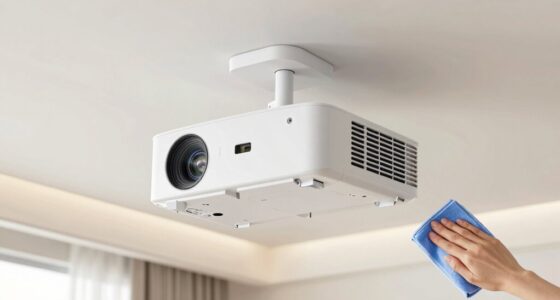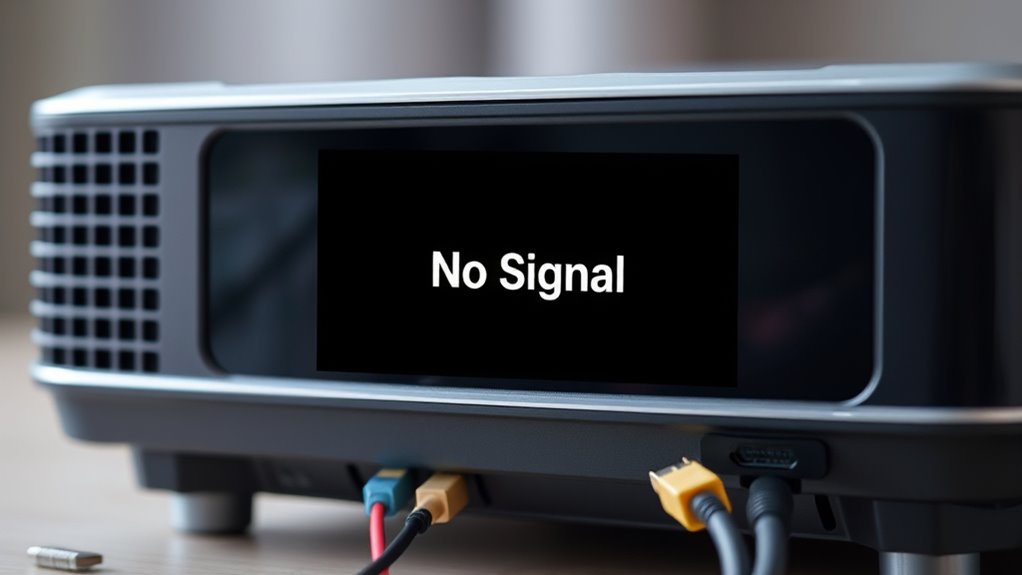

If you see a “No Signal” message on your projector, start by checking all cables for secure connections and verify none are damaged. Confirm the projector is set to the correct input source matching your device. Adjust your device’s display settings, such as duplicate or extend mode, to output properly. If needed, try different cables or ports to identify the problem. If issues persist, exploring further steps can help you fix the issue effectively.

Get business pricing on your home office setup
- Business-only prices and quantity discounts
- Tax-exempt purchasing
- Multiple users, one account, clear invoices
Key Takeaways
- Check all cables for secure connections, damage, or fraying; replace if necessary.
- Verify the projector is set to the correct input source matching connected device.
- Ensure the device is outputting a signal and display settings are properly configured.
- Reconnect cables and test with different cables or devices to identify potential issues.
- Confirm ports and cables are undamaged and compatible to prevent signal disruption.
If your projector displays a “No Signal” message, it can be frustrating, but many issues are easily fixable. The first step is to check your cable troubleshooting. Sometimes, the problem isn’t with the projector itself but with the connection. Start by inspecting all cables, ensuring they’re securely plugged into both the projector and your device. Loose or damaged cables often cause signal issues, so replace any frayed or worn-out cords. If you’re using HDMI, VGA, or other video cables, make sure they’re properly seated in their ports. Sometimes, a simple unplug and replug can restore the connection. Also, consider testing the cables with another device to rule out cable failure.
Check all cables are secure and undamaged to fix your projector’s signal issues.
Once the cables are secure, focus on the input selection. Projectors usually have multiple input options, such as HDMI 1, HDMI 2, VGA, or DisplayPort. If the projector isn’t set to the correct input, it won’t recognize the device’s signal, resulting in the “No Signal” message. Use the projector’s remote or onboard controls to cycle through the available input sources. Confirm that you’ve selected the input corresponding to the cable connected to your device. For example, if you’re using an HDMI cable connected to HDMI 1 port, ensure the projector is set to HDMI 1. Sometimes, the input selection can be accidentally changed, especially after power outages or device movement.
If switching inputs doesn’t work, double-check your device’s output settings. On a laptop, for instance, you might need to enable or switch the display output mode. On Windows, press Windows + P to access display options, and choose Duplicate, Extend, or Second screen only, depending on your setup. On Macs, go to System Preferences > Displays to detect the projector. If your device isn’t outputting a signal, the projector won’t receive one, resulting in the “No Signal” message. Additionally, ensuring compatibility between your device’s resolution and the projector’s supported display settings can prevent signal issues. Once you’ve confirmed the cables are intact, the input selection is correct, and the device settings are compatible, your projector should recognize the signal. If problems persist, try testing with another device or cable to pinpoint whether the issue is with the projector, the cable, or the source device.
As an affiliate, we earn on qualifying purchases.
Frequently Asked Questions
Can a Damaged HDMI Cable Cause a “No Signal” Error?
Yes, a damaged HDMI cable can cause a “no signal” error. Poor cable quality or physical damage to the cable can interrupt the connection between your device and projector. Additionally, if the port on either device is damaged, it can worsen the issue. To fix this, try using a high-quality, undamaged HDMI cable and inspect the ports for any visible damage. This should restore your signal.
Will Resetting the Projector’s Firmware Fix the “No Signal” Problem?
Resetting the projector’s firmware can sometimes fix the “no signal” problem if it’s caused by a software glitch. You should follow the reset procedures outlined in the user manual or support site. While a firmware update isn’t always necessary, it can improve performance and fix bugs that might be causing the issue. Keep in mind, if the problem persists, hardware issues could be the culprit.
How Do I Test if My Projector’s Input Port Is Faulty?
Coincidentally, testing your projector’s input port is straightforward. First, connect a different device or HDMI cable to rule out the original source. If the projector still shows no signal, perform input port testing by gently wiggling the cable and checking for loose connections. Faulty port diagnosis involves trying alternate cables or ports. If issues persist, the port may be damaged and need professional repair or replacement.
Is It Necessary to Update My Device’s Graphics Driver?
Yes, updating your graphics driver is necessary for better device compatibility and to fix display issues. An outdated graphics driver can cause connection problems, including “No Signal” errors. You should regularly check for driver updates from your device manufacturer or graphics card provider. Updating guarantees your device works smoothly with your projector and resolves potential compatibility conflicts, reducing the chances of input or connection issues.
Can Ambient Lighting Affect the Projector’s Signal Detection?
Ambient lighting can be like fog rolling in, subtly clouding your projector’s signal detection. Bright or uneven lighting creates signal interference, making it harder for your projector to recognize input sources. To guarantee a clear picture, dim or control ambient lighting, especially in the projection area. This helps your device focus better, reducing interference and improving the chances of a strong, consistent signal.
As an affiliate, we earn on qualifying purchases.
Conclusion
If you’re still seeing the “no signal” message, try checking your connections and input settings again. Sometimes, simply switching cables or selecting the correct input source can resolve the issue. It’s also worth testing with different devices to rule out hardware problems. Believe it or not, many projector issues stem from overlooked connection details. By systematically troubleshooting, you’ll often find the solution quickly, ensuring you can enjoy your presentation or movie without frustration.
As an affiliate, we earn on qualifying purchases.
As an affiliate, we earn on qualifying purchases.
Columbus Day / Indigenous Peoples' Day Picks
long weekend sales
As an affiliate, we earn on qualifying purchases.