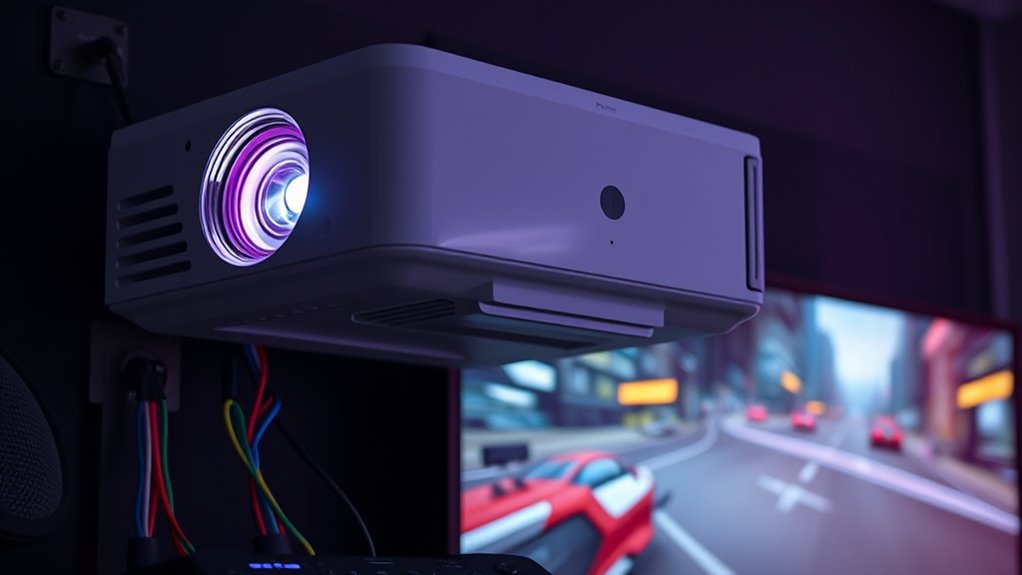
To fix high input lag on your projector, start by enabling game or low latency mode to prioritize speed. Use wired controllers and high-quality HDMI cables for minimal delays, and avoid unnecessary splitters or adapters. Make certain your device’s firmware and drivers are up-to-date for best compatibility. Adjust calibration settings to reduce processing time and ensure ambient lighting isn’t causing distractions. Keep exploring ways to fine-tune your setup for a more responsive gaming experience.
Key Takeaways
- Enable “Game Mode” or “Low Latency” on your projector to reduce processing delay.
- Use wired input devices and high-quality HDMI cables to minimize signal lag.
- Adjust calibration settings to prioritize responsiveness over image processing.
- Ensure all peripherals have updated drivers and are fully compatible with your system.
- Minimize external environmental factors like ambient light and reflection for a more responsive gaming experience.
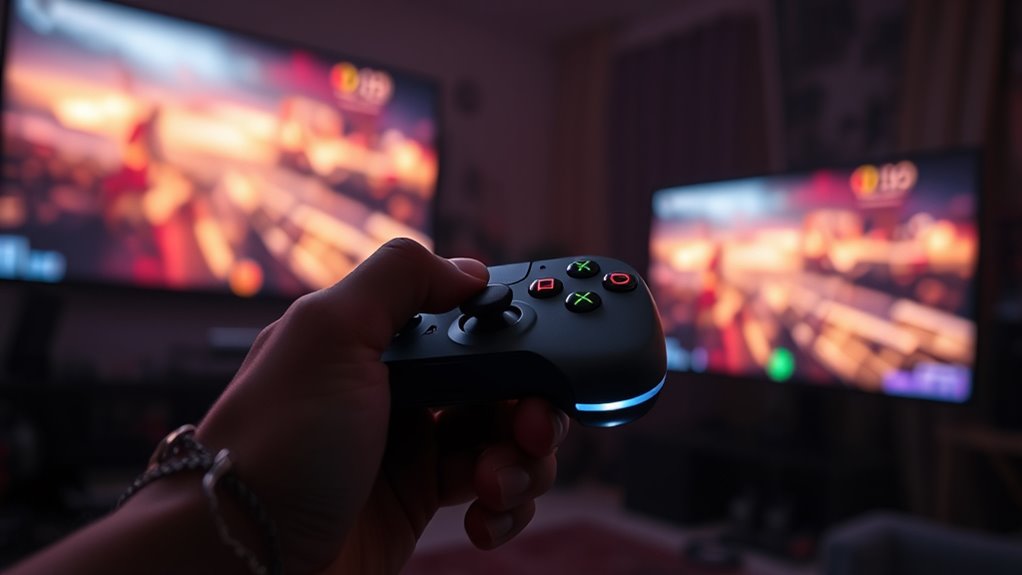
Gaming delays on projectors can be frustrating, especially when you’re keen to enjoy smooth gameplay. High input lag can ruin the experience, making every move feel sluggish and disconnected. To tackle this, start by examining your calibration settings. Many projectors have specific modes or configurations designed to minimize latency, like “Game Mode” or “Low Latency” presets. These settings enhance the projector’s internal processing, reducing delays that can occur during fast-paced gaming. Adjust these options first, and see if they improve responsiveness. Sometimes, default settings prioritize image quality over speed, leading to unnecessary delays. Fine-tuning calibration settings ensures your projector is set up for quick response times, which is essential for gaming.
Activate Game Mode or Low Latency settings to reduce input lag and enhance gaming responsiveness.
Another critical factor influencing input lag is input device compatibility. Not all controllers, keyboards, or mice work equally well with projectors, especially if they rely heavily on wireless signals or Bluetooth connections. Wireless devices can introduce additional latency, so it’s often better to connect wired input devices whenever possible. Check that your gaming peripherals are fully compatible with your setup; some devices may have firmware updates or driver requirements that, if overlooked, cause delays. Additionally, ensure your input device is recognized properly by your gaming system and that there are no conflicts or settings that might slow down data transmission. Sometimes, outdated drivers or incompatible hardware can cause notable lag, so keeping everything updated and compatible is a simple yet effective step.
Beyond the hardware and settings, think about the connection method itself. HDMI is the most common connection type for projectors, but not all HDMI cables are created equal. Using a high-speed HDMI cable that supports the latest standards can cut down on signal processing delays. Also, avoid passing through unnecessary splitters or adapters, which can add latency. If you’re using a gaming console or PC, ensure the device is configured for maximum performance—disable any unnecessary background processes or visual enhancements that could introduce lag. Moreover, enabling game mode on your projector can significantly reduce input lag by prioritizing fast response times over image processing quality.
Finally, consider the environment in which you’re gaming. External factors like ambient light, screen reflections, or even the distance between your input device and the projector can subtly affect your experience. While these are less direct, they contribute to overall responsiveness and enjoyment. By paying close attention to calibration settings, ensuring input device compatibility, using high-quality cables, and optimizing your environment, you can considerably reduce input lag. This way, your gaming sessions become more fluid, responsive, and truly enjoyable—no more frustrating delays holding you back.
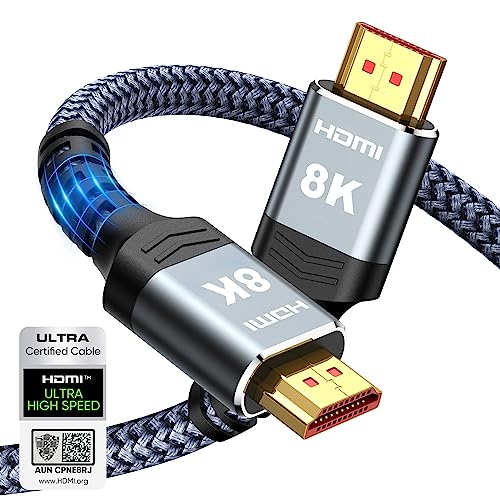
Highwings 8K 10K 4K HDMI Cable 48Gbps 6.6FT/2M, Certified Ultra High Speed
- Supports 8K@60Hz and 4K@120Hz: Ultra-high speed HDMI 2.1 for clear display
- 48Gbps Data Transfer: No lag or dropped frames during viewing
- Backward Compatible: Works with HDMI 2.0 and earlier versions
As an affiliate, we earn on qualifying purchases.
As an affiliate, we earn on qualifying purchases.
Frequently Asked Questions
Can Adjusting Projector Brightness Reduce Input Lag?
Adjusting your projector brightness doesn’t directly reduce input lag, but it can improve overall image quality, making gaming smoother. Proper color calibration ensures accurate visuals, which can help you react faster. Additionally, optimizing projector placement minimizes delays caused by latency. Focus on balancing brightness with contrast and ensuring your setup is ideal, as these factors combined can create a more responsive gaming experience without directly affecting input lag.
Is There a Recommended Projector Brand for Low Latency Gaming?
Think of the sleekness of a sports car—fast, responsive, precise. For low latency gaming, brands like BenQ and Optoma stand out. They’re known for projectors that prioritize low latency, ensuring your gameplay remains smooth and synchronized. When choosing a projector brand, look for models specifically designed for gaming, with low input lag specifications. This way, you get a seamless gaming experience without frustrating delays, just like a well-tuned race car.
How Does Projector Resolution Affect Input Delay?
Your projector’s resolution impacts input delay mainly through pixel processing. Higher resolutions, like 4K, require more processing, which can increase latency and cause noticeable delays during gaming. Conversely, lower resolutions often process faster, reducing input lag. To minimize delays, choose a projector with a resolution that balances visual quality and processing speed, ensuring quick response times and a smoother gaming experience without sacrificing too much image clarity.
Do Wireless Connections Increase Gaming Input Lag?
Wireless connections can increase gaming input lag due to wireless interference and signal instability. Unlike wired setups, which provide a steady, low-latency link, wireless signals are prone to disruptions that cause delays. This instability makes your inputs feel less responsive, especially during fast-paced games. To minimize lag, opt for a wired connection whenever possible, ensuring a stable, low-latency environment for smoother gameplay and quicker reactions.
Can Using a Gaming Mode on the Projector Improve Response Times?
Using the gaming mode on your projector can greatly improve response times. When you activate gaming mode, it reduces processing delays and minimizes image enhancements that cause lag. This setting prioritizes low latency, making your gameplay more responsive. To get the best performance, make sure gaming mode is turned on, and check your projector’s settings for any additional options that optimize response time. This simple step can make a noticeable difference in your gaming experience.

PowerA Wired Controller for Xbox Series X|S – Black, gamepad, wired video game controller, gaming controller, works with Xbox One and Windows 10/11
- Dual Rumble Motors: Enhanced tactile feedback for immersive gaming
- Immersive Impulse Triggers: Feel game actions with built-in motors
- Extra Long USB-C Cable: 10-foot cable for greater comfort and flexibility
As an affiliate, we earn on qualifying purchases.
As an affiliate, we earn on qualifying purchases.
Conclusion
To reduce input lag on your projector, try lowering the resolution or turning off extra processing features. Connecting your gaming device directly with a high-quality HDMI cable can also make a big difference. Think of it like clearing a busy highway—you want the fastest, most direct route. By simplifying settings and ensuring a solid connection, you’ll experience less delay and enjoy smoother gameplay. It’s all about optimizing your setup for the best gaming performance.

BenQ TH671ST 3000 Lumens 1080p Short Throw Home Entertainment Projector
- High-Resolution Display: Native Full HD 1080p resolution
- Vivid Color Accuracy: 92% Rec. 709 color accuracy
- Bright Image: 3000 lumens brightness
As an affiliate, we earn on qualifying purchases.
As an affiliate, we earn on qualifying purchases.

【Officially-Licensed APP & 3200 ANSI】4K Mini Outdoor Projector with WiFi and Bluetooth, VOPLLS Smart Portable Movie Wireless TV Projector for Home/Gaming/Bedroom
- Smart Streaming Compatibility: Supports Netflix, YouTube, Prime Video
- Instant Entertainment: No extra devices or HDMI needed
- High-Quality Image: 3200 ANSI, HDR10, 4K input support
As an affiliate, we earn on qualifying purchases.
As an affiliate, we earn on qualifying purchases.