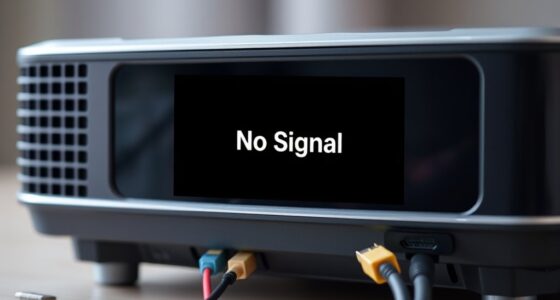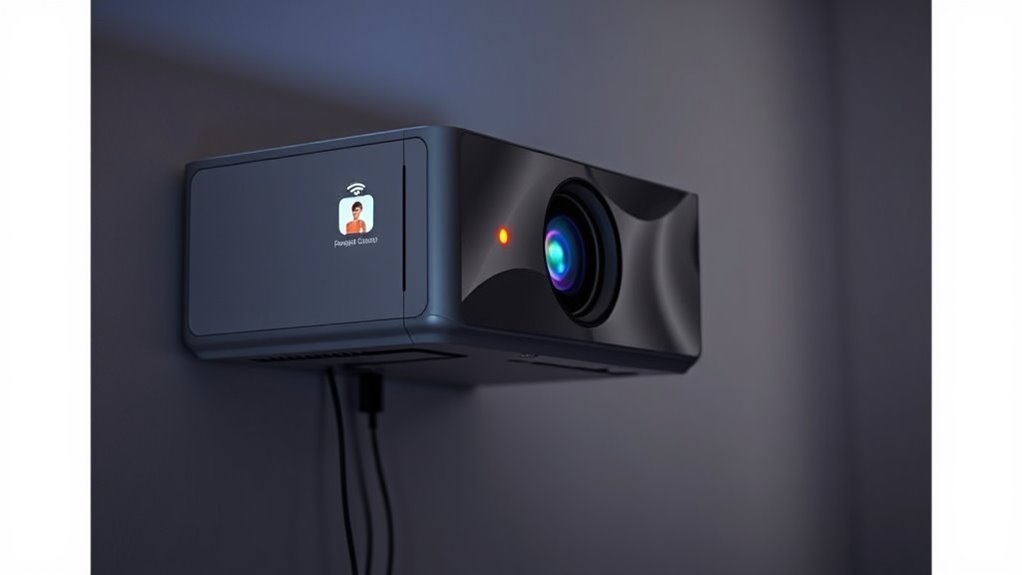

If your smart projector struggles with Wi-Fi connection or streaming, start by checking if other devices connect smoothly to your Wi-Fi network. Restart your router and move the projector closer to improve signal strength. Confirm the projector is connected to the correct network with the right password. Updating the firmware can fix many issues. If problems persist, more detailed steps can help you get your streaming back on track.
Key Takeaways
- Verify other devices can connect to the Wi-Fi to identify if the issue is with the network or the projector.
- Ensure the projector is connected to the correct Wi-Fi network with the proper password.
- Check for and install any available firmware updates to improve connectivity and streaming stability.
- Reposition the router or move the projector closer to strengthen the Wi-Fi signal and reduce interference.
- Restart the router and reset the projector’s network settings to resolve temporary connection glitches.
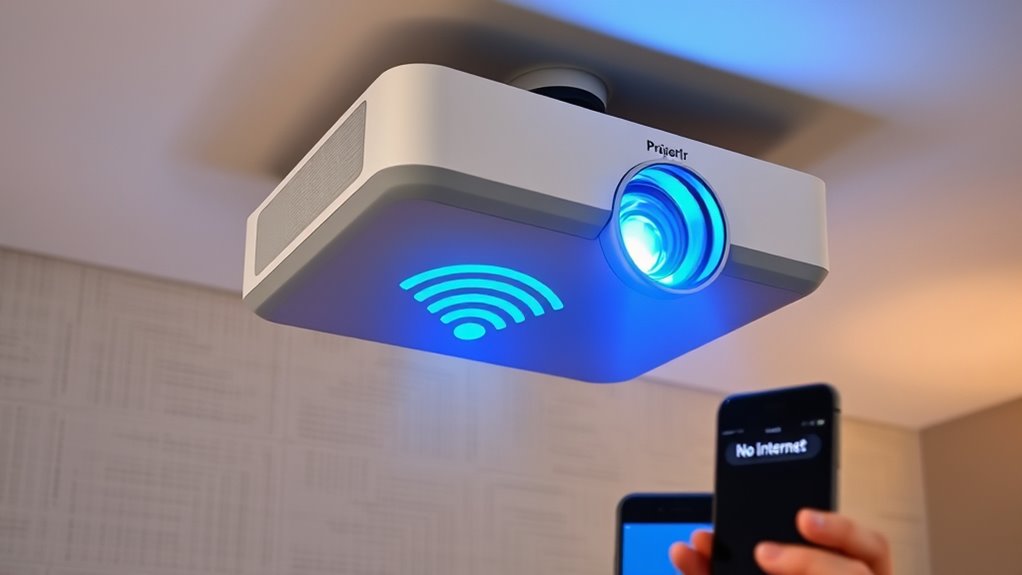
Smart projectors offer convenient wireless connectivity, but many users encounter Wi-Fi connection issues that disrupt their viewing experience. When your projector refuses to connect or keeps dropping the signal, it can be frustrating, especially when you’re keen to stream your favorite shows or presentations. The first step is to troubleshoot your network. Start by checking if other devices, like your phone or tablet, are able to connect to the same Wi-Fi network without problems. If they’re also experiencing issues, the problem likely stems from your router or internet service provider. Restarting your router can often resolve temporary glitches; simply unplug it, wait about 30 seconds, then plug it back in. Make sure your Wi-Fi signal is strong enough and that your projector is within a good range of your router. Obstacles like walls or appliances can weaken the signal, so think about repositioning your router or moving your projector closer.
If your network seems stable but your projector still struggles to connect, it’s time to troubleshoot the device itself. Check the network settings on your projector—ensure it’s connected to the correct Wi-Fi network and that you’ve entered the right password. Sometimes, network settings can get mixed up, especially if you’ve recently changed your Wi-Fi password or network name. Resetting the network connection on your projector can help; disconnect from Wi-Fi and then reconnect, entering the credentials anew. If problems persist, consult your projector’s manual or support website for specific instructions.
Firmware updates are another vital aspect to think about. Manufacturers often release firmware updates to fix bugs, improve stability, and enhance connectivity features. If your projector’s firmware isn’t current, it might struggle to maintain a stable Wi-Fi connection. Check for updates through the projector’s settings menu or on the manufacturer’s website. If an update is available, follow the instructions to install it, preferably using a wired connection or a stable Wi-Fi network to prevent interruptions. Updating the firmware can resolve underlying software issues that cause Wi-Fi problems, making your streaming experience smoother. Additionally, understanding the nature of dream symbols can help you interpret underlying frustrations or anxieties related to technical issues, providing insight into your emotional response to connectivity problems.
Ultimately, persistent Wi-Fi issues may require more advanced troubleshooting or contacting customer support. But most of the time, addressing network troubleshooting, resetting your connections, and ensuring your firmware is up to date will get your smart projector back online. With a little patience and these steps, you’ll be streaming your favorite content without interruption in no time.

Official Licensed Google TV Smart Projector, HAPPRUN 4K UHD Home Theater with Dolby Sound, Wi-Fi & Bluetooth, Built-in Streaming Apps, Compatible with Games Consoles & Smartphone, Indoor & Outdoor Use
[ Built-in Official Licensed Google TV ] - Without additional equipment, the smart projector can directly access Netflix,...
As an affiliate, we earn on qualifying purchases.
Frequently Asked Questions
Can I Connect Multiple Devices to the Projector’s Wi-Fi Simultaneously?
Yes, you can connect multiple devices to your projector’s Wi-Fi simultaneously for multi-device streaming. Most smart projectors support multiple concurrent connections, allowing you to share content from smartphones, tablets, or laptops without disconnecting. Keep in mind, however, that bandwidth limits may affect streaming quality if too many devices are active at once. Confirm your Wi-Fi network is strong enough to handle multiple simultaneous connections for smooth streaming experiences.
Does Firmware Update Fix Wi-Fi Connectivity Problems?
You’ll find that firmware updates often fix Wi-Fi connectivity problems by providing essential connectivity improvements. When you install the latest firmware, it’s like giving your projector a tune-up, which can resolve bugs and enhance signal stability. So, if you’re experiencing Wi-Fi issues, updating the firmware is a smart step. It’s a simple way to improve overall connection reliability and enjoy smoother streaming without interruptions.
How Do I Reset Network Settings on My Smart Projector?
You can reset network settings on your smart projector by accessing the settings menu and selecting the network or Wi-Fi options. Look for a “Network Reset” or similar option, then confirm your choice. This Wi-Fi troubleshooting step clears saved networks and resets your connection configurations. Afterward, reconnect to your Wi-Fi network. Performing a network reset often resolves connectivity issues, making it easier to get online streaming working smoothly.
What Security Protocols Are Supported for Wi-Fi Connection?
Your smart projector supports various security protocols like WPA2 and WPA3 for wireless encryption, ensuring your connection stays secure. It’s important to check your network’s security compatibility to prevent connection issues. Most modern projectors also support WPA3, offering enhanced protection. Always use strong passwords and update your device’s firmware to maintain peak security. By understanding these security protocols, you can enjoy seamless streaming while keeping your data safe.
Is There an App to Troubleshoot Wi-Fi Issues Remotely?
Ever wondered if there’s an app solution for remote troubleshooting your smart projector’s Wi-Fi? Yes, many projectors support apps like Google Home or manufacturer-specific ones that let you diagnose and fix connection issues remotely. These apps enable you to monitor network strength, restart the device, and adjust settings without being physically present. Using these tools simplifies troubleshooting and helps you get back to streaming quickly, saving you time and frustration.
![Projector-4K with WiFi and Bluetooth:[3500 ANSI/60W Dolby Audio/Official Licensed Apps], Outdoor-Projector with Smart OS 2.0 & AI Auto Focus,ONOAYO ONO5Pro 2.0 Smart Movie Projector for Indoor/Outdoor](https://m.media-amazon.com/images/I/41fylkjOTIL._SL500_.jpg)
Projector-4K with WiFi and Bluetooth:[3500 ANSI/60W Dolby Audio/Official Licensed Apps], Outdoor-Projector with Smart OS 2.0 & AI Auto Focus,ONOAYO ONO5Pro 2.0 Smart Movie Projector for Indoor/Outdoor
[Hear the Difference–Hollywood-Grade Dual 60W Dolby Audio] Why spend $500 on a TV + soundbar or settle for...
As an affiliate, we earn on qualifying purchases.
Conclusion
Don’t let Wi-Fi issues dim your streaming experience. Think of your smart projector as a window to endless entertainment—sometimes it just needs a little adjustment to let the magic flow freely. With a few simple troubleshooting steps, you’ll have your connection singing like a well-tuned orchestra. Soon, your favorite shows will shine bright on the screen, transforming your space into a vibrant hub of entertainment. Keep tinkering, and let the digital dance begin!
1500 ANSI Official Licensed Google TV Smart Projector, HAPPRUN 4K Full HD Home Theater with Auto Focus, Dolby Sound, Wi-Fi Bluetooth, Built-in Apps, Compatible with Phone & PC, Indoor & Outdoor Use
[ Built-in Officially Licensed Google TV ]-Enjoy the reliability of an officially certified Google TV projector. Stream Netflix,...
As an affiliate, we earn on qualifying purchases.

HAPPRUN 2500 ANSI Lumens Outdoor Projector with Built-in Streaming Apps, 4K Decoding Resolution, Dolby Audio, WiFi 6 and Bluetooth 5.2 for Indoor and Outdoor Home Theater
[ Built-in Streaming System ] – No extra equipment needed. This smart projector gives you direct access to...
As an affiliate, we earn on qualifying purchases.