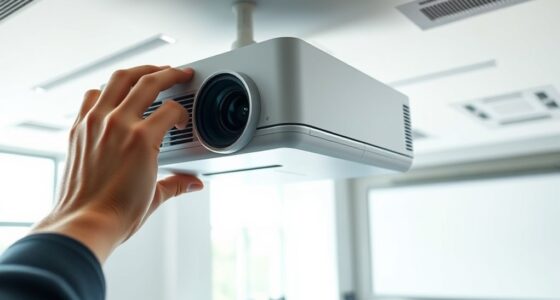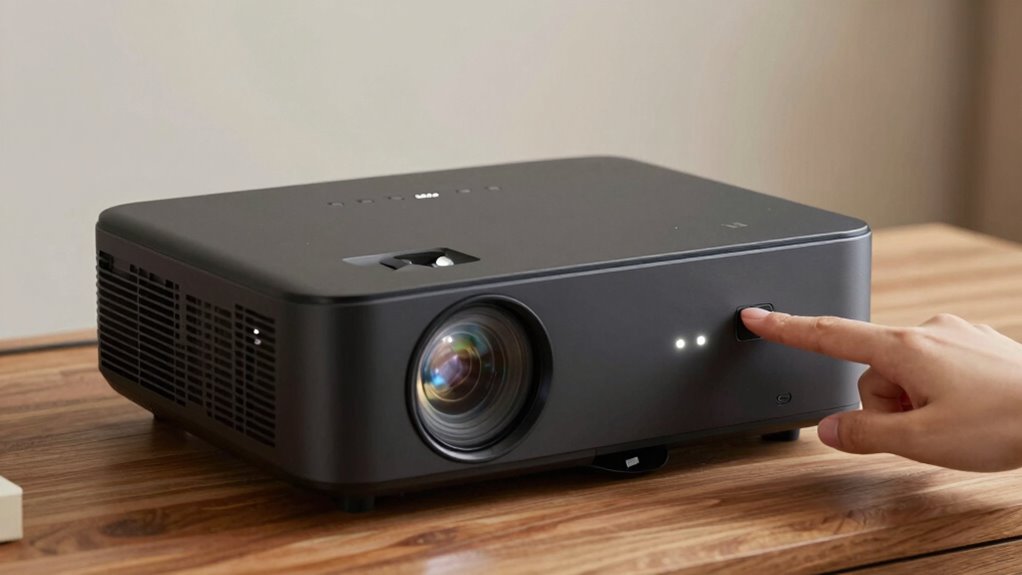

To reset your projector without losing important settings, start with a basic reset by turning it off, unplugging, waiting a couple of minutes, then powering it back on. If issues persist, access the menu and choose “Reset to Factory Defaults”—just be aware this erases all custom setups. Before resetting, note down key configurations to reapply later. For ongoing maintenance, keeping firmware updated and replacing bulbs when needed helps keep your projector in top shape; more tips are ahead.
Key Takeaways
- Perform a basic reset by turning off, unplugging, waiting 1-2 minutes, and then restarting the projector.
- Use the menu to access “Reset to Factory Defaults” only if simpler resets fail.
- Record customized settings before resetting to preserve important configurations.
- Update firmware via USB to fix issues without resetting settings.
- Regularly maintain the projector, including bulb replacement, to prevent issues needing resets.
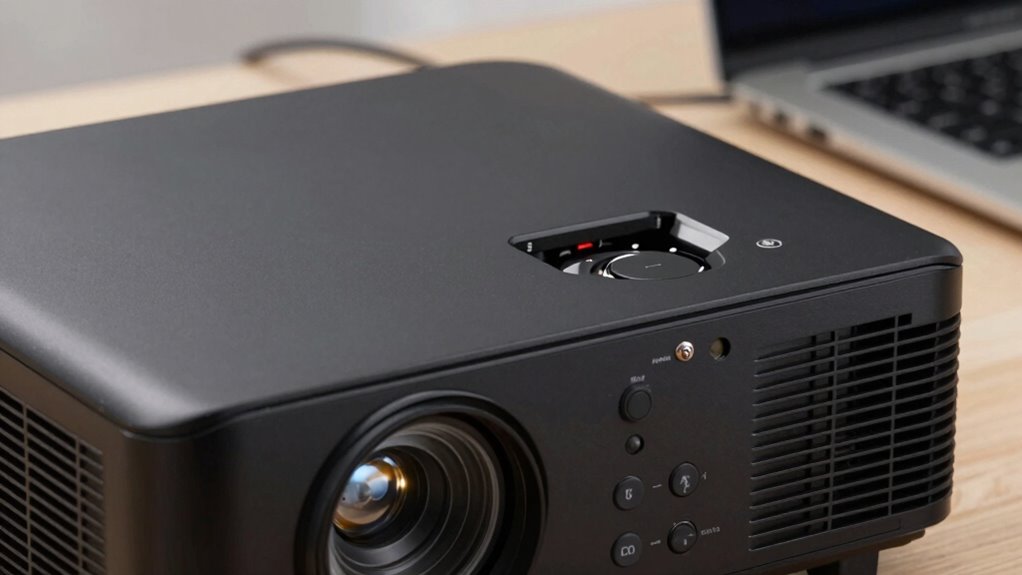
If your projector is acting up or not displaying correctly, resetting it can often resolve the issue. Sometimes, the problem stems from simple glitches or outdated settings, and a reset helps clear those. Before diving into more complex fixes, it’s smart to check if your projector needs a quick reset. This process can fix minor issues without risking significant data loss or configuration changes. However, keep in mind that some resets might reset custom settings to factory defaults, so it’s good to note your preferences beforehand.
When you’re ready, start by turning off your projector and unplugging it from the power source. Wait for about a minute or two; this allows any residual power to drain and helps reset internal components. Power it back on and check if the issue persists. If it does, consider more targeted resets, like restoring the projector’s factory settings. This step usually involves browsing through the menu system, where you’ll find options like “Reset to Factory Defaults” or “Reset Settings.” Be cautious—this step typically resets all custom configurations, including network settings, image adjustments, and input preferences. To avoid losing more than necessary, jot down your key settings beforehand so you can reapply them later.
In some cases, resetting your projector might involve updating the firmware. Firmware update procedures are important because they often fix bugs, improve performance, and enhance compatibility with new devices. If your projector isn’t functioning well even after a reset, check the manufacturer’s website for the latest firmware version and follow their update instructions carefully. Usually, this involves downloading the firmware onto a USB drive, inserting it into the projector, and selecting the update option from the menu. Firmware updates can resolve issues like display errors or connectivity problems that a simple reset doesn’t fix. Additionally, understanding the content formats and digital concepts associated with your device can help ensure proper maintenance and troubleshooting.
Another maintenance aspect to think about is the projector bulb. Over time, the bulb’s brightness diminishes, affecting picture quality. If you notice a dim or flickering image, it might be time for a projector bulb replacement. Replacing the bulb is straightforward but requires careful handling to avoid damage. Consult your user manual for specific instructions, and always use genuine replacement bulbs to ensure safety and best performance. Combining regular firmware updates with timely projector bulb replacements can extend your projector’s lifespan and keep it running smoothly without needing frequent resets or repairs.
As an affiliate, we earn on qualifying purchases.
Frequently Asked Questions
Can Resetting Fix All Projector Issues?
Resetting your projector can fix many issues, but it might not solve everything. It often helps resolve minor glitches and software problems, especially after firmware updates. However, for persistent hardware issues, you should perform thorough hardware inspections first. Resetting is a good step, but if problems persist, consider updating firmware or consulting a technician. This way, you guarantee you’re addressing both software and hardware concerns effectively.
Will Resetting Delete Custom Settings?
Resetting a projector generally won’t delete your custom settings if you choose a partial reset or calibration reset option. These resets focus on fixing issues without wiping your personalized calibration or settings. However, a full factory reset usually restores the projector to its original state, erasing custom settings and calibration. To preserve your custom configurations, look for options labeled “partial reset” or “calibration reset” in your projector’s menu.
How Often Should I Reset My Projector?
They say, “Prevention is better than cure,” so you should reset your projector only when necessary. For maintenance tips, do it every few months or if you notice troubleshooting methods aren’t resolving issues. Frequent resets can cause wear, so avoid overdoing it. Reset only when you experience persistent problems or after updates. This keeps your projector running smoothly without risking unnecessary data loss or damage.
Is a Factory Reset the Same as a Soft Reset?
A factory reset isn’t the same as a soft reset. A factory reset restores your projector to its original settings, erasing all customized data, while a soft reset simply restarts the device to fix minor issues without deleting any settings. If you’re troubleshooting, start with a soft reset. Use a factory reset only if problems persist, as it resets everything and might cause data loss.
Do Reset Procedures Vary by Projector Brand?
You might think all projectors follow the same reset steps, but brand-specific procedures actually vary considerably. Investigating reset compatibility, it’s clear that different brands design their systems uniquely, affecting how you perform resets. For example, some projectors require menu navigation, while others use dedicated buttons. So, always check your projector’s manual or support resources, because blindly following generic instructions could lead to unintended settings loss or malfunctions.
As an affiliate, we earn on qualifying purchases.
Conclusion
Think of resetting your projector as tending to a garden. Sometimes, you need to prune away the overgrowth of errors and clutter to allow new, clear visuals to flourish. By resetting wisely, you’re nurturing your device, giving it room to grow stronger without losing its essence. Handle it with care, like tending a delicate plant, and your projector will bloom with fresh clarity and performance, ready to light up your space once again.
As an affiliate, we earn on qualifying purchases.

Presentation Clicker with USB-A & USB-C Receiver, 2.4GHz Wireless Presenter Remote with Volume Control & Red Light Pointer, Clicker for PowerPoint Slides Slide Advancer for Mac Computer, Plug & Play
- Universal USB-A & USB-C Receiver: Built-in dual connectors for all devices
- Plug & Play Compatibility: No software needed, works instantly
- Bright Red Laser Pointer: Highlights slides clearly in large rooms
As an affiliate, we earn on qualifying purchases.
As an affiliate, we earn on qualifying purchases.