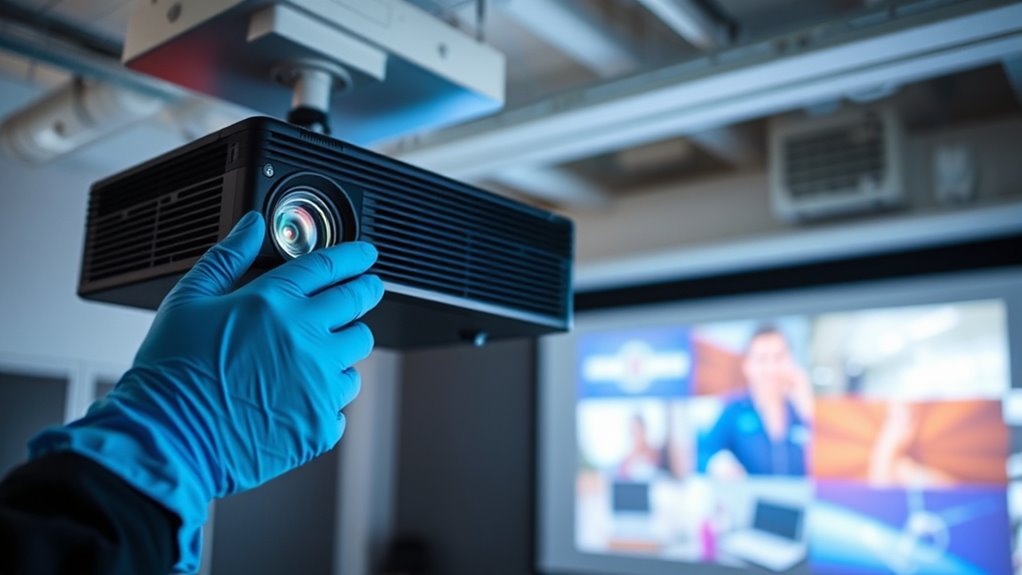

To fix common projector issues quickly, start by checking and securing all cables, swapping them if needed. Use your device’s display settings to match duplicate or extend modes and guarantee the projector recognizes your laptop. For image issues, adjust keystone correction, focus, and projector positioning to improve clarity and alignment. Regularly clean the lens and verify proper input source. If problems persist, more tips await to help you troubleshoot efficiently and keep your presentation on track.
Key Takeaways
- Check and secure all HDMI or VGA cables, swapping if the display flickers or isn’t recognized.
- Use display settings (Windows + P or Mac Detect Displays) to quickly duplicate or extend screens.
- Adjust projector focus and keystone correction to fix image blurriness and distortion rapidly.
- Clean the projector lens and verify the correct input source to improve image clarity.
- Ensure the projector is level and properly aligned with the screen for optimal image quality.
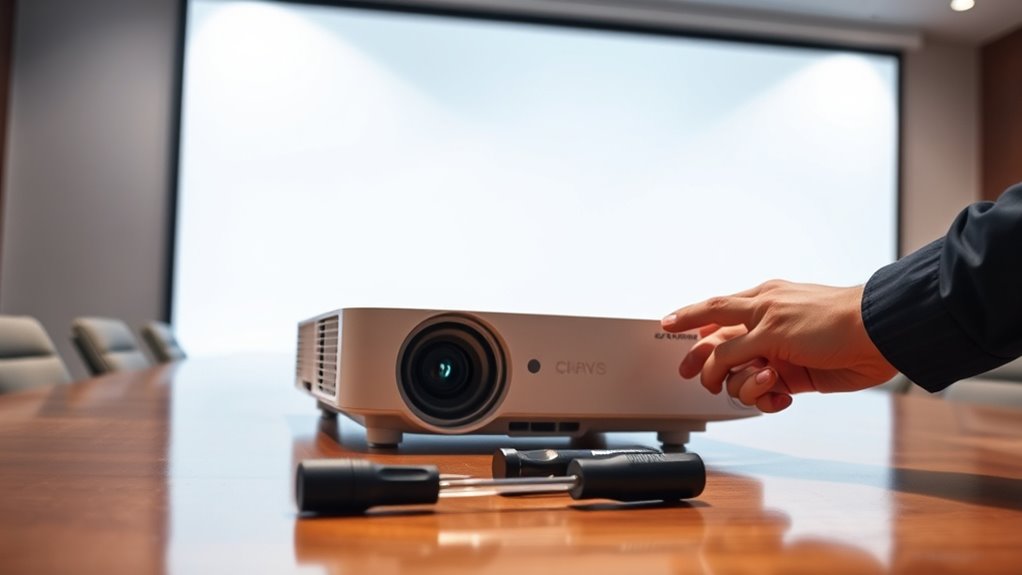
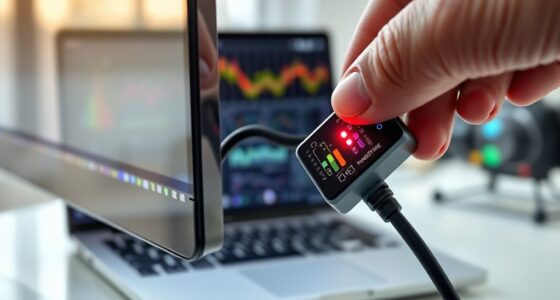
Projectors are essential tools for presentations, movies, and meetings, but they often come with common issues that can disrupt your workflow. One of the most frustrating problems is difficulty establishing a stable connection between your laptop and the projector. If your display isn’t showing up, start by checking the cables first. Ensure the HDMI or VGA cable is securely plugged into both your laptop and the projector. Sometimes, a loose connection is all it takes to cause a blank screen or flickering image. If your laptop isn’t recognizing the projector, try switching to a different port or replacing the cable altogether. Also, make sure your laptop’s display settings are configured correctly. On Windows, press Windows + P and select “Duplicate” or “Extend” to mirror or extend your screen to the projector. On Mac, go to System Preferences > Displays and click “Detect Displays” to compel the system to recognize the projector. These quick steps can often resolve connectivity hiccups in less than a minute.
Another common issue is projector alignment, which can make your image appear distorted, skewed, or improperly sized. When your image isn’t centered or looks stretched, it’s usually a matter of adjusting the projector’s position or settings. Start by moving the projector closer or farther from the screen to get the right size. If the image is skewed, most projectors allow you to correct this via keystone correction. Use the projector’s remote or onboard menu to access keystone or trapezoid correction features. Adjust these settings gradually while observing the screen until the image becomes rectangular and properly aligned. Additionally, ensure the projector is positioned squarely in front of the screen; angling it too much can cause distortion that’s difficult to fix without proper alignment.
If the image is blurry or out of focus, check the lens for dirt or smudges—clean it gently with a microfiber cloth. Adjust the focus ring until the picture sharpens. Sometimes, the projector’s lens shift feature can help you align the image precisely without physically moving the device. Remember that proper projector alignment isn’t just about aesthetics; it’s about ensuring your audience sees a clear, professional display. By taking a few minutes to troubleshoot laptop connectivity issues and fine-tune projector alignment, you can avoid lengthy delays and keep your presentation flowing smoothly. These quick fixes are simple, effective, and can save you time and frustration when technical problems threaten to throw you off course. Additionally, understanding educational and skill-building toys can help you prepare engaging content for presentations involving children or training sessions.

BENFEI HDMI to VGA 6 Feet Cable, Uni-Directional HDMI Computer to VGA Monitor Cable (Male to Male) Compatible for Computer, Desktop, Laptop, PC, Monitor, Projector, HDTV, Roku, Xbox
COMPACT DESIGN – The compact-designed portable Benfei HDMI to VGA adapter connects a computer, desktop, laptop, or other…
As an affiliate, we earn on qualifying purchases.
As an affiliate, we earn on qualifying purchases.
Frequently Asked Questions
How Often Should I Perform Maintenance on My Projector?
You should perform maintenance on your projector every 3 to 6 months to keep it running smoothly. Follow a regular maintenance schedule, including cleaning filters and checking for dust buildup. Incorporate troubleshooting tips like inspecting the lamp and adjusting settings as needed. Regular upkeep prevents issues and extends your projector’s lifespan, ensuring peak performance during your presentations or movie nights. Don’t skip these simple steps for hassle-free use.
Can I Fix a Projector Screen Issue Myself?
You can often fix a projector screen issue yourself with some DIY repairs and troubleshooting tips. Start by inspecting the screen for damage or loose connections, and try cleaning or adjusting it first. If the problem persists, refer to your projector’s manual or online guides for specific fixes. While some issues are simple to resolve, avoid complex repairs if you’re unsure — knowing when to call a professional is key to avoiding further damage.
What Safety Precautions Are Needed When Troubleshooting?
When troubleshooting your projector, you need to prioritize electrical safety by unplugging it before opening or handling internal parts. Always handle delicate components carefully to avoid damage. Use insulated tools if necessary, and avoid working on the device in wet or damp conditions. Keep your workspace clear of clutter, and wear gloves if dealing with sharp edges. Following these precautions helps prevent electrical shocks and protects sensitive parts during repairs.
Are There Specific Brands More Prone to Common Issues?
Think of projector brands as cars—some models are more prone to breakdowns. Certain brands, like Epson and BenQ, generally have better brand reliability, but they can still face common defects such as bulb failures or connectivity issues. Cheaper brands might seem tempting but often come with more frequent problems. Choose wisely, read reviews, and opt for trusted brands to minimize troubleshooting headaches.
How Do I Prevent Projector Overheating During Use?
To prevent your projector from overheating, guarantee proper projector cooling by keeping vents clear and fans unobstructed. Always operate it in a well-ventilated area, avoiding direct sunlight or enclosed spaces. Regularly clean air filters and consider using external cooling fans if needed. Overheating prevention is essential for longevity. By maintaining good airflow and keeping vents clean, you reduce the risk of overheating and keep your projector running smoothly during use.

Original Replacement Remote Control for HY320/300Pro Projector & Gimbal 3/5 – Universal Compatible with Magcubic/Xgody/Aubor/Maypug/HIPPUS/Mentech/LYNCAST Projectors, Infrared IR Remote with Buttons
✪【Precise Compatibility】 "Designed EXCLUSIVELY for HY300Pro Projector & Gimbal 3/5 models, 100% signal sync with Magcubic/Xgody/Aubor/Maypug/HIPPUS/Mentech/LYNCAST systems. ★Avoid…
As an affiliate, we earn on qualifying purchases.
As an affiliate, we earn on qualifying purchases.
Conclusion
Now that you’ve got these quick fixes up your sleeve, imagine turning your projector frustrations into effortless solutions—like flipping a switch. Don’t let technical hiccups dim your presentation’s shine. With just a few minutes and these tips, you’ll be back to impressing your audience in no time. Remember, every problem has a solution waiting to be uncovered—so why not be the hero who conquers projector issues before they even begin?

MagicFiber Microfiber Cleaning Cloths, 2 Pack – Premium Cloth for Glasses, Lens, Screens & More
Glasses cleaner – Sourced from the highest quality microfiber that absorbs and removes dust, oil, smudges, fingerprints, dirt,…
As an affiliate, we earn on qualifying purchases.
As an affiliate, we earn on qualifying purchases.
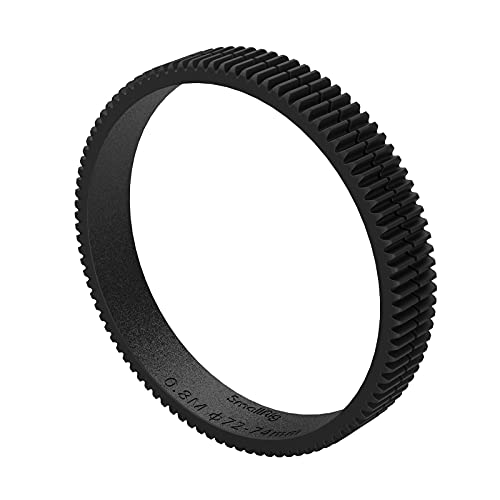
SmallRig Seamless Focus Gear Ring (72mm to 74mm) – 3293
【STANDARD 0.8 MOD】SmallRig Seamless Focus Gear Ring 3293 is designed to fit lenses for precise and stable focal…
As an affiliate, we earn on qualifying purchases.
As an affiliate, we earn on qualifying purchases.