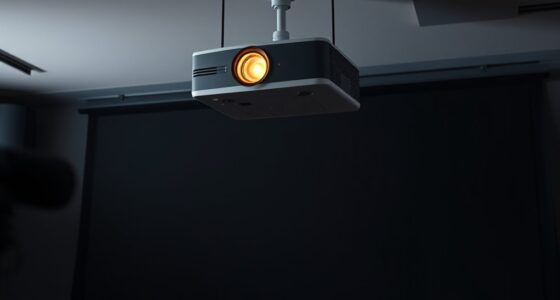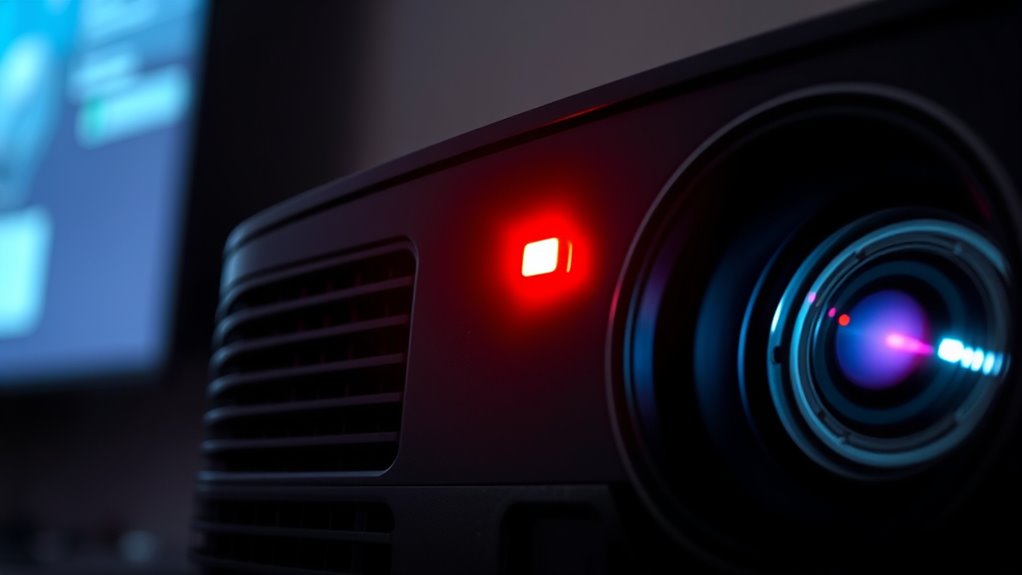
When your projector shows fan error or warning lights, you should first turn it off, unplug it, and check for dust or obstructions around the vents. Clean any buildup with compressed air or a soft brush, then restart the device. If the warning persists, inspect the internal fan or consider replacing it, as faulty fans can cause overheating. Keep up with regular maintenance to help prevent future issues—continue to explore for more detailed solutions.
Key Takeaways
- Turn off the projector, unplug it, and inspect vents for dust or obstructions.
- Clean vents and filters with a soft brush or compressed air to ensure proper airflow.
- Check internal fan connections and replace the fan if it is faulty or malfunctioning.
- Ensure the projector is operated in a well-ventilated area with unobstructed airflow.
- If issues persist, consult the user manual or contact a professional technician for internal repairs.
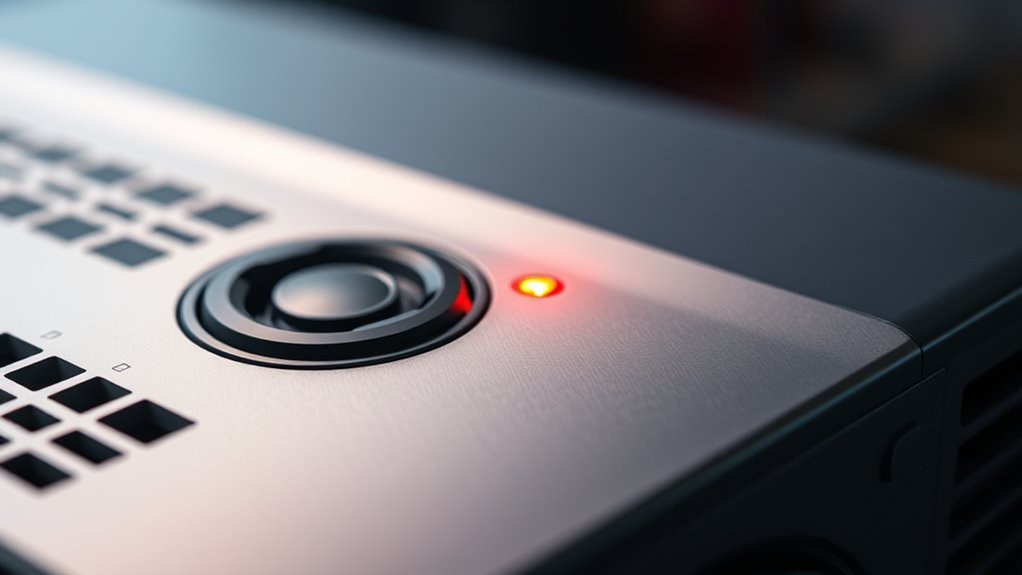
Fan error or warning lights can be confusing, but they typically indicate a problem with your device’s cooling system. When these lights appear, it’s a sign that your projector’s internal fan isn’t functioning properly, risking overheating and potential damage. Addressing this promptly can save you time and prevent costly repairs. The first step is to stay calm and avoid ignoring the warning, as continued operation without proper cooling can worsen the issue.
Start by performing some simple troubleshooting steps. Turn off your projector and unplug it from the power source. Carefully inspect the vents and air intake areas for dust, dirt, or obstructions. Dust buildup is a common cause of fan failure or reduced airflow, so use a soft brush or compressed air to clean these areas thoroughly. Be gentle to avoid damaging delicate components. Once cleaned, reconnect and power on the device to see if the warning persists. If the error remains, check the fan itself if you’re comfortable opening the device, or consult your user manual for specific instructions on accessing internal components. Often, the fan may be loose, disconnected, or faulty, requiring replacement. Regular maintenance can help prevent such issues and extend the lifespan of your device.
In terms of maintenance tips, regularly cleaning your projector’s vents and filters is essential for preventing overheating issues. Set a schedule to inspect and clean these parts every few months, especially if you operate the projector in a dusty environment. Ensure that the device is placed in a well-ventilated area with enough space around it to facilitate airflow. Avoid blocking the air intake and exhaust vents, as restricted airflow can trigger warning lights. Additionally, keep the environment cool and dry, since high temperatures can strain the cooling system. Remember, many paint sprayers utilize advanced cooling mechanisms similar to projectors, making proper airflow equally important for their performance.
If troubleshooting steps don’t resolve the warning lights, you might need to replace the fan. Many projectors have replaceable fans, and instructions are often included in the user manual. If you’re unsure about handling internal components, it’s best to contact a professional technician. Regular maintenance not only prolongs your projector’s lifespan but also minimizes the chances of encountering fan errors repeatedly. Remember, ignoring these warnings can lead to overheating, which might cause permanent damage to internal parts or total device failure.
projector fan replacement
As an affiliate, we earn on qualifying purchases.
As an affiliate, we earn on qualifying purchases.
Frequently Asked Questions
Can Fan Errors Cause Permanent Damage to My Projector?
Fan errors can cause permanent damage if ignored, especially because dust buildup can block airflow, leading to overheating. When you notice fan noise or an error warning, it’s vital to address it promptly. Failing to do so might cause internal components to overheat, risking permanent damage to your projector. Regularly clean the fan and guarantee proper ventilation to prevent issues and prolong your projector’s lifespan.
How Often Should I Clean the Projector’s Cooling Fan?
Ever wonder how often you should clean your projector’s cooling system? You should do it every 3 to 6 months, especially if you notice dust buildup or increased noise. Regular cleaning helps prevent overheating and guarantees peak performance. Keep an eye on your projector’s vents and fan for dust accumulation, and promptly clean them to maintain airflow and extend your device’s lifespan. Wouldn’t you want your projector to run smoothly longer?
Are Fan Error Warnings Common in All Projector Brands?
Fan error warnings aren’t common in all projector brands, but they do occur across many models. If you notice increased fan noise or the warning light appears, it indicates a cooling system issue. You should check for dust buildup or obstructions in the cooling fan. Regular maintenance helps prevent these errors and keeps your projector’s cooling system working efficiently, reducing the chances of overheating or damage.
What Is the Typical Lifespan of a Projector Cooling Fan?
Imagine a gentle breeze that sustains your projector’s life; that’s your cooling fan. Typically, its lifespan durability spans around 3 to 5 years, depending on usage and maintenance. Regular cleaning and proper ventilation help extend this lifespan, preventing overheating and fan failure. Keep an eye on noise levels or unusual warmth, as these signs suggest it’s time to check or replace your cooling fan to keep your projector running smoothly.
Can Software Updates Fix Fan Error Issues?
Software updates typically can’t fix fan error issues directly, but they can improve overall software compatibility and system stability. To address fan errors, you should follow the update procedures provided by your projector manufacturer, ensuring your device runs the latest firmware. Sometimes, updates resolve underlying software conflicts that might cause false fan error warnings, so keeping your projector’s software current is a good step in troubleshooting.
projector air filter cleaning kit
As an affiliate, we earn on qualifying purchases.
As an affiliate, we earn on qualifying purchases.
Conclusion
When your projector displays a fan error or warning light, acting promptly can save you time and prevent further damage. Regular maintenance, like cleaning vents and ensuring proper airflow, can considerably reduce these issues. Did you know that over 60% of projector malfunctions are caused by overheating or fan problems? Staying attentive to warning signs and performing routine checks keeps your device running smoothly, so you can enjoy uninterrupted viewing without unexpected interruptions.

WOLFBOX MF50 Compressed Air Duster-110000RPM Super Power Electric Air Duster, 3-Gear Adjustable Mini Blower with Fast Charging, Dust Blower for Computer, Keyboard, House, Outdoor and Car
Powerful Turbo Fan:WOLFBOX MegaFlow50 electric air duster reaches speeds of up to 110,000 RPM, effectively removing dust and…
As an affiliate, we earn on qualifying purchases.
As an affiliate, we earn on qualifying purchases.
projector internal fan
As an affiliate, we earn on qualifying purchases.
As an affiliate, we earn on qualifying purchases.