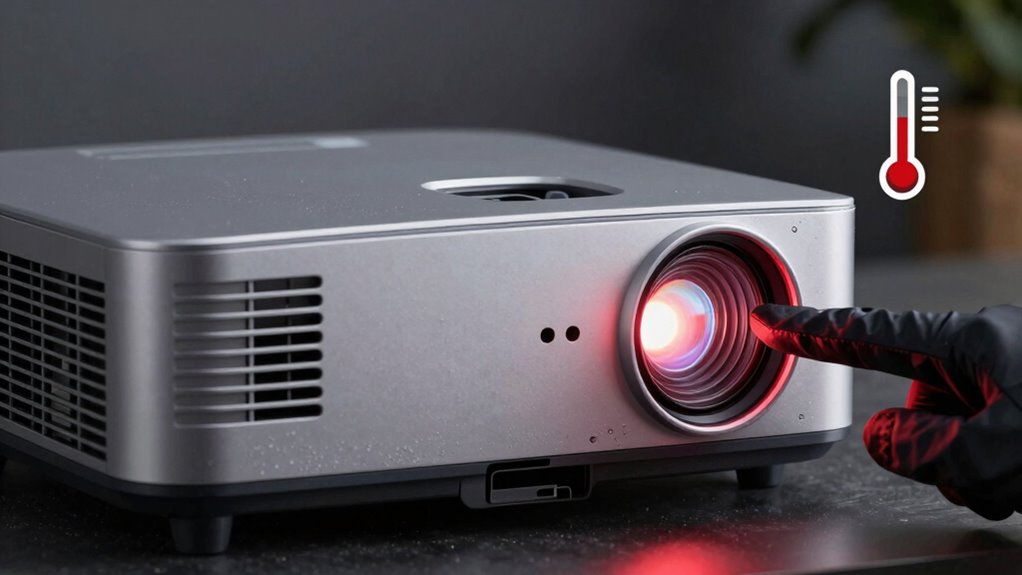

To troubleshoot overheating warnings on your projector, start by cleaning dust and dirt from the vents and lens using compressed air and a soft cloth. Make certain it’s placed in a well-ventilated area and check that air vents aren’t blocked. Confirm the power cord is secure and try a different outlet if needed. If issues persist, verify the fan works correctly and consider updating firmware or resetting settings. Keep exploring to uncover more tips for keeping your projector cool and functioning smoothly.

Get business pricing on your home office setup
- Business-only prices and quantity discounts
- Tax-exempt purchasing
- Multiple users, one account, clear invoices
Key Takeaways
- Regularly clean vents and lens with a soft cloth or compressed air to prevent dust buildup blocking airflow.
- Ensure the projector is placed in a well-ventilated area and not enclosed in tight spaces.
- Check that the internal fan is functioning properly and replace it if silent or noisy.
- Verify the power supply is stable, using a proper outlet and replacing damaged cords or surge protectors.
- Update firmware or reset to factory settings to resolve software glitches causing false overheating warnings.
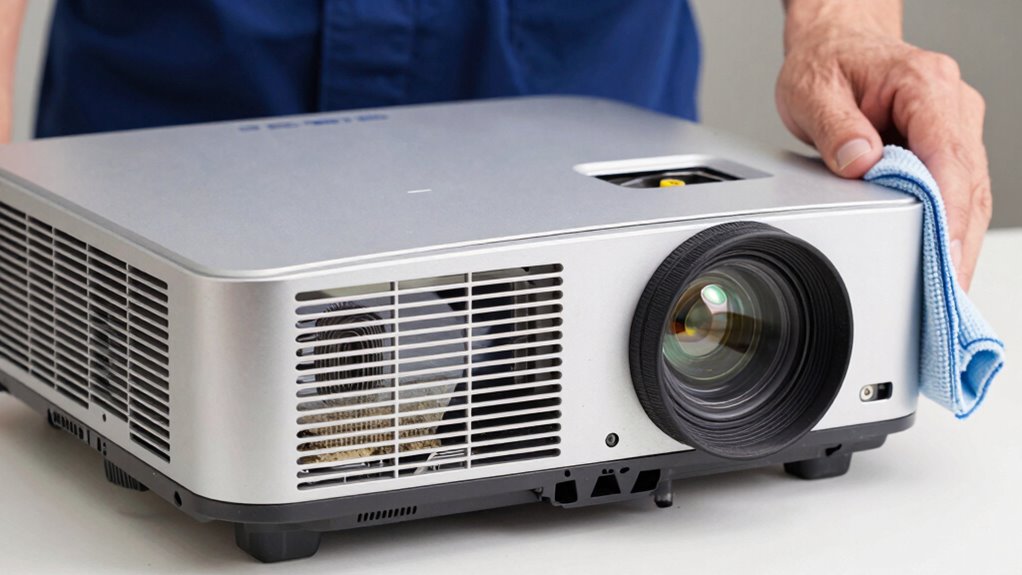
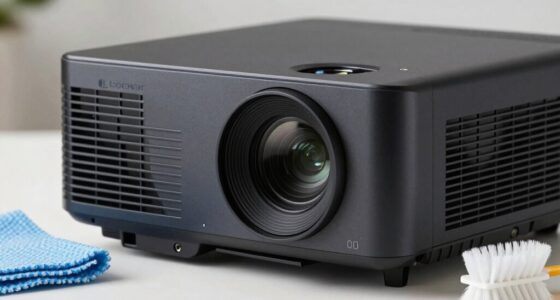
If your projector starts displaying overheating warnings, it’s a clear sign that something needs your attention. Overheating can stem from various issues, but start by checking the basics. One common cause is dust or dirt buildup inside the device, which can block airflow and cause the projector to heat up more than it should. Regularly perform lens cleaning to ensure the internal components, especially the lens and vents, stay clear of dust. Use a soft, dry cloth or a compressed air can to carefully remove debris from the vents and lens area. A clean lens not only improves image quality but also helps prevent overheating caused by internal heat absorption.
Regularly clean the lens and vents to prevent dust buildup and overheating.
Next, assess the power supply. An inconsistent or faulty power source can lead to overheating because the projector’s internal components might be working harder than necessary. Make sure the power cord is securely plugged in and free of damage. If you’re using a power strip or extension cord, try plugging directly into a wall outlet to eliminate potential power issues. Sometimes, a surge protector or unstable power supply can cause the projector to overheat or shut down unexpectedly. If you suspect the power supply is the problem, consider testing the projector with a different outlet or replacing the power cord. These steps can help determine whether the power source is contributing to the overheating warning.
Beyond external checks, pay attention to the projector’s placement. Ensure it’s in a well-ventilated area, not enclosed in a cabinet or tight space that traps heat. Elevate the projector slightly off the surface to improve airflow underneath. Check for blocked or clogged air vents, which are often overlooked. If vents are clogged, cleaning them thoroughly can significantly reduce internal temperatures. Also, verify that the projector’s internal fan is functioning correctly. If the fan is silent or making unusual noises, it might need replacement or repair. Many overheating issues resolve once airflow improves and the internal components are kept cool. Proper ventilation not only helps prevent overheating but also prolongs the lifespan of the projector’s internal parts. Additionally, dust accumulation inside the device can exacerbate overheating problems, so regular cleaning is essential. To prevent future issues, it’s also important to monitor internal temperature levels and ensure the device operates within recommended ranges. Ensuring proper airflow is crucial for maintaining optimal operating temperatures and avoiding future warnings. Furthermore, understanding how internal components like the fan system work can help you troubleshoot more effectively.
Finally, if these steps don’t resolve the warning, consider resetting the projector to its factory settings or updating its firmware, as sometimes software glitches can cause false overheating alerts. If the problem persists despite your efforts, it may be time to consult a professional technician or contact the manufacturer for further assistance. Taking these steps ensures you address the root cause, whether it’s lens cleaning, power supply issues, or airflow problems, helping your projector operate efficiently and prevent future overheating warnings.
Products Worth Considering

Ring Alarm 14-Piece Wireless Security System Kit

Levoit Eleva 300X HEPA Air Purifier for Home and Bedroom

Coway Airmega 250 Air Purifier for Large Rooms
As an affiliate, we earn on qualifying purchases.
Frequently Asked Questions
Can I Disable the Overheating Warning Feature on My Projector?
You can usually’t disable the overheating warning feature on your projector because it’s designed to protect the device. Instead, focus on firmware updates and fan maintenance to prevent warnings. Check for any firmware updates from the manufacturer, which can improve thermal management. Regularly clean and maintain the fan to guarantee proper airflow. Taking these steps helps keep your projector cool and reduces the chances of overheating warnings appearing.
How Long Does It Take for a Projector to Cool Down After Overheating?
Imagine the projector’s cooling system kicking into gear, the fan whirring softly like a gentle breeze, as it cools down. Usually, it takes about 10 to 20 minutes for your projector to fully cool after overheating. Regular fan maintenance keeps this process smooth. Keep vents clear and fans clean, so the cooling system works efficiently, preventing future overheating and ensuring quick recovery whenever it happens.
Are There Specific Projector Models More Prone to Overheating?
Certain projector models are more prone to overheating due to less effective cooling systems or design flaws. You should pay attention to projector maintenance, such as cleaning filters and vents regularly, to prevent overheating. Models with basic cooling systems or older units tend to overheat more often. Investing in projectors with advanced cooling features can help reduce overheating risks, ensuring consistent performance and longevity.
What Environmental Factors Contribute Most to Projector Overheating?
Environmental factors like poor ventilation and high ambient temperatures directly contribute to your projector overheating. If ventilation issues occur—such as blocked air vents or dust buildup—the heat can’t escape efficiently, causing it to overheat. Additionally, operating your projector in a hot room raises ambient temperature, making it harder for the device to stay cool. To prevent overheating, guarantee proper ventilation and keep the room temperature moderate.
Is It Safe to Continue Using a Projector Showing Overheating Warnings?
Did you know that overheating can cause 30% of projector failures? It’s not safe to keep using a projector showing overheating warnings, as it increases overheating risks and could damage internal components. For projector safety, turn it off immediately to prevent further harm. Continuing to use it risks fire, electrical damage, or complete failure. Always address overheating issues promptly to guarantee both safety and the longevity of your device.
Conclusion
When you address overheating issues promptly, you keep your projector running smoothly, like a well-oiled machine. Remember, neglecting these warnings can turn your device into a silent, malfunctioning partner in your presentations or movie nights. Stay vigilant, clean vents regularly, and guarantee proper ventilation—think of it as giving your projector a fresh gust of air. By doing so, you’re not just fixing a problem; you’re preserving the heart of your visual experience.