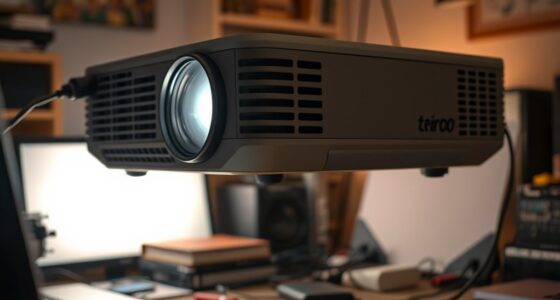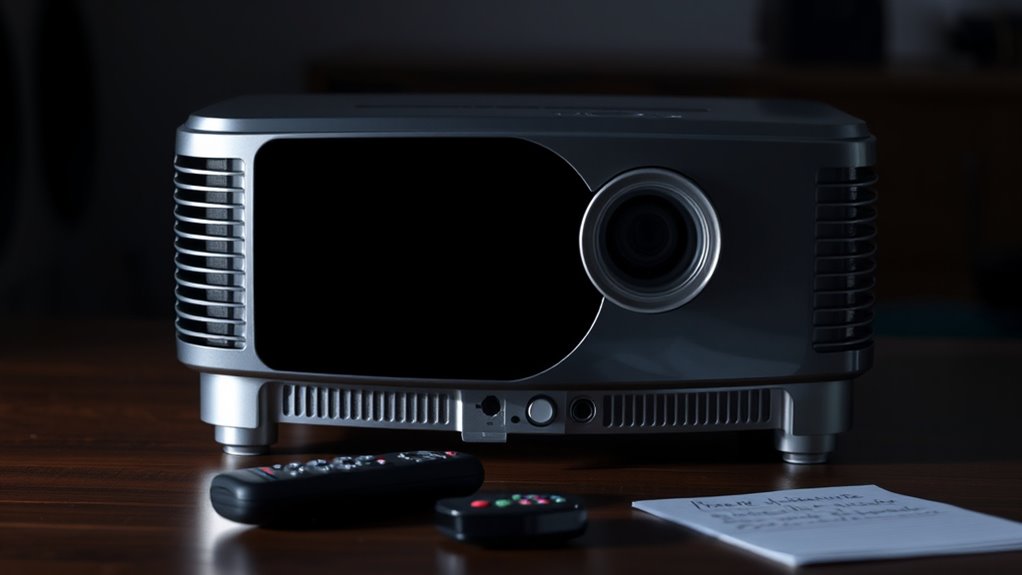
If your projector has sound but no image, start by checking the lamp for signs of burnout or dimming, as it may need replacing. Make certain the lamp cover is securely in place and the lamp is properly seated. Next, verify the HDMI or other connection cables are secure, undamaged, and correctly connected to both the projector and source device. Also, confirm the input source is set correctly. If these steps don’t work, more detailed troubleshooting tips can help you identify the cause.
Key Takeaways
- Check if the projector lamp is functioning and replace it if it’s dim, flickering, or has reached the end of its lifespan.
- Ensure the lamp cover is securely in place and the lamp is properly seated after replacement.
- Verify the correct HDMI input is selected and replace or reconnect the HDMI cable if faulty or loose.
- Confirm the source device is outputting video and set the projector to the correct input source.
- Inspect for any loose connections, damage, or warning indicators and update firmware or drivers as needed.
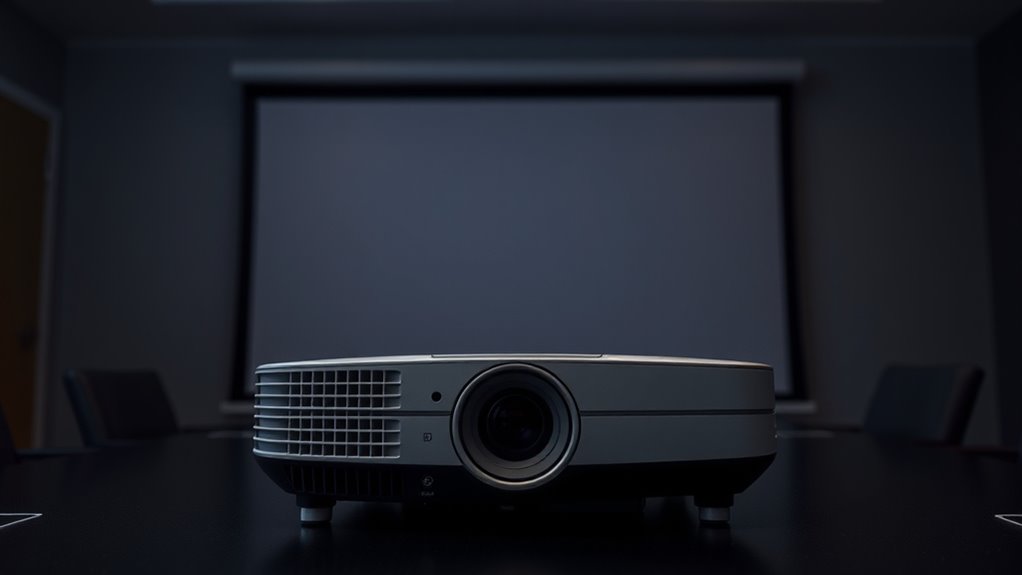
Ever experienced a projector that powers on but displays no image? It can be frustrating, especially when the sound indicates the device is working, but the picture remains blank. The first thing to check is the lamp. Over time, projector lamps burn out or become dim, which can cause the image to vanish even though the projector itself is still powered. If your projector has been used extensively or the lamp has reached its expected lifespan, consider performing a lamp replacement. Most projectors have an indicator light that signals when the lamp needs replacement, or you might notice a dim or flickering image before total blackness. Replacing the lamp is often straightforward, involving removing the old bulb and installing a new one, which can restore brightness and bring back the image. Meanwhile, verify the lamp cover is securely in place after replacement, as some projectors won’t display an image if the cover isn’t properly seated.
Another essential aspect to troubleshoot is your HDMI connection. Sometimes, the issue isn’t with the projector but with the connection itself. If your device is connected via HDMI, confirm the cable isn’t damaged or loose. Try unplugging and reconnecting the HDMI cable, ensuring it’s fully inserted into both the projector and the source device. If you have another HDMI cable available, swap it out to rule out a faulty cable. Additionally, confirm that your source device—laptop, Blu-ray player, or streaming device—is outputting video correctly and that the correct HDMI input is selected on the projector. Sometimes, the projector might be set to the wrong input source, causing the image not to display even when everything else is fine. Checking the input signal and ensuring it’s compatible with the projector’s capabilities can help resolve display issues. Sometimes, updating the projector’s firmware or drivers, if applicable, can resolve compatibility or display issues.

COOBAN ELPLP96 /V13H010L96 Replacement Projector Lamp Bulb with Housing for Epson VS250 VS355 VS350 EX5260 EH-TW650 EB-S41 Powerlite Home Cinema 2150 /Powerlite Home Cinema 1060 2100 660 760 760HD
Life:Increasing the brightness of the bulb seems to be an easy task,The most difficult thing to break through…
As an affiliate, we earn on qualifying purchases.
As an affiliate, we earn on qualifying purchases.
Frequently Asked Questions
Can a Faulty HDMI Cable Cause No Image but Sound?
Yes, a faulty HDMI cable can cause no image but still transmit sound. If your HDMI port or cable quality is poor, the signal might not fully pass through, resulting in a blank screen. You should try swapping out the HDMI cable with a high-quality one and check the HDMI ports on both devices. This helps guarantee a stable connection and can often resolve the no-image issue while keeping the sound intact.
Is There a Way to Test the Projector Bulb Separately?
You can’t test the projector bulb separately without specialized tools, but you can perform basic testing procedures. First, check if the bulb is visibly burnt out or damaged by inspecting it closely. If your projector’s menu includes a bulb status indicator, use it to assess the bulb’s condition. If unsure, replacing the bulb with a new one is often the simplest way to verify if the issue lies with the projector bulb.
How Do I Reset My Projector to Factory Settings?
Imagine your projector as a ship needing a fresh start. To perform a factory reset, navigate to your projector’s menu and find the ‘Reset’ or ‘Factory Settings’ option, usually under ‘Setup’ or ‘System.’ Select it, confirm when prompted, and your device will return to its original state, clearing any misconfigurations in the projector settings. This resets the ship’s compass, guiding you back to clear, bright images.
Will a Damaged Lens Prevent the Image From Displaying?
Yes, lens damage can prevent the image from displaying properly. If your lens has visible damage or cracks, it may cause visual obstruction, resulting in no image or a distorted one. Damage to the lens affects light transmission, making it impossible for the projector to project a clear picture. You should inspect the lens carefully and consider replacing it if you notice any cracks or significant scratches to restore proper image display.
Can Overheating Cause the Projector to Show No Image?
Overheating can definitely cause your projector to show no image. When overheating effects take hold, they trigger thermal protection, shutting down the image to prevent damage. Proper temperature management is key—ensure vents are clear, fans are functioning, and the environment isn’t too hot. If your projector continuously overheats, it’s likely to cut out the image, so address cooling issues promptly to keep your projector functioning flawlessly.
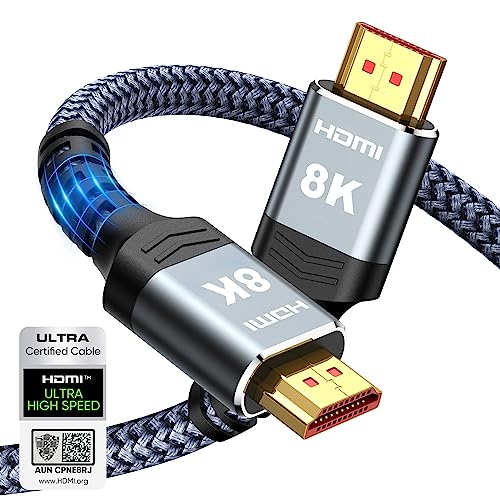
Highwings 8K 10K 4K HDMI Cable 48Gbps 6.6FT/2M, Certified Ultra High Speed HDMI Cable Braided Cord-4K@120Hz 8K@60Hz, DTS:X, HDCP 2.2 & 2.3, HDR 10 Compatible with Roku TV/PS5/HDTV/Blu-ray
Top Technology—-8K@60HZ: This 8K Ultra High Speed HDMI Cable uses the most cutting-edge technology, is compatible with 8K@60HZ…
As an affiliate, we earn on qualifying purchases.
As an affiliate, we earn on qualifying purchases.
Conclusion
If your projector has sound but no image, don’t worry—most issues are fixable with some troubleshooting. Remember, around 60% of projector problems stem from simple connection or input settings. By checking your cables, input source, and lens, you can often restore the picture quickly. Regular maintenance can prevent future issues. So, stay patient and methodical—you’ll have your projector displaying images again in no time!
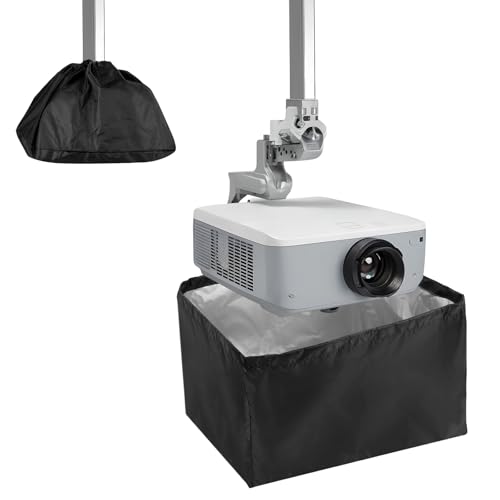
Anicuta Projector Cover, Mini Projector Cover Is Made Of Uv-Resistant Oxford Cloth, Projector Dust shield Is Suitable For Ceiling Mounted And Outdoor (13.7×13.7×8.6in)
【Comprehensive Protection, Extended Lifespan】The Projector Cover is made of high-density 420D Oxford fabric that's waterproof, dustproof, and UV-resistant,…
As an affiliate, we earn on qualifying purchases.
As an affiliate, we earn on qualifying purchases.

AKASO Mini Projector, Pocket-Sized DLP Portable Projector, 1080P Cookie Projector , Support HDMI WiFi Built-in Rechargeable Battery Stereo Speakers and Remote Control Movie Projector – Updated Type-C
For Projection Needs From Cookie Decorating to Movies: Pocket projector produces clear and bright video/imaging for entertainment/office and…
As an affiliate, we earn on qualifying purchases.
As an affiliate, we earn on qualifying purchases.