
To guarantee reliable Ethernet or network control for your projector, start by checking your network connections and updating the firmware to fix common bugs. Avoid wireless interference by positioning your projector close to the router and minimizing obstacles. Use wired Ethernet whenever possible for stability. Prioritize your network traffic with Quality of Service (QoS) settings and keep your network equipment rebooted regularly. For more tips on maintaining strong connections, continue exploring effective setup strategies.
Key Takeaways
- Ensure firmware is up-to-date to fix bugs and improve network stability.
- Use wired Ethernet connections for more reliable control, especially in interference-prone environments.
- Minimize wireless interference by positioning projectors away from electronic devices and selecting optimal Wi-Fi channels.
- Verify strong, consistent network signals and consider dedicated networks or QoS settings for optimal performance.
- Regularly reboot projectors and network equipment to clear temporary glitches and maintain stable connections.
Network control issues with projectors can disrupt presentations and frustrate users, especially when connectivity problems prevent remote management. When your projector fails to connect seamlessly over the network, it hampers your ability to control settings, switch sources, or troubleshoot remotely. One common culprit is wireless interference, which can interfere with the projector’s network signals, causing dropouts or unstable connections. This interference might stem from other wireless devices operating on the same frequency, such as Wi-Fi routers, cordless phones, or Bluetooth gadgets. To minimize these disruptions, ensure your projector and wireless networks operate on different channels or frequencies. Additionally, placing your projector away from other electronic devices can greatly improve connection stability.
Firmware updates play a vital role in maintaining dependable network control. Manufacturers often release firmware updates to fix bugs, improve compatibility, and enhance network features. If your projector’s firmware is outdated, it may struggle with network stability, fail to recognize newer network protocols, or experience security vulnerabilities. Regularly check for firmware updates through the manufacturer’s support website or management software. Applying these updates can resolve bugs that cause network disconnects, improve wireless performance, and add compatibility with your current network setup. Keep in mind that some firmware updates might require a restart or specific steps, so follow the instructions carefully to avoid disruptions during the update process.
Another key step is verifying your network setup. Ensure that your projector is connected to a stable and robust network, preferably via wired Ethernet whenever possible. Wired connections tend to be more dependable than wireless, especially in environments with high interference. If you rely on Wi-Fi, confirm that your signal strength is strong and consistent. Using a dedicated network for your projector can also prevent congestion caused by other devices consuming bandwidth. If your projector supports it, configuring Quality of Service (QoS) settings on your router can prioritize network traffic for better control and responsiveness.
Lastly, consider the physical environment. Wireless interference isn’t just about other devices; building materials, large metal objects, and even distance can weaken signals. Positioning your projector in an ideal location — close to your router or access point with minimal obstructions — can dramatically improve network reliability. Regularly rebooting your network equipment and the projector itself can also clear out lingering issues. By proactively managing wireless interference, keeping firmware updated, and optimizing your network setup, you’ll guarantee your projector remains accessible and controllable over the network, preventing frustrating disruptions during critical presentations.
Furthermore, educating yourself about Frictional unemployment and other industry trends can provide insights into potential opportunities for growth and adaptation in your technology environment.
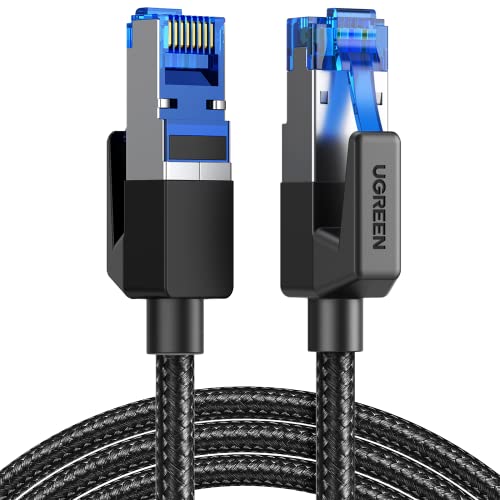
UGREEN Cat 8 Ethernet Cable 6FT, High Speed Braided 40Gbps 2000Mhz Network Cord Cat8 RJ45 Shielded Indoor Heavy Duty LAN Cables Compatible with Gaming PC PS5 PS4 PS3 Xbox Modem Router 6FT
40 Gbps 2000 Mhz High Speed: The Cat 8 ethernet cable support max. 40 Gbps data transfer and…
As an affiliate, we earn on qualifying purchases.
As an affiliate, we earn on qualifying purchases.
Frequently Asked Questions
How Do I Reset My Projector’s Network Settings?
To reset your projector’s network settings, access the menu and navigate to the network or setup options. Select the “Network Reset” or “Reset to Factory Settings” option to clear current configurations. This helps with connection troubleshooting by restoring default network settings. After the reset, re-enter your Wi-Fi details or network credentials to restore connectivity. This simple step often resolves Ethernet or network control issues effectively.
What Network Speeds Are Optimal for Projector Control?
Imagine your projector’s network as a highway—faster lanes mean smoother control. For ideal projector control, aim for at least 100 Mbps bandwidth to handle data smoothly, avoiding traffic jams. Keep connection latency under 50 milliseconds to prevent lag-induced eye twitches. Anything slower causes frustrating delays, making control feel like a snail race. So, upgrade your network, trim the latency, and enjoy seamless projector management—no traffic jams allowed!
Can Multiple Devices Control the Projector Simultaneously?
Yes, multiple devices can control the projector simultaneously through proper network setup. You’re able to manage multi-device management effectively, allowing for seamless control during presentations or meetings. To guarantee smooth simultaneous control, make sure your network supports sufficient bandwidth and uses robust protocols. Regularly update firmware and check network stability. This way, you prevent conflicts and ensure reliable control across all devices involved in multi-device management.
How Do I Update the Projector’s Firmware for Network Stability?
Sure, updating your projector’s firmware is a breeze and can actually improve network stability. Just visit the manufacturer’s website, download the latest firmware update, and follow their step-by-step instructions. Usually, you’ll access the projector’s menu or web interface to upload the firmware. Regular updates guarantee your network stays smooth, and ironically, a quick firmware update can fix all those pesky connectivity issues you’re experiencing.
What Security Measures Protect Against Unauthorized Network Access?
To safeguard your network from unauthorized access, you should enable wireless encryption like WPA3 on your router and projector. Additionally, implement access control by setting up strong passwords and restricting device permissions. Regularly update firmware and change passwords periodically to enhance security. Keep your network’s firmware up-to-date and monitor connected devices for suspicious activity. These measures help prevent unauthorized access and ensure your projector’s network remains secure.

Portable Outdoor Theater Kit:Valerion 120" Outdoor Projector Screen +VisionMaster Pro2 Triple Laser Projector 4K+DLP Link 3D Glasses+Walnut Tripod Stand
Color Mastery with 15,000:1 Contrast – Experience a 15,000:1 ultra-high contrast ratio and Enhanced Black Level (EBL) technology,…
As an affiliate, we earn on qualifying purchases.
As an affiliate, we earn on qualifying purchases.
Conclusion
Just like a skilled conductor keeps the orchestra in harmony, ensuring your projector’s Ethernet and network connections are reliable is key to smooth presentations. By troubleshooting common issues and maintaining your network, you prevent disruptions that could turn your show into chaos. Remember, a well-connected projector is your silent partner—ready to perform flawlessly, much like the steady rhythm of a maestro guiding their ensemble to perfection. Keep those connections strong, and your presentations will always hit the right note.

2026 WiFi Extender Signal Booster – 2.4GHz 300Mbps WiFi Booster for Home, Covers Up to 9999 Sq. Ft, Easy Setup, Ethernet Port & Access Point, Stable Internet Performance with 60+ Devices
STABLE & FAST 300Mbps WiFi EXTENDER: Advanced central processing unit and powerful new-generation chips,High-speed up to 300Mbps in…
As an affiliate, we earn on qualifying purchases.
As an affiliate, we earn on qualifying purchases.

ASUS RT-AX1800S Dual Band WiFi 6 Extendable Router, Subscription-Free Network Security, Parental Control, Built-in VPN, AiMesh Compatible, Gaming & Streaming, Smart Home
New-Gen WiFi Standard – WiFi 6(802.11ax) standard supporting MU-MIMO and OFDMA technology for better efficiency and throughput.Antenna :…
As an affiliate, we earn on qualifying purchases.
As an affiliate, we earn on qualifying purchases.