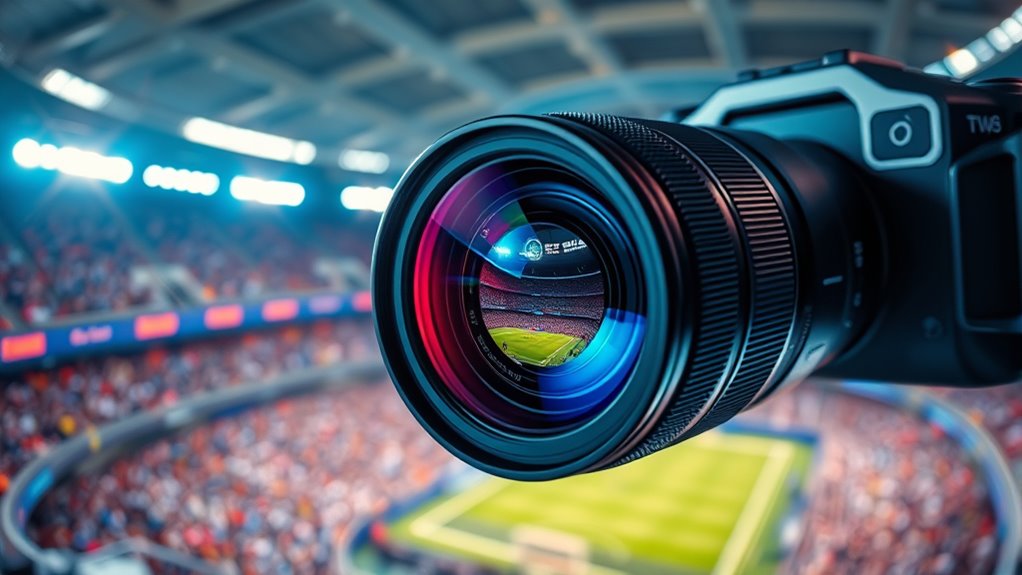

To optimize your device’s color modes, choose cinema or movie mode for realistic shadows, rich contrast, and accurate skin tones, ideal for movies. Switch to sports or dynamic mode to boost vibrancy, making fast-paced scenes pop without oversaturating. For gaming, enable game mode to reduce input lag and sharpen visuals, ensuring quick movements stay clear. Fine-tuning these settings with calibration tools can elevate your viewing experience—stay with us to discover how to perfect each mode.
Key Takeaways
- Use cinema or movie mode for accurate, immersive visuals with calibrated contrast and color temperature.
- Activate sports or dynamic mode to enhance vibrancy and clarity without over-saturation.
- Enable game mode to reduce input lag and optimize contrast for fast-paced, detailed gaming visuals.
- Calibrate display settings with hardware tools for precise color accuracy across all modes.
- Adjust contrast, brightness, and color temperature based on content type and display technology for best viewing experience.
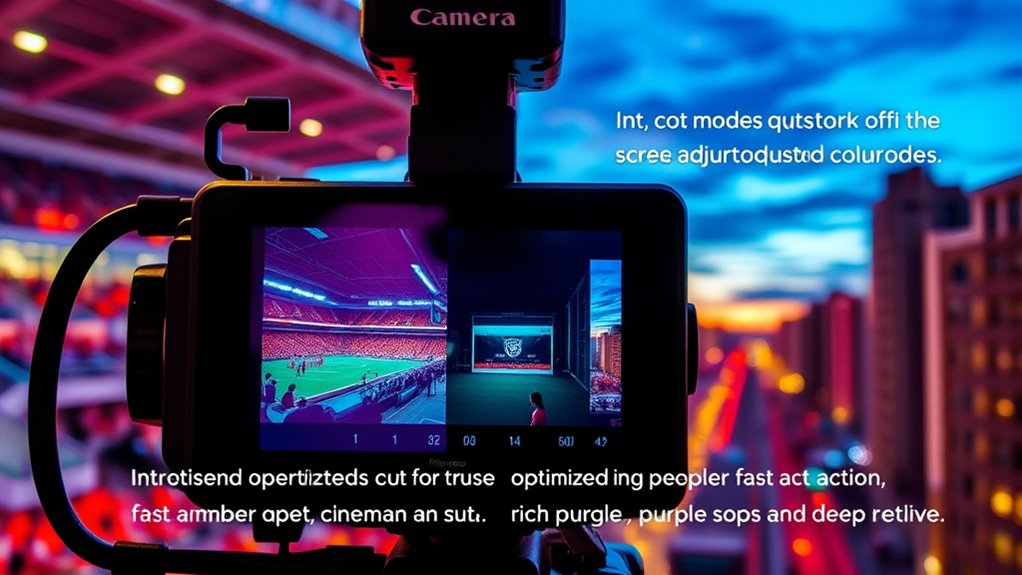
Understanding color modes is essential for anyone working with digital images or graphic design, as they determine how colors are displayed and processed across devices. When it comes to optimizing your viewing experience for movies, sports, or gaming, knowing how to set your display correctly is key. Calibration techniques play a crucial role here, helping you achieve accurate color representation by adjusting your display settings to match standardized color space profiles. Modern display technology, such as OLED, LCD, or LED screens, each has its quirks and strengths, so understanding their specific characteristics allows you to fine-tune color modes for the best results.
Understanding display settings and calibration is key to optimal viewing across all content types.
For movies, you want a color mode that emphasizes realism and depth, making scenes feel immersive. Typically, this means selecting a cinema or movie mode on your display, which often comes pre-calibrated for cinematic content. If you’re keen on precision, you can employ calibration techniques involving hardware tools like colorimeters or spectrophotometers to match your display’s output to a professional color profile. This ensures that shadows, highlights, and skin tones appear as intended, providing a more authentic viewing experience. Display technology influences how these settings should be adjusted; for example, OLED screens have deep blacks and vibrant colors, so you might want to tweak color temperature and gamma to maximize contrast and color accuracy.
When watching sports, the goal shifts towards clarity and vibrancy. The color mode should make fast-moving scenes pop without over-saturating. Many displays offer a sports or dynamic mode that enhances brightness and color saturation, making action scenes more vivid. Calibration techniques here focus on balancing brightness levels so that details aren’t lost in overly bright or dark areas. Your display technology will influence adjustments; LED-backlit LCDs often benefit from increased contrast settings, while OLEDs may need less tweaking due to their inherent contrast capabilities. The key is to find a setting that keeps motion smooth and colors lively without sacrificing naturalness.
Gaming and fast-paced content benefit from low latency and vibrant visuals. You’ll want to switch to a game mode if available, which minimizes input lag and adjusts color settings for sharper visuals. Calibration techniques involve adjusting contrast and color saturation to ensure quick response times don’t wash out colors or introduce artifacts. Your display technology impacts these choices; high-refresh-rate screens, for instance, handle rapid changes better and may require specific color tuning to prevent oversaturation. Ultimately, understanding how to adapt color modes based on your display’s technology and calibration techniques ensures you get the most out of your visual content, whether it’s for immersive movies, energetic sports, or adrenaline-pumping games.
calibration tools for monitors
As an affiliate, we earn on qualifying purchases.
As an affiliate, we earn on qualifying purchases.
Frequently Asked Questions
How Do I Manually Adjust Color Modes on My TV?
To manually adjust color modes on your TV, start by accessing the picture or display settings through the menu. Use calibration tools if available for precise adjustments. Focus on color temperature settings, switching between options like warm or cool to suit your preference. Fine-tune the color saturation and brightness levels to achieve the desired picture quality. Save your settings, and you’re all set for a personalized viewing experience.
What Color Mode Is Best for Gaming?
For gaming, the best color mode is often ‘Game’ or ‘Sports,’ but are you truly getting the best picture calibration? When you select a mode focused on color accuracy and quick response times, your gameplay becomes more immersive and precise. Don’t settle for default settings—tweak your TV’s color mode to optimize contrast and clarity. The right choice can transform your gaming experience into something extraordinary, keeping you ahead of the competition.
Can I Customize Color Settings for Different Content Types?
Yes, you can customize color settings for different content types by adjusting picture calibration and color temperature. Use your display’s settings menu to create specific profiles for movies, sports, or gaming. Fine-tune the color temperature for warmer or cooler tones, and calibrate the picture to enhance image quality. This way, each content type looks its best, providing a more immersive experience tailored to your preferences.
Do Color Modes Affect Energy Consumption?
Think of color modes as a double-edged sword—while they enhance your viewing experience, they also influence energy efficiency and environmental impact. Yes, different color modes can affect energy consumption; brighter, more vibrant settings often use more power. By choosing optimized modes for your content, you reduce energy use, helping the environment and increasing your device’s longevity. So, adjusting color modes thoughtfully benefits both your wallet and the planet.
Are There Color Modes Optimized for 4K or HDR Content?
Yes, there are color modes optimized for 4K and HDR content. To get the best picture, you should use calibration techniques tailored to your viewing environment. These modes enhance HDR highlights and 4K details, ensuring vivid colors and sharpness. Adjust your settings based on ambient lighting and content type, which helps you experience the full potential of your 4K HDR content with richer, more accurate colors.
best display color calibration device
As an affiliate, we earn on qualifying purchases.
As an affiliate, we earn on qualifying purchases.
Conclusion
Now that you know the best color modes for movies, sports, and more, you’re ready to transform your viewing experience. But here’s the catch—there’s always more to discover. Could tweaking these settings unleash even better picture quality? Don’t settle for good enough. Dive deeper, experiment, and unlock the full potential of your display. Your perfect viewing experience might just be one setting away—are you ready to find out?
gaming monitor with low input lag
As an affiliate, we earn on qualifying purchases.
As an affiliate, we earn on qualifying purchases.
OLED TV picture settings
As an affiliate, we earn on qualifying purchases.
As an affiliate, we earn on qualifying purchases.