
To optimize your projector for PS5 and Xbox Series X gaming, enable low-latency or game modes to reduce input lag and turn off unnecessary image processing features. Adjust HDR settings for vibrant, accurate visuals without over-saturation, and calibrate contrast, brightness, and color saturation for balanced picture quality. Use high-quality HDMI cables and guarantee firmware is up to date. Fine-tuning these settings will enhance responsiveness and visuals—you’ll discover more tips to perfect your gaming setup.
Key Takeaways
- Enable low-latency or gaming mode on your projector to reduce input lag during gameplay.
- Calibrate HDR settings to balance brightness, contrast, and color for vivid visuals without washing out details.
- Use high-quality HDMI cables and ensure firmware is up-to-date for optimal signal transmission and minimal latency.
- Disable unnecessary image processing features like motion smoothing to improve responsiveness.
- Fine-tune projector settings to match your gaming environment, experimenting with configurations for best responsiveness and visual quality.

To get the most out of your PS5 or Xbox Series X gaming experience, optimizing your projector settings is essential. One of the first areas to focus on is HDR calibration. High Dynamic Range enhances your visuals by providing brighter whites, deeper blacks, and more vibrant colors, making your games look stunning. To achieve the best HDR performance, start by ensuring your projector supports HDR content and is set to its HDR mode. You’ll want to calibrate the HDR settings carefully—adjust the brightness, contrast, and color saturation until you see a balance that highlights details without washing out the picture. Many projectors have dedicated HDR calibration tools; use these to fine-tune the display, ensuring that HDR content appears as intended, with accurate color reproduction and optimal luminance. Proper HDR calibration not only improves visual quality but also makes gameplay more immersive and visually striking. Additionally, attention to ambient lighting can significantly influence HDR effectiveness and overall picture quality.
Input lag reduction is another critical setting to optimize for gaming. Input lag refers to the delay between your controller input and the action appearing on the screen. Reducing input lag is vital for responsive gameplay, especially in fast-paced or competitive titles. To minimize lag, start by enabling any gaming or low-latency modes available on your projector. These modes typically disable certain image processing features—like motion smoothing or noise reduction—that introduce delay. If your projector has a dedicated game mode, always turn it on. Additionally, check your projector’s settings for options like “Input Lag Reduction” or “Fast Mode” and activate them. Keep your firmware updated, as manufacturers often release updates that improve input response times. You should also use a high-quality HDMI cable, ensuring a stable connection with minimal latency. Position your projector in a way that avoids unnecessary signal conversions or processing, which can add delay. Taking these steps can considerably enhance your reaction times during gameplay, making your experience more fluid and responsive.
Balancing HDR calibration and input lag reduction creates a seamless gaming environment. While HDR makes the visuals pop, reducing input lag ensures your actions are reflected instantly on-screen. It’s a matter of fine-tuning each setting to match your gaming style and the capabilities of your projector. Spend time experimenting with different configurations, and don’t hesitate to consult your projector’s manual or support resources for specific instructions. Remember that a calibrated display provides a more consistent and enjoyable gaming experience overall. Ultimately, investing effort into these settings will provide a much more enjoyable, immersive gaming experience on your projector, making every session feel more responsive and visually impressive.
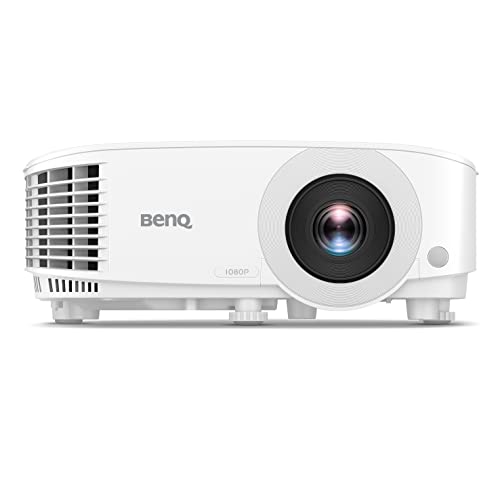
BenQ TH575 1080p Indoor Gaming Projector, 3800 LMS, 16.7ms Low Latency, Enhanced Game-Mode, High Contrast, Dual HDMI, 3D Ready, Auto Vertical Keystone, Standard Throw, 1.1x Zoom, 3 Year Warranty
NEW 2023 MODEL: Upgraded 3800 ANSI Lumens paired with an improved 15,000:1 contrast ratio (FOFO) when compared to…
As an affiliate, we earn on qualifying purchases.
As an affiliate, we earn on qualifying purchases.
Frequently Asked Questions
Can I Use a Standard Home Projector for Gaming?
Yes, you can use a standard home projector for gaming, but you should consider home theater setup and projector compatibility. Make certain the projector has low input lag for smooth gameplay, and check its resolution and brightness to match your gaming needs. While most home projectors work, dedicated gaming projectors offer better performance. Proper calibration and a dark room will enhance your gaming experience, making it feel more immersive.
How Does Ambient Light Affect Projector Gaming Quality?
Ambient light can substantially impact your projector gaming quality by washing out the image and reducing contrast. When there’s too much ambient light, you’ll notice less vibrant colors and duller visuals, making it harder to enjoy the game fully. To improve contrast and clarity, try to minimize ambient light in your gaming area. Using blackout curtains or dimming the lights helps the projector deliver sharper images and richer colors, enhancing your gaming experience.
What Is the Ideal Refresh Rate for Gaming Projectors?
The ideal refresh rate for gaming projectors is typically 120Hz, ensuring smooth gameplay with minimal motion blur. You should check your projector’s refresh rate compatibility to match your console’s output for best performance. Enable motion blur reduction features if available, as they help create clearer images during fast-paced action. This combo provides a more immersive experience, reducing lag and ensuring you stay competitive in your gaming sessions.
Are There Any Specific Projector Brands Recommended for Ps5/Xbox Series X?
You can’t go wrong with brands like Epson, Optoma, or BenQ, as they’re known for compatibility with PS5 and Xbox Series X, meeting the latest resolution standards. These brands are reliable for delivering smooth gameplay and vibrant visuals. Just make sure your chosen projector supports at least 4K resolution and has low input lag. With the right brand, you’ll turn your gaming space into a true theater—no second fiddle needed.
How Often Should I Calibrate My Projector for Optimal Gaming?
You should calibrate your projector every 3 to 6 months to maintain ideal gaming performance. Incorporate calibration into your maintenance schedule to guarantee colors remain accurate and image clarity stays sharp. Regular calibration helps prevent color drift and keeps your gaming experience vibrant. If you notice image issues or color inconsistencies, it’s a good idea to recalibrate sooner. Consistent maintenance ensures your projector delivers the best visuals for your PS5 or Xbox Series X.

The Display Calibration Guide – Volume 2 HDR: Calibrate Your TV or Projector with a Sensor and Free Tools
As an affiliate, we earn on qualifying purchases.
As an affiliate, we earn on qualifying purchases.
Conclusion
By fine-tuning your projector settings, you transform your gaming space into a cinematic universe where every detail pops and action feels alive. Think of your projector as a canvas, waiting to be perfected with the right adjustments. When you optimize your settings for PS5 and Xbox Series X, you’ll gain access to a new level of immersion—like stepping into your favorite game world. Now, go ahead, press start, and enjoy a gaming experience that’s truly vivid and unforgettable.
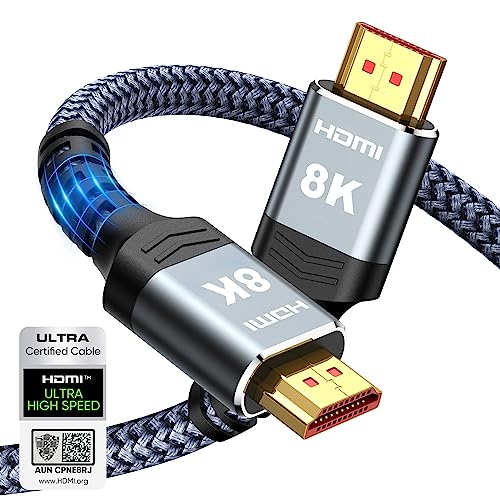
Highwings 8K 10K 4K HDMI Cable 48Gbps 6.6FT/2M, Certified Ultra High Speed HDMI Cable Braided Cord-4K@120Hz 8K@60Hz, DTS:X, HDCP 2.2 & 2.3, HDR 10 Compatible with Roku TV/PS5/HDTV/Blu-ray
Top Technology—-8K@60HZ: This 8K Ultra High Speed HDMI Cable uses the most cutting-edge technology, is compatible with 8K@60HZ…
As an affiliate, we earn on qualifying purchases.
As an affiliate, we earn on qualifying purchases.
![[Updated 2000 ANSI/Google TV/4K Support] Smart-Projector with WiFi 6 and Bluetooth, Built-in Apps, Outdoor Movie Proyector, 1080P Home Theater Auto Focus Projector, PUTRIMS K12 (Gray, Standard)](https://m.media-amazon.com/images/I/51aboUDVckL._SL500_.jpg)
[Updated 2000 ANSI/Google TV/4K Support] Smart-Projector with WiFi 6 and Bluetooth, Built-in Apps, Outdoor Movie Proyector, 1080P Home Theater Auto Focus Projector, PUTRIMS K12 (Gray, Standard)
💎[Built-in Official Google TV] The smart projector truly designed for streaming is HERE! 2026 Officially licensed Google TV…
As an affiliate, we earn on qualifying purchases.
As an affiliate, we earn on qualifying purchases.