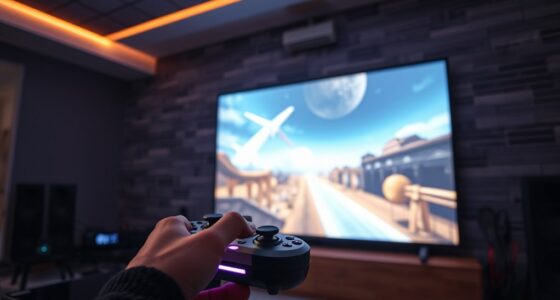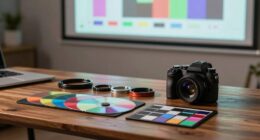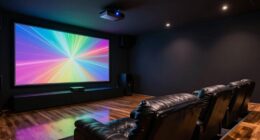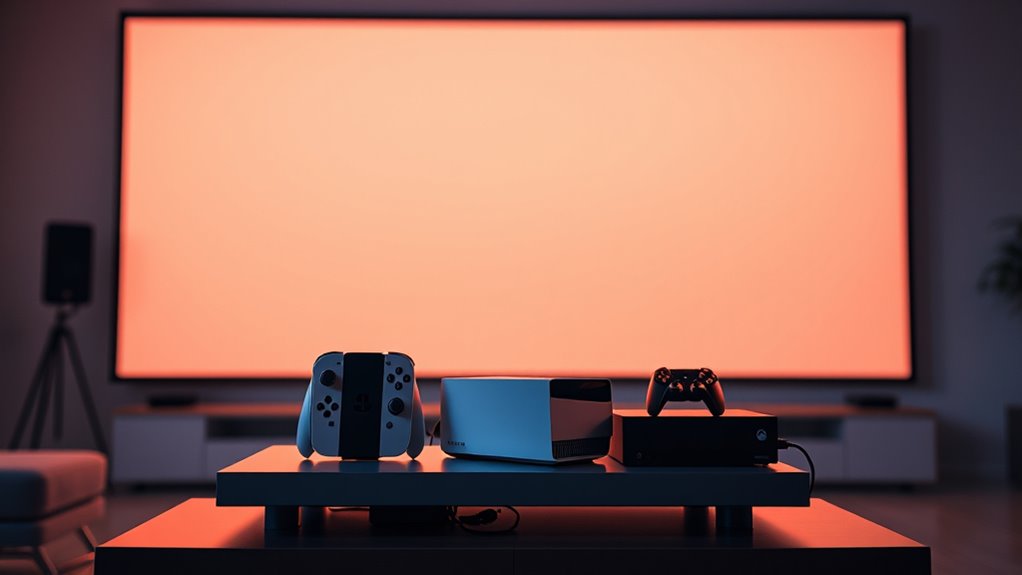

To optimize your Nintendo, PlayStation, or Xbox on a projector, start by manually calibrating your display for sharper images and better color accuracy. Adjust the focus, keystone, brightness, and contrast based on your room’s lighting to get vibrant visuals with minimal distortion. Use external speakers or soundbars for clearer audio. Managing ambient light and keeping your lens clean also boost image quality. For more personalized tips, continue exploring how to fine-tune your gaming setup.
Key Takeaways
- Adjust projector calibration manually for sharper images and accurate colors tailored to each console’s display settings.
- Use external speakers or soundbars to enhance audio clarity and immersion for Nintendo, PlayStation, and Xbox.
- Manage ambient lighting by dimming or blackout curtains to improve contrast and color accuracy during gameplay.
- Optimize focus, keystone, and image enhancement features to ensure a crisp, rectangular display, especially for fast-paced games.
- Regularly test and tweak settings based on game genre and console specifications for the best visual and audio experience.

Playing your favorite Nintendo, PlayStation, or Xbox games on a projector can deliver an immersive experience, but optimizing the setup is key to getting the best image quality. One of the first steps is to focus on screen calibration. Even if your projector has automatic settings, manual adjustments often yield sharper visuals and more accurate colors. Start by adjusting the keystone and focus to ensure the image is clear and rectangular. Then, tweak the brightness and contrast to match your environment—brighter rooms require higher brightness, while darker settings benefit from increased contrast for richer blacks. Color calibration is equally important; use your console’s display settings or calibration tools to fine-tune color balance, ensuring visuals are vibrant without oversaturation. Correct calibration prevents washed-out images or overly dark scenes, making gameplay more visually appealing and reducing eye strain during extended sessions. Additionally, consider the suction power of your vacuum cleaner to keep your gaming space free of dust, which can affect your equipment and overall setup.
Beyond visual optimization, don’t overlook audio enhancement. Since projectors often have limited built-in speakers, investing in external audio solutions can dramatically improve your gaming experience. Connect external speakers or a soundbar to your console or projector to achieve clearer, more immersive sound. Proper audio setup makes a noticeable difference, especially in fast-paced games where directional sound cues matter. Consider positioning speakers strategically to surround you with sound, and adjust audio settings within your console to match your preferred volume levels and sound profiles.
Enhance your gaming with external speakers or a soundbar for immersive, clearer audio.
Achieving ideal image quality also involves managing ambient light. A dark room enhances contrast and color accuracy, so dim the lights or use blackout curtains. If your projector supports it, enable any image enhancement features like motion smoothing or sharpening to improve clarity during fast-moving scenes. Keep your projector’s lens clean and ensure it’s placed at the correct distance from the screen to maximize image size and sharpness.
Finally, test your setup by playing different game genres. Fast-paced shooters, for example, benefit from high contrast and low latency, while adventure games might emphasize color accuracy. Make incremental adjustments to calibration and audio until you find the perfect balance that suits your preferences. With these steps, your console gaming on a projector becomes not just visually stunning but also acoustically immersive, elevating your overall gaming experience to a new level.
Nintendo Switch projector mount
As an affiliate, we earn on qualifying purchases.
As an affiliate, we earn on qualifying purchases.
Frequently Asked Questions
How Do I Reduce Input Lag for Console Gaming on Projectors?
To reduce input lag on your projector, first guarantee it’s set to its highest refresh rate, as this minimizes delay. Use a low-latency or game mode if available, which is designed to cut down input lag. Connect your console directly to the projector with a high-quality HDMI cable, and disable any image processing features. These steps help improve responsiveness and make your gaming experience smoother.
Can I Connect Multiple Consoles to a Single Projector Easily?
Yes, you can connect multiple consoles to a single projector easily by using multiple inputs and a switcher or splitter. A HDMI switcher allows you to toggle between consoles without unplugging cables, making gaming seamless. Make sure your projector has enough HDMI ports or use a high-quality switcher to avoid signal loss. This setup keeps your gaming space organized and ready for quick console switching.
What Are the Best Settings for HDR Gaming on Projectors?
For HDR gaming on projectors, you should start with proper HDR calibration to guarantee accurate color and brightness. Adjust contrast settings to enhance image depth without losing detail in bright or dark areas. Enable any specific HDR mode on your projector, then fine-tune brightness and contrast for ideal contrast optimization. This process will give you vibrant, immersive visuals, making your HDR gaming experience more dynamic and enjoyable.
How Do I Prevent Image Burn-In During Extended Gaming Sessions?
To prevent image burn-in during extended gaming sessions, focus on screen preservation by regularly changing scenes or using screen savers. Adjust your image calibration to reduce static image retention, and enable any built-in pixel shift or screen shift features your projector offers. Keep brightness and contrast at moderate levels, and avoid leaving static images on the screen for long periods. These steps help protect your projector and maintain best picture quality.
Are There Specific Projectors Optimized for Gaming Consoles?
You’ll love how some projectors are practically built for gaming consoles, making your setup feel like it’s straight out of a sci-fi movie! Look for projectors with ultra-high resolution and fast input lag, perfect for smooth gameplay. While there aren’t many labeled “gaming projectors,” models with advanced console design compatibility and low latency are your best bet. These tech marvels turn your gaming sessions into an immersive, jaw-dropping experience.

Computer Speakers Soundbar for Desktop PC Mac, USB Plug-in, Wired, External Speakers for Laptop Desk Monitor, RGB Gaming Sound bar with HD Stereo Loud Sound, Punchy Bass, Volume Knob, USB C Adapter
[Hi-Fi Sound Quality] — Featuring dual 2-inch super-magnetic full-range speaker drivers, this computer speaker delivers impressively loud volume…
As an affiliate, we earn on qualifying purchases.
As an affiliate, we earn on qualifying purchases.
Conclusion
Now that you’ve uncovered these console-specific tips, you’re ready to elevate your gaming experience on your projector. But remember, every setup has its quirks—there’s always more to discover. Stay tuned for even deeper secrets that can transform your gameplay into something truly extraordinary. The perfect picture is within your reach, and the next breakthrough could be just around the corner. Are you prepared to take your gaming to the next level? The best is yet to come.
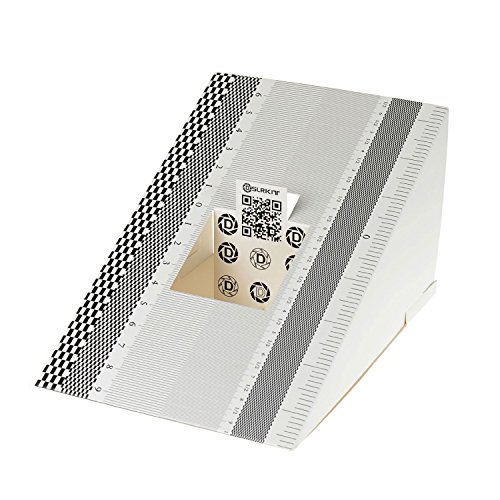
DSLRKIT Lens Focus Calibration Tool Alignment Ruler Folding Card(Pack of 2)
This compact ruler allows you to determine if your lens is auto-focusing accurately as it should. It is…
As an affiliate, we earn on qualifying purchases.
As an affiliate, we earn on qualifying purchases.
blackout curtains for gaming room
As an affiliate, we earn on qualifying purchases.
As an affiliate, we earn on qualifying purchases.