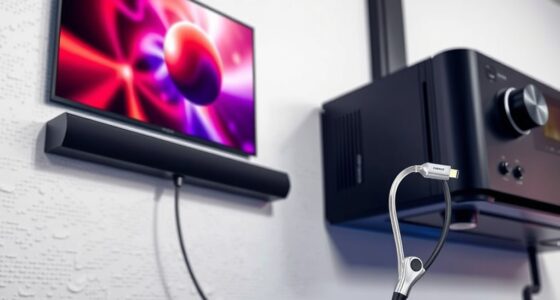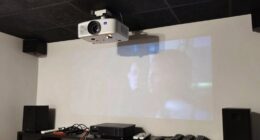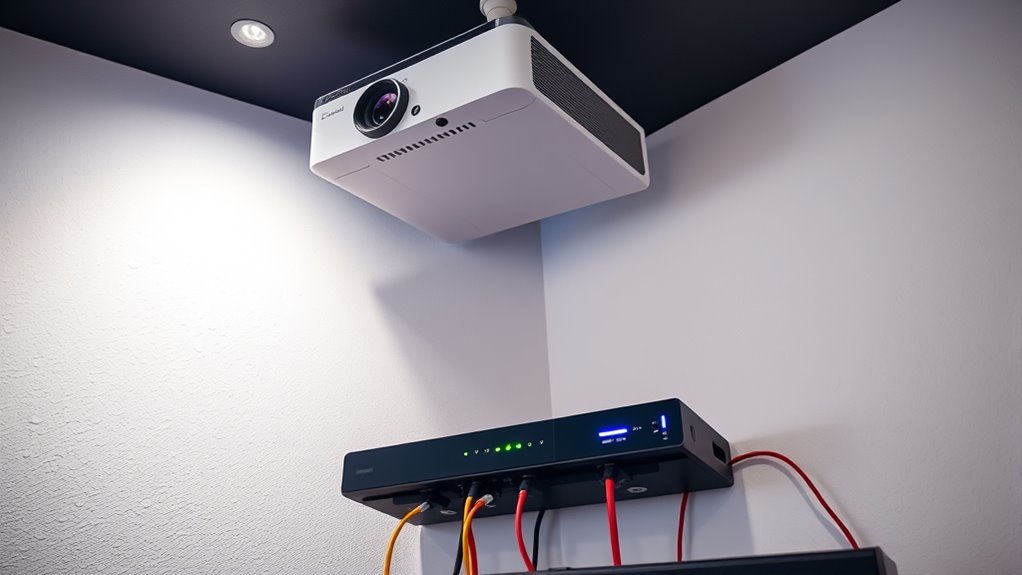

To sync projector audio with your gaming console, start by checking your connection type—prefer wired HDMI or optical for minimal delay. Fine-tune audio delay settings in your console’s sound menu or projector’s audio options. Avoid interference from wireless devices and verify cables are secure and high-quality. Adjust external speakers or soundbars for better sync and use calibration tools if available. If you want to find out more tips for seamless sync, keep exploring these techniques.
Key Takeaways
- Check device compatibility and supported audio connection options like HDMI, optical, or Bluetooth.
- Use calibration tools or menu settings to adjust audio delay and align it with video.
- Prefer wired connections over wireless to reduce lag and interference for more reliable sync.
- Reposition external speakers or soundbars closer to the projector for better audio-visual alignment.
- Regularly update device firmware and perform calibration to maintain optimal audio-video sync during gaming.

VPFET HDMI Audio Extractor 4K HDMI to Optical 3.5mm AUX Audio Adapter Splitter Converter Support HDCP Digital DTS 5.1 PCM
【HDMI Audio Extractor】The HDMI audio extractor can extract audio from HDMI signal and transmit it to AV receiver…
As an affiliate, we earn on qualifying purchases.
As an affiliate, we earn on qualifying purchases.
Understanding Audio-Video Sync Challenges
Audio-video sync issues often occur because audio and video signals travel through different paths and processing systems, causing delays that make them fall out of sync. When this happens, you might notice a lip sync problem, where the sound doesn’t match the on-screen movements. Audio lag is a common culprit, especially with projectors that process video differently from audio. This delay can create a distracting experience, making it seem like the audio is out of sync with the visuals. Understanding these challenges helps you identify the root cause of the problem. Different devices, signal processing, and even cable quality can influence how well audio and video stay synchronized. Recognizing these factors is the first step toward fixing sync issues and enjoying seamless gaming or viewing experiences. Additionally, AI-driven data analytics can help monitor and adjust audio-video synchronization in real-time for a more consistent experience.

PROZOR 3.5mm to SPDIF Converter Analog to Digital Audio Cable ADC Adapter for Enhanced Sound Toslink Optical Output 3.5mm to Optical Cable for Gaming Consoles Computers and Projectors etc
3.5mm to Optical Converter: The Analog to Digital audio converter transforms analog 3.5mm audio signals into Toslink SPDIF…
As an affiliate, we earn on qualifying purchases.
As an affiliate, we earn on qualifying purchases.
Checking Your Connection Types
Start by identifying the connection options available on both your projector and audio source. Make sure the cables and ports you plan to use match and support the necessary standards. Verifying compatibility guarantees a smooth setup and helps prevent audio sync issues later on. Additionally, consider special occasions that involve technical setups, as they often require precise adjustments for optimal performance.
Identify Connection Options
Before you begin syncing your projector’s audio, it’s important to identify the available connection options. Check what types of connections your gaming console and projector support. Wireless options include Bluetooth or Wi-Fi streaming, offering convenience without extra cables. Cable types vary from HDMI, which transmits both audio and video, to optical or 3.5mm audio jacks for separate audio signals. Knowing your connection types helps determine the best way to sync audio effectively. Consider whether your devices support wireless streaming, or if you’ll need to use specific cables for a stable connection. Once you’ve identified the options, you can choose the most reliable setup for clear, synchronized audio during your gaming sessions.
- Wireless options like Bluetooth and Wi-Fi
- HDMI, optical, or 3.5mm audio cables
- Compatibility with your gaming console and projector
Verify Compatibility Standards
To guarantee your projector’s audio will sync properly with your gaming console, you need to verify that your devices support compatible standards. First, check the audio format compatibility between your console and projector, ensuring they both support common formats like Dolby Digital or PCM. Mismatched formats can cause delays or loss of sound. Next, confirm Bluetooth compatibility if you plan to use a wireless connection. Your console and projector should both support Bluetooth audio profiles to ensure seamless pairing. If either device lacks Bluetooth support, consider alternative wired options like HDMI or optical cables. Verifying these standards beforehand prevents connection issues and assures that your audio remains synchronized, providing a smooth gaming experience. Additionally, understanding the contrast ratio of your projector can help optimize your viewing environment for an immersive gaming experience.

Assistrust Sound Bar for Smart TV, Soundbar with Bluetooth/ARC/Opt/AUX Connect, Auto Volume Boost, 3 Equalizer Modes, 2 in 1 Detachable Soundbar for TV/PC/Gaming/Projectors
【𝐈𝐦𝐩𝐚𝐜𝐭𝐟𝐮𝐥 𝐕𝐨𝐥𝐮𝐦𝐞 𝐁𝐨𝐨𝐬𝐭】: Elevate faint sounds to vibrant with automatic loudness boost. Experience immersive sound through 4 versatile…
As an affiliate, we earn on qualifying purchases.
As an affiliate, we earn on qualifying purchases.
Adjusting Audio Settings on Your Gaming Console

To get the best sound, you’ll need to access your gaming console’s audio menu. Once there, you can fine-tune the sound settings to match your projector setup. Making these adjustments guarantees your audio syncs perfectly and enhances your gaming experience. Additionally, understanding your console’s audio output options can help you select the most reliable and compatible setting for seamless sound.
Accessing Audio Menu
Have you ever struggled to find the right audio settings on your gaming console? Accessing the audio menu can seem tricky at first, but once you know where to look, it’s straightforward. To start, turn on your console and navigate to the main menu. From there, locate the settings icon, often represented by a gear symbol. Select it and then find the “Sound” or “Audio” section for settings access. Understanding the console’s audio features can help you make more precise adjustments for optimal sound quality.
Here are some key steps:
- Open the main menu and select “Settings”
- Navigate to “Sound” or “Audio” options
- Enter the audio menu to adjust your sound preferences
Mastering this process ensures you can quickly reach the right options to optimize your audio experience for gaming and projector syncing.
Fine-tuning Sound Settings
Once you’ve accessed the audio menu, you can begin fine-tuning your sound settings to match your preferences. Start with audio calibration to guarantee the sound levels are balanced and clear. Adjust volume levels, bass, treble, and balance settings to optimize sound quality for your gaming experience. Many consoles offer sound optimization features like dialogue enhancement or surround sound modes—use these to tailor audio to your setup. Take the time to test different configurations, listening carefully to how audio syncs with visuals. Proper calibration reduces audio lag and distortion, creating a more immersive environment. Remember, small adjustments can make a big difference in audio clarity and synchronization. Regularly revisiting your sound settings ensures consistent audio performance during gaming sessions. Additionally, exploring AI-driven audio tools can help automate and further refine your sound calibration process for enhanced immersion.

Professional Sound Level Calibrator Decibel Meter Calibration with Three Calibration Level at 94dB & 104dB & 114dB, SPL Meter Calibrator for dB Noise meter
Three Calibration Level 114dB, 94dB and 104dB with calibration frequency at 1KHz. The cavity diameter of this sound…
As an affiliate, we earn on qualifying purchases.
As an affiliate, we earn on qualifying purchases.
Configuring Your Projector’s Audio Settings
Adjusting your projector’s audio settings guarantees that sound quality aligns with your viewing environment and preferences. Start by accessing the menu and focusing on projector calibration to enhance sound clarity. Enable any built-in audio enhancement features to improve dialogue and overall sound depth. Adjust volume levels carefully to match your space, avoiding distortion or echo. Verify that the audio mode is set correctly for gaming, whether stereo or surround sound. Don’t forget to check for any audio output options, like HDMI ARC or optical, to ensure seamless connection with external speakers. Continuous training and understanding industry trends, such as vocal versatility, can also help improve your overall audio setup skills.
Calibrating Audio Delay With External Devices
To guarantee synchronized audio and video when using external devices, you need to calibrate the audio delay settings on your projector or connected equipment. This process ensures the sound aligns perfectly with the on-screen action, preventing distracting lag. Start by using calibration tools or built-in test patterns that measure the audio delay. Many projectors offer adjustable audio delay settings in their menu, allowing you to fine-tune the timing. Connect your external device, such as a soundbar or receiver, and play a test clip or tone. Adjust the audio delay incrementally until the sound matches the visual cues precisely. Keep testing with different calibration tools to achieve the most accurate synchronization. Proper calibration minimizes lag and creates a seamless gaming experience. Additionally, understanding audio delay and how it affects overall experience can help you make more informed adjustments.
Using External Speakers or Soundbars
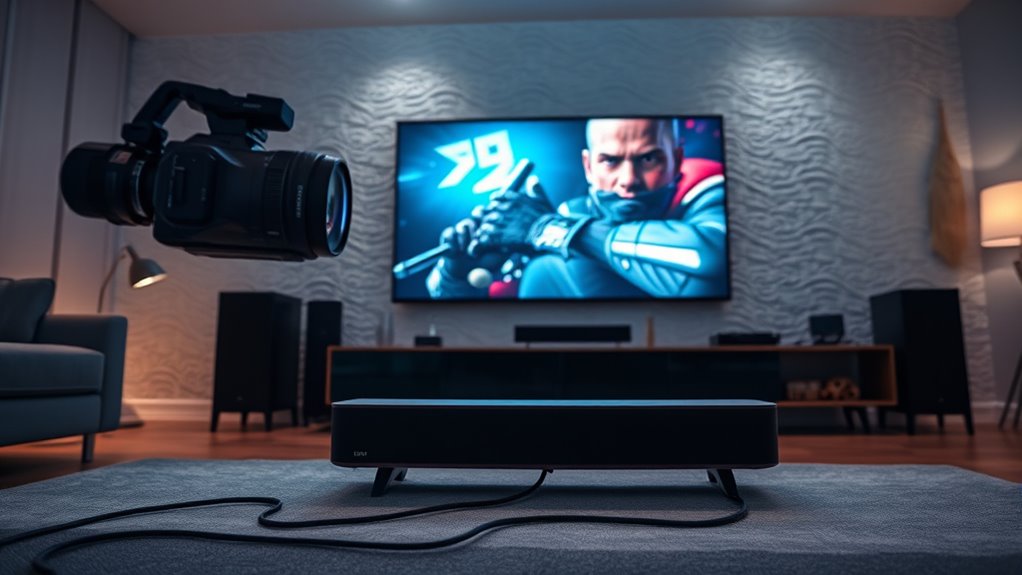
Connecting external speakers or a soundbar to your projector can considerably enhance audio quality, providing richer and more immersive sound. Using a soundbar with wireless audio capabilities allows you to reduce clutter and easily position speakers for the best sound. If you’re aiming for a multi-room setup, wireless options let you sync audio throughout your space seamlessly. This setup ensures your gaming experience feels more dynamic and engaging. To maximize benefits, consider connecting via Bluetooth or Wi-Fi, depending on your devices. Keep in mind that some soundbars support multi-room audio, giving you flexibility across different zones. Proper placement of external speakers can minimize sync issues and improve overall sound clarity. Additionally, selecting a soundbar with smart capabilities can allow for easier control and integration with your existing smart home ecosystem. Ultimately, external speakers or soundbars are excellent upgrades for a more immersive gaming environment.
Troubleshooting Common Sync Issues

Even with a well-setup external sound system, sync issues can still crop up, disrupting your viewing or gaming experience. Wireless interference is a common culprit, especially if your audio device shares frequency bands with Wi-Fi or Bluetooth devices. Try relocating your transmitter or receiver away from routers and other electronics. Cable durability also plays a role; damaged or low-quality cables can cause audio lag or dropout. Inspect your cables regularly for wear and replace any frayed or loose connections. Additionally, ensure cables are properly secured to prevent accidental disconnections. If problems persist, test with different cables or reposition devices to minimize interference. Addressing these issues can markedly improve your sync and restore seamless audio-visual harmony. For optimal performance, consider smart device integration to manage your audio and video setup more effectively.
Utilizing Software and Hardware Tools for Syncing
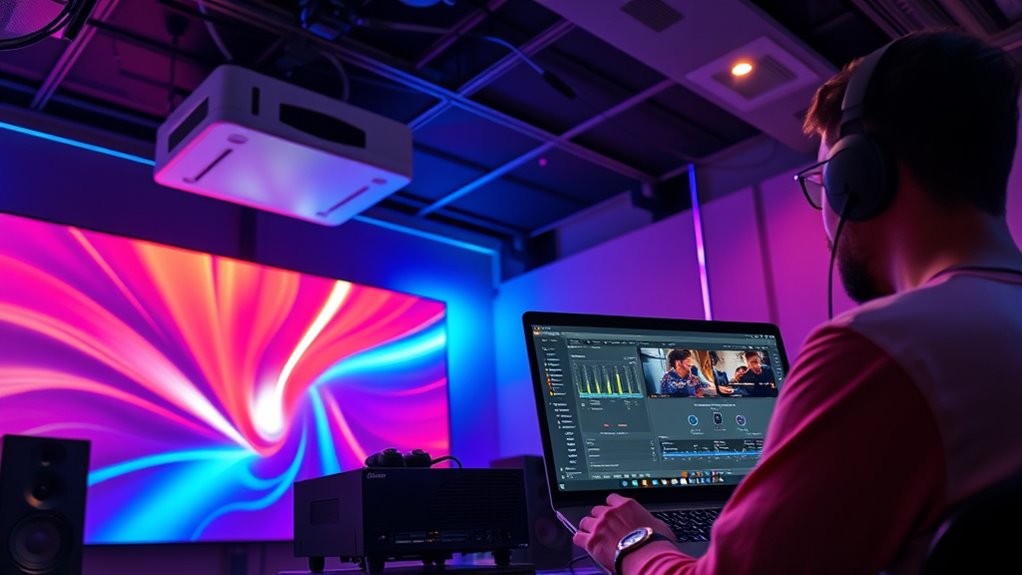
Using software and hardware tools can make syncing your projector audio much easier and more precise. These tools help you address audio delay issues and fine-tune your setup through software calibration or hardware adjustments. For example, audio delay settings allow you to synchronize sound with visuals directly, eliminating lag. Hardware devices like audio sync controllers can provide real-time adjustments, ensuring seamless audiovisual harmony. Software solutions often include calibration features that analyze and correct sync issues automatically or manually. By leveraging these tools, you gain greater control over your audio-video synchronization, reducing frustration during gaming sessions.
Using software and hardware tools helps you precisely synchronize projector audio and visuals.
- Adjust audio delay settings within your gaming console or media player
- Use calibration software to analyze and fix sync issues
- Incorporate hardware sync controllers for real-time adjustments
Tips for Maintaining Long-Term Audio-Video Sync
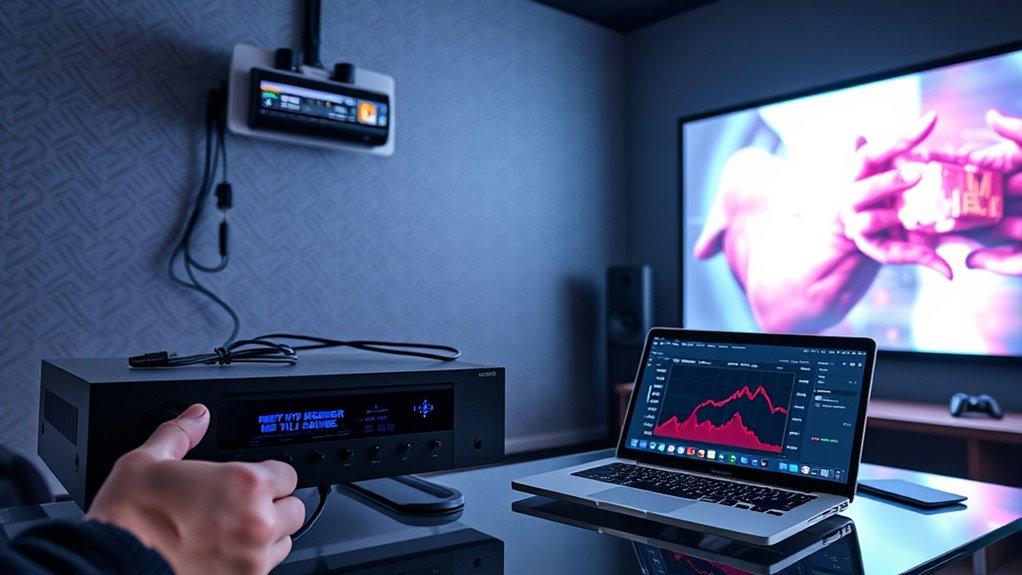
Maintaining long-term audio-video sync requires regular attention and proactive adjustments. When using wireless streaming, occasional latency can cause audio and video to drift apart over time. To prevent this, periodically check your setup and adjust the audio delay settings as needed. Keep ambient noise levels in check, as loud or unpredictable sounds can make it harder to notice sync issues. Using a consistent connection method, like wired connections when possible, can help minimize interference. If you notice persistent lag, consider updating your device firmware or software to improve stability. Regularly calibrate your projector and audio system to ensure they stay in sync. Staying attentive to these factors ensures a smooth gaming experience without distracting audio delays.
Frequently Asked Questions
Can Firmware Updates Improve Audio-Video Sync Issues?
Yes, firmware updates can improve audio-video sync issues. They often address firmware compatibility problems and fix bugs that cause lag. By regularly updating your projector’s firmware, you guarantee it stays compatible with the latest gaming console features, reducing sync delays. Keep in mind, update frequency varies; staying current helps maintain peak performance and minimizes audio-video discrepancies during gameplay.
Is It Possible to Sync Audio for 4K Projectors?
Yes, you can sync audio for 4K projectors by adjusting projector calibration and sound delay settings. Think of it like tuning a musical instrument—precision matters. Start by accessing your projector’s audio settings and tweak the sound delay to match the video. Many projectors also offer dedicated calibration tools, helping you eliminate lip-sync issues and create a seamless viewing experience. Just a few tweaks can harmonize your audio and visuals perfectly.
Do Different Gaming Consoles Require Unique Syncing Procedures?
Different gaming consoles do require unique syncing procedures because of console compatibility and port differences. You’ll need to adjust settings or use specific cables depending on whether you have an Xbox, PlayStation, or other device. Check each console’s audio output options and make sure you’re using the right ports, like HDMI or optical. This helps you achieve ideal audio synchronization with your projector, regardless of the console you’re using.
How Do Ambient Room Acoustics Affect Audio Sync?
Ambient room acoustics can throw off your audio sync, making sounds seem delayed or out of place. While room reflections bounce sound waves, causing echo and muddiness, sound absorption dampens these effects, helping you achieve better sync. If your room has lots of reflective surfaces, expect more latency and delay. To improve, add soft furnishings or acoustic panels—these absorb reflections and help keep your audio precise and synchronized.
Are There Wireless Solutions for Reducing Lag in Audio Syncing?
Yes, wireless solutions can help reduce audio delay caused by wireless latency. Look for Bluetooth or Wi-Fi transmitters designed for low latency, which sync audio more quickly with your projector. These devices often feature aptX or low-latency codecs to minimize lag. By choosing a high-quality wireless system, you can enjoy a more synchronized gaming experience, with less noticeable audio delay and smoother gameplay.
Conclusion
Now that you’ve explored the steps to sync your projector audio with your gaming console, you’re closer to flawless gameplay. But remember, even the smallest delay can slip through unnoticed, and technology’s quirks may surprise you when you least expect it. Will your adjustments hold up under intense gaming sessions? Stay vigilant, keep experimenting, and you might just discover the secret to perfect audio-visual harmony—before it’s too late.