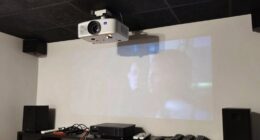
To connect your game consoles to a projector for ideal audio and video, make certain you use HDMI cables that match your device’s standards, like HDMI 2.1 for higher resolutions. Confirm your projector supports the same HDMI version for smooth transmission, and use reliable power sources with surge protectors or UPS units to prevent interruptions. Correct setup and compatibility are key, and if you keep going, you’ll learn how to maximize your entire gaming experience further.
Key Takeaways
- Ensure your game console and projector both support compatible HDMI standards (preferably HDMI 2.0 or higher) for optimal video and audio quality.
- Use high-quality, certified HDMI cables that meet or exceed your devices’ specifications to prevent signal loss or lag.
- Connect the console to the projector via HDMI, then configure display and audio settings for the best resolution and sound output.
- Use external audio devices like soundbars or speakers via HDMI ARC or optical output for enhanced audio experience if needed.
- Verify power supply stability with surge protectors or UPS to maintain consistent performance during extended gaming sessions.
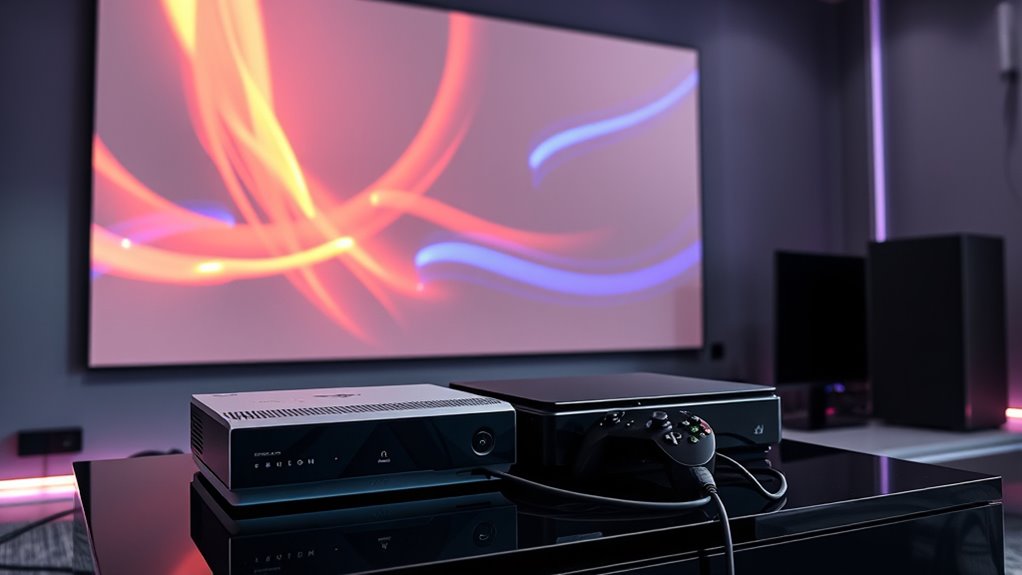
Have you ever wanted to play your favorite games with friends or family on multiple consoles? If so, connecting your gaming setup to a projector for a big-screen experience can be both exciting and a bit tricky. To guarantee seamless gameplay, you need to focus on a few key factors, especially HDMI compatibility and power supply options. These elements are essential for delivering smooth audio and video integration, making your gaming sessions enjoyable without technical hitches.
First, HDMI compatibility is critical when connecting your game consoles to a projector. Most modern consoles, like the PlayStation, Xbox, or Nintendo Switch, rely on HDMI outputs to transmit high-definition video and audio signals. However, not all projectors support the latest HDMI standards, so you should verify your projector’s HDMI version to match your console’s output. Using an HDMI cable that matches or exceeds your console’s specifications ensures you get the best picture quality and sound. For instance, if your console supports HDMI 2.1, but your projector only handles HDMI 1.4, you might experience limitations like reduced resolution or audio lag. Investing in a high-quality, compatible HDMI cable can prevent these issues and provide a reliable connection, making gameplay smooth and immersive.
Power supply options are another critical aspect when setting up your gaming system with a projector. Consoles require a steady power source to run efficiently, especially during extended gaming sessions. You should consider the placement of your consoles and ensure they have access to reliable power outlets. Using surge protectors can safeguard your devices from voltage spikes, which is especially important if you’re connecting multiple electronics. Additionally, some modern consoles come with external power adapters or power bricks; making sure these are compatible with your setup is essential. If you’re planning to switch between multiple consoles, look for power strips or outlets that can handle the combined load without risking overload. For portable setups, consider using uninterruptible power supplies (UPS) to keep your game running smoothly during power outages or fluctuations. Proper power management not only protects your equipment but also guarantees consistent gameplay without unexpected shutdowns.
Furthermore, understanding the HDMI standards supported by your projector can help optimize your setup for the best possible audio and video performance.

Highwings 8K@60 Long HDMI Cable 15FT, 48Gbps 2.1 High Speed Gaming HDMI Cord 4K120 144Hz RTX 3090 eARC HDCP 2.2&2.3 Compatible for PS5, SoundBar, AVR, UHD TV
Top Technology—-8K@60HZ: This 8K Ultra High Speed HDMI Cable uses the most cutting-edge technology, is compatible with 8K@60HZ…
As an affiliate, we earn on qualifying purchases.
As an affiliate, we earn on qualifying purchases.
Frequently Asked Questions
Can I Connect Multiple Game Consoles to a Single Projector Simultaneously?
Yes, you can connect multiple game consoles to a single projector simultaneously. To do this, use HDMI splitters, which allow you to share one HDMI output among multiple devices. Alternatively, consider a multi-input projector that supports multiple HDMI sources directly. This setup lets you switch between consoles easily without unplugging and reconnecting cables, giving you seamless gaming sessions and improved convenience.
What Audio Formats Are Compatible When Connecting Game Consoles to Projectors?
They say “know your enemy,” but in this case, know your audio codecs. When connecting game consoles to projectors, most support common compatibility standards like Dolby Digital, DTS, and PCM. Confirm your projector accepts these formats; otherwise, your audio may not sync correctly. Check your console’s supported audio codecs and your projector’s input options to guarantee seamless sound. Compatibility matters—don’t let poor audio spoil your gaming experience.
How Do I Troubleshoot Lag or Latency Issues During Gameplay Projection?
To troubleshoot lag or latency issues during gameplay projection, start by checking for signal interference from nearby electronics. Make certain your cables are high-quality and securely connected, as poor cable quality can cause delays. Try switching to a different HDMI port or replacing your cables with shorter, shielded ones to reduce interference. Additionally, update your projector firmware and console software to improve synchronization and minimize lag.
Are There Specific Projectors Optimized for Gaming Connection Setups?
Sure, because your gaming setup deserves a throne, right? Look for projectors boasting high resolution—at least 1080p or 4K—to keep visuals sharp. Prioritize gaming compatibility features like low input lag and HDMI 2.1 ports. Brands like Epson and Optoma offer models tailored for gamers, ensuring your epic battles aren’t marred by pixelation or lag. After all, your victory depends on the right tech, not luck.
Is It Possible to Connect Wireless Game Consoles to Projectors?
Yes, you can connect wireless game consoles to projectors. Many projectors support wireless connectivity options like Miracast or Wi-Fi, allowing you to stream content without cables. Make sure your wireless game console is compatible with these features or use a wireless HDMI transmitter for smooth, high-quality video and audio transmission. This setup provides a clutter-free gaming experience while maintaining excellent HDMI compatibility.

BENFEI HDMI to VGA, Gold-Plated Adapter (Male to Female) for Computer, Desktop, Laptop, PC, Monitor, Projector, HDTV, Chromebook, Raspberry Pi, Roku, Xbox and More – Black
COMPACT DESIGN – The compact-designed portable Benfei HDMI to VGA adapter connects a computer, desktop, laptop, or other…
As an affiliate, we earn on qualifying purchases.
As an affiliate, we earn on qualifying purchases.
Conclusion
Now that you know how to connect your game console to a projector, think of it like transforming your living room into a personal cinema. I once set up a console for a friend, and their jaw dropped when the picture flooded the wall, making gaming feel larger than life. With the right audio and video integration, you turn simple gameplay into an immersive experience. So go ahead—bring the big screen home and elevate your gaming to epic new heights.

ECHOGEAR ShockBlocker 8 Outlet Surge Protector Power Strip – Slim Design Can Power & Protect Your Entire TV, Office, Or Gaming Setup – Advanced Surge Suppressor with 3420 Joules of Protection
With 3420 Joules of premium surge protection, you can power and protect up to 8 devices at once….
As an affiliate, we earn on qualifying purchases.
As an affiliate, we earn on qualifying purchases.

APC UPS Back-UPS Pro 1500VA UPS, 900W Battery Backup & Surge Protector, AVR, 10 Outlets (NEMA 5-15R), LCD, BX1500M Uninterruptible Power Supply for Computers, Wi-Fi Routers, Home Office Electronics
1500VA / 900W RELIABLE BACKUP POWER: The highest VA capacity available for home use; delivers short‑term battery power…
As an affiliate, we earn on qualifying purchases.
As an affiliate, we earn on qualifying purchases.