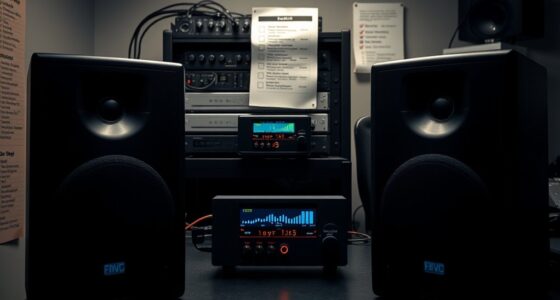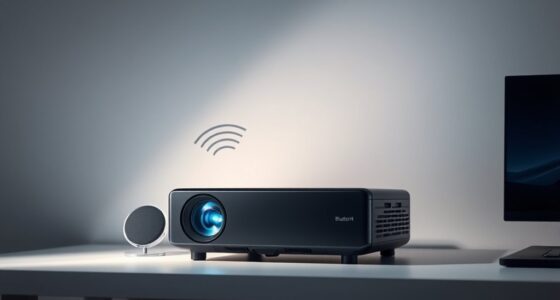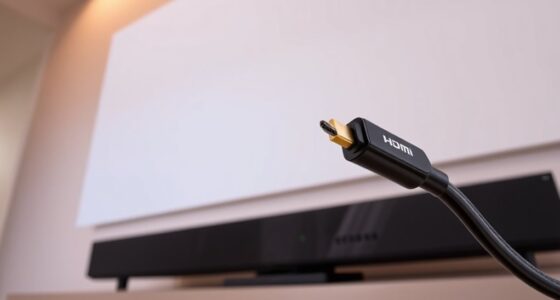

When troubleshooting AV integration issues like no signal or sound, start with remote diagnostics to check connections, power, and settings. Verify that cables are secure and compatible, updating firmware if needed. Power cycle devices to clear glitches and reset the system. Consulting manufacturer support and proper documentation can guide you through specific problems. Keeping these steps in mind will help you quickly identify the cause; discover more tips to resolve these issues effectively.
Key Takeaways
- Use remote diagnostics to verify connections, power, and settings before physically adjusting equipment.
- Ensure all devices support compatible formats and update firmware or drivers to fix compatibility issues.
- Check and secure all cabling connections; swap cables to rule out damage or faults.
- Power cycle source devices, displays, and AV receivers to clear temporary glitches.
- Consult manufacturer support and troubleshooting resources for tailored solutions and firmware updates.
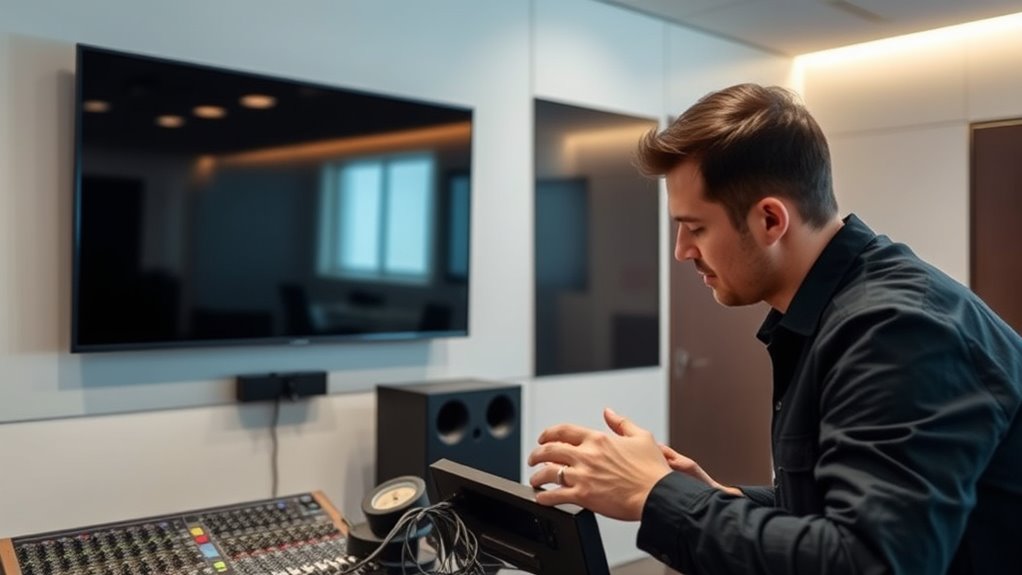
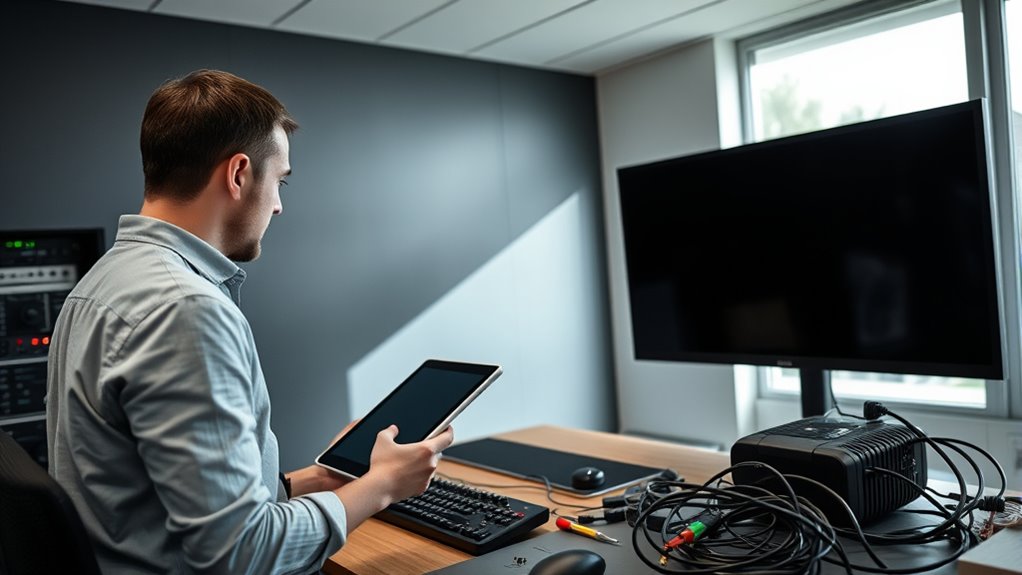
Integrating audio-visual systems can be complex, and issues often arise unexpectedly. When you encounter a no signal or no sound problem, the first step is to stay calm and methodically diagnose the issue. Remote troubleshooting becomes invaluable here, especially if you’re dealing with multiple devices spread across a room or building. Instead of rushing to unplug or tinker blindly, use remote access tools or control systems to quickly check connections, power status, and settings. This approach saves time and prevents unnecessary disruption, allowing you to isolate whether the problem stems from the source device, the display, or the signal path itself.
One common cause of no signal or no sound is equipment compatibility issues. Even when devices appear to work together, subtle incompatibilities can create significant problems. For example, certain older projectors or displays may not support the latest HDMI standards, resulting in no picture or audio. Similarly, mismatched audio formats or incompatible input/output configurations can lead to no sound. When troubleshooting remotely, verify that all connected devices support the same signal formats and resolutions. Check the specifications of your equipment beforehand to ensure compatibility. Updating firmware or drivers can often resolve these issues, so keep your devices’ software current.
Next, review your cabling and connections. Loose or damaged cables are frequent culprits behind signal loss and audio issues. Use remote diagnostics, where possible, to confirm that cables are properly connected and functioning. If you’re working with HDMI, for example, ensure that the cable is securely plugged in at both ends and that it’s of good quality. Sometimes, swapping out a suspected faulty cable with a known good one can quickly resolve the problem. Remember, not all cables are created equal—cheap or damaged cables may cause intermittent or complete signal failures, so investing in quality cables can save you headaches.
Power cycling devices is another effective troubleshooting step. Turn off your source devices, displays, and AV receivers, then turn them back on after a few moments. This simple reset can clear temporary glitches or miscommunications between devices. If you’re managing multiple devices remotely, many modern systems allow you to reboot components directly through their control interfaces, streamlining the process.
Finally, if issues persist, consult your device manuals or manufacturer support resources. Often, they provide specific troubleshooting steps for common problems like no signal or no sound. By systematically checking remote troubleshooting options and ensuring equipment compatibility, you can swiftly identify and resolve most AV integration issues. Staying organized, keeping firmware updated, and understanding your devices’ specifications are key to maintaining a seamless AV experience. Additionally, understanding the importance of security zone info can help prevent unauthorized access or cyber threats that might disrupt your AV systems.

HUNKSTAR Mini Projector, 4K Support Projector with Wifi 6 and Bluetooth 5.2, 1000 ANIS Portable HD1080P Home Video Projector with Auto Focus, Suitable for Family Gatherings, Various Festivals (White)
[4K SUPPORT & 1000 ANSI]: Support 4K full HD resolution, you can clearly see every picture from any...
As an affiliate, we earn on qualifying purchases.
Frequently Asked Questions
How Do I Identify Faulty Cables in My AV Setup?
To identify faulty cables in your AV setup, start by inspecting the cable quality and connector integrity. Look for visible damage, frayed wires, or bent connectors. Test the cable with a different device or replace it with a known working one to see if the issue persists. Using a cable tester can also help detect internal faults, ensuring your connections are solid and reliable for peak performance.
What Are Quick Tests to Confirm if the Projector Is Functioning?
Ever wonder if your projector is truly working? First, check the projector lamp—if it’s on and not flickering, that’s a good sign. Next, verify the input source is correctly selected and displaying a picture. You can also power cycle the projector and see if the LED indicators light up properly. If these tests pass, your projector is functioning, and the issue might be elsewhere in your setup.
How Can Software Updates Resolve AV Signal Issues?
Software updates can resolve AV signal issues by fixing bugs, improving firmware compatibility, and enhancing device performance. You should follow proper update procedures, such as downloading the latest firmware from the manufacturer’s website and installing it carefully. Updating guarantees your equipment communicates correctly with other devices, reduces glitches, and restores signal stability. Regular updates help prevent future problems and keep your AV system running smoothly.
Is There a Way to Reset AV Equipment to Factory Settings?
Yes, you can reset your AV equipment to factory settings. Usually, this involves pressing and holding a specific button or accessing the menu to select a factory reset option. Doing so restores the device’s default settings, which can resolve issues caused by incorrect configurations. Remember, a factory reset erases personalized settings, so be sure to back up any important configurations before restoring the device to its original factory state.
What Troubleshooting Steps if Multiple Devices Have No Audio Output?
First, check your audio calibration to make certain settings are correct across all devices. Then, eliminate wireless interference by moving routers or wireless devices away from AV equipment. Verify cables and connections are secure, and test different audio outputs if possible. Power cycle all devices, and update firmware if available. These steps help identify whether calibration issues or wireless interference are causing the no audio output across multiple devices.
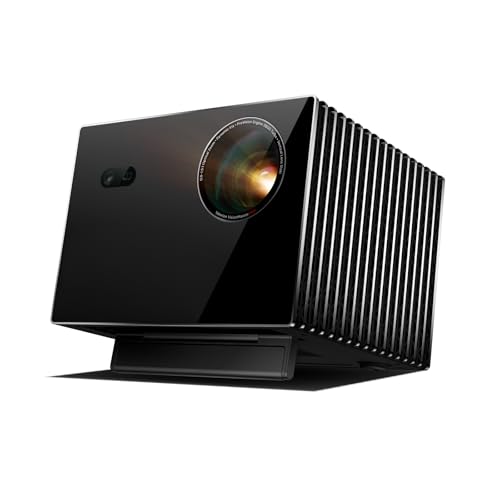
Valerion VisionMaster Max 4K Laser Projector, 3500 ISO Lumens, Anti-RBE, Speckle-Reduction, Flagship Black Level, 0.9–1.5:1 Optical Zoom, 300", IMAX Enhanced, HDR10+, 3D, Gigabit 4ms 240Hz
Industry-Defining Blacks. NoirScene Mastery: NoirScene Dark Field Engine starts with the EBL black-level algorithm, enhancing shadow detail and...
As an affiliate, we earn on qualifying purchases.
Conclusion
By following these troubleshooting tips, you can quickly resolve common AV integration problems like no signal or sound. Remember, nearly 80% of AV issues are caused by simple connection errors or settings, so double-check everything first. Staying patient and methodical saves time and frustration. With a little troubleshooting, you’ll get your system back up and running smoothly—ensuring seamless presentations and entertainment experiences every time.

4K Projector Built-in Google TV: 2500 ANSI/Auto Lens Cap & 4D Keystone/Auto Focus & AI Voice Control, Sovboi Smart Portable Projector with WiFi6 & Bluetooth, Outdoor Movie Proyector for Streaming Apps
【Smart Google TV Projector: Unlimited Apps, Zero Restrictions】Elevate your home theater with the Sovboi E30Max. Ditch the external...
As an affiliate, we earn on qualifying purchases.

ViewSonic LS901-4K UHD 4K Laser Projector with 5500 Lumens, 1.7X Optical Zoom, 4K HDR/HLG Support, 4 Corner Adjustment, H/V Keystone, 360 Degrees Projection for Home Theater and Commercial Venues
4K Home Theater Laser Projector: UHD (3840x2160p) 4K resolution with a 1.2-2.0 throw ratio and 5,500 ANSI lumens,...
As an affiliate, we earn on qualifying purchases.