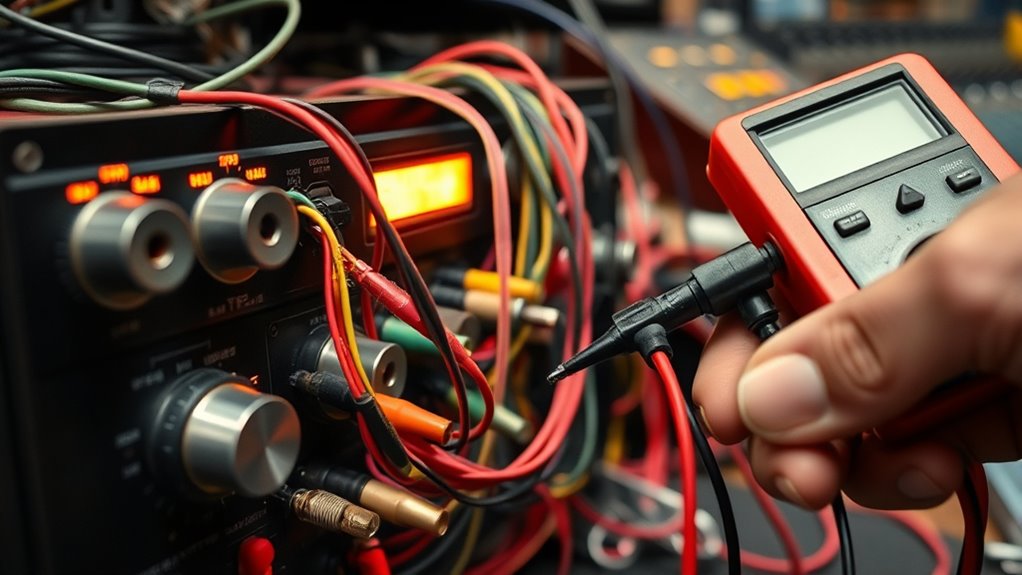
If you have audio but no video, start by checking all cable connections to make certain they’re secure and undamaged. Confirm that your source device is powered on and set to the correct output resolution. Then, verify you’ve selected the right input on your display. If the problem persists, try using a different cable or device to isolate the issue. Continuing will guide you through more detailed steps to fix the problem effectively.

Get business pricing on your home office setup
- Business-only prices and quantity discounts
- Tax-exempt purchasing
- Multiple users, one account, clear invoices
Key Takeaways
- Verify all cable connections are secure, undamaged, and plugged into correct ports on source and display devices.
- Confirm the source device’s output settings match the display input, adjusting resolution if needed.
- Ensure the correct input source is selected on the display and check any adapters for proper functionality.
- Test with alternative cables or devices to identify whether the issue lies with the cable, source, or display.
- Refer to device manuals for specific troubleshooting steps or contact technical support if the problem persists.
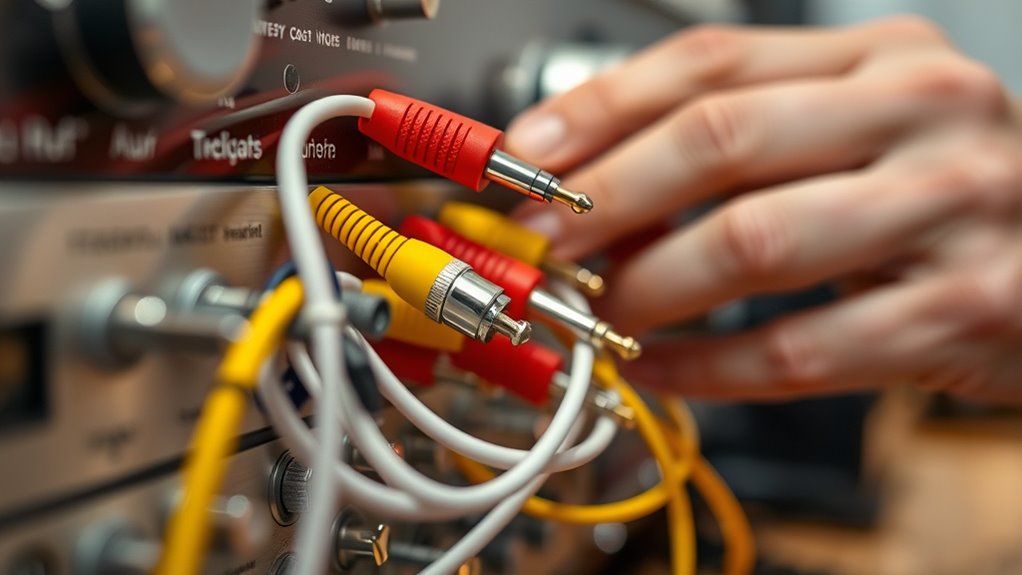
Have you ever experienced a situation where your device produces audio but no video is visible? It can be frustrating, especially when you’re enthusiastic to watch something. The first thing to check is your cable connections. Sometimes, a loose or damaged cable can cause this problem, even if the audio signal still passes through. Make sure all cables are firmly plugged into the correct ports on both your source device, like a DVD player or gaming console, and your display, such as a TV or monitor. If you notice any bent pins or frayed wires, replace the cables immediately. Using high-quality, compatible cables ensures a reliable connection and reduces the risk of video issues.
Check all cable connections and replace damaged ones to fix no video issues.
Next, verify the source device itself. Sometimes, the problem isn’t with the cables but with the device sending the signal. Turn off your source device, then restart it to see if it re-establishes the connection correctly. Check if the device’s output settings match your display’s input. For example, if your source device is set to output via HDMI, but your TV is set to a different input, you won’t see the video. Access the device’s menu and confirm the output configuration. If you’re using a cable box or streaming device, ensure it’s powered on and properly configured. Sometimes, the device might default to a setting that’s incompatible with your display, so adjusting the resolution or output format can fix the issue.
Another common cause is selecting the wrong input on your display. Double-check that your TV or monitor is set to the correct input source. Many devices have multiple HDMI or AV inputs, and it’s easy to accidentally switch to the wrong one. Use your remote to cycle through the input options and confirm you’re on the correct one. If you’re using an adapter, like an HDMI to VGA converter, ensure it’s functioning properly. Faulty adapters can sometimes transmit audio but block video.
If all these steps fail, try testing with a different cable or source device. Borrow a known-working cable or connect a different device to see if the problem persists. This process can help you isolate whether the issue lies with the cable, the source device, or the display. Additionally, understanding the importance of contrast ratio and its impact on image quality can help you identify if a display setting might be causing the problem. Ultimately, systematically checking your cable connections, verifying the source device settings, and ensuring your display input are correct can often resolve the “audio but no video” problem quickly. If none of these solutions work, consider consulting the device’s manual or contacting technical support for further assistance.
As an affiliate, we earn on qualifying purchases.
Frequently Asked Questions
Can a Faulty HDMI Port Cause Audio Issues?
Yes, a faulty HDMI port can cause audio issues. If the port has physical damage or poor connections, it may lead to audio interference or complete loss of sound. You should check the HDMI port for visible damage, try reconnecting the cable, or test with a different port or cable. Faulty ports often disrupt both video and audio signals, so addressing hardware issues can restore proper sound.
What Settings Should I Check on My Audio Device?
Your audio device settings are like the control panel of a spaceship—crucial for smooth operation. Check your device’s audio device configuration and sound settings to guarantee they’re correctly set for your setup. Make sure the volume isn’t muted, the output is set to the correct device, and any audio enhancements are disabled if necessary. Adjusting these options can often resolve audio issues and restore clear sound.
How Do I Identify a Damaged Audio Cable?
To identify a damaged audio cable, look for signs of cable degradation like frayed or cracked insulation, and check for visible connector corrosion or rust. You might also notice intermittent sound or no audio at all, which indicates internal damage. Gently wiggle the cable and connectors; if the sound cuts in and out, it’s likely damaged. Replacing the cable is often the simplest fix if these issues are present.
Is It Possible to Fix Audio Problems Without Professional Help?
Fixing audio problems is often easier than you think—like finding a needle in a haystack! You can try DIY fixes and troubleshooting tips first, such as checking connections, restarting devices, or updating drivers. While some issues need professional help, many minor problems can be resolved at home with patience and a little know-how. Just remember to stay cautious and methodical, and you’ll often restore sound without calling in experts.
Can Software Updates Resolve Audio and Video Mismatch Issues?
Yes, software updates can resolve audio and video mismatch issues. When you update your device, you improve software compatibility, fixing bugs that cause sync problems. Follow the update process carefully, ensuring your system is connected to a stable internet connection. Regular updates help maintain peak performance and prevent future issues. If problems persist after updating, consider checking for driver updates or hardware issues for a more thorough fix.
AV cable replacement for DVD player
As an affiliate, we earn on qualifying purchases.
As an affiliate, we earn on qualifying purchases.
Conclusion
If you’re still experiencing audio without video issues, remember to double-check your source settings and cable connections. Nearly 20% of display problems stem from faulty cables or incorrect input selections. By systematically troubleshooting these areas, you can save time and frustration. Keep in mind, a simple cable swap or source reset often solves the problem quickly. Staying patient and methodical guarantees you’ll get your media working smoothly again in no time.
As an affiliate, we earn on qualifying purchases.
As an affiliate, we earn on qualifying purchases.
Fall Picks
fall essentials
As an affiliate, we earn on qualifying purchases.