To optimize your projector picture, understand that edge enhancement sharpens details and adds clarity, but too much can cause halos or artificial outlines. Noise reduction smooths out grain and unwanted noise, especially in low-light scenes, but excessive use can soften image details. Balancing both settings is key to achieving a crisp, natural look without artifacts. Playing with these adjustments while considering your environment and content helps refine your picture; exploring further will help you perfect it.
Key Takeaways
- Balance edge enhancement to sharpen details without creating halos or artifacts for a natural look.
- Use noise reduction to smooth grain in low-light scenes, but avoid softening important details.
- Adjust both settings incrementally to find the optimal combination based on viewing environment and content.
- Consider how noise reduction and edge enhancement interact with motion smoothing and color calibration.
- Aim for a crisp, vivid image by fine-tuning settings to reduce noise and enhance edges without overdoing it.
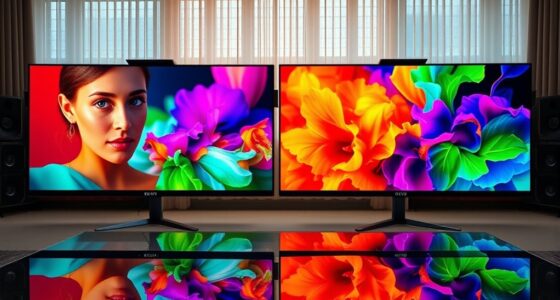
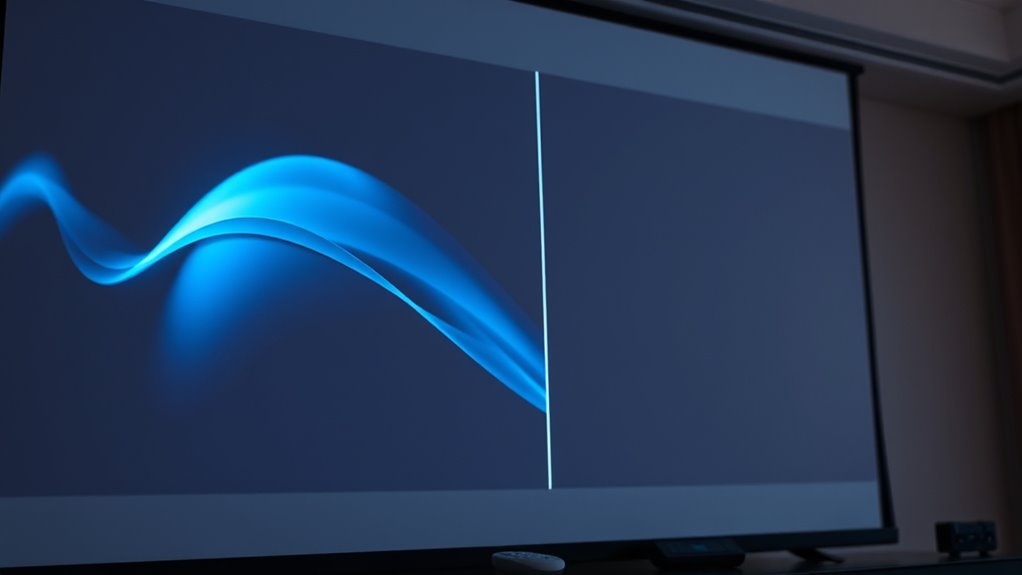
When editing images or videos, understanding the difference between edge enhancement and noise reduction is crucial, because each technique serves a distinct purpose. Edge enhancement sharpens the details in your picture, making objects appear crisper and more defined. It works by emphasizing the borders between different colors or shades, which can make your content look more vibrant and lifelike. However, overdoing it can introduce artifacts or halos around edges, so you need to find a balanced setting. Noise reduction, on the other hand, aims to eliminate unwanted visual noise—grainy specks or pixelation—especially in low-light scenes. It smooths out imperfections to produce a cleaner image but can sometimes soften details, making the picture appear less sharp. Properly balancing these two settings ensures your content looks natural and detailed. Additionally, understanding the impact of filter settings on overall image quality can help you fine-tune your projector’s output for optimal viewing. When you’re adjusting your projector’s picture settings, you should pay attention to motion smoothing. This feature reduces judder in fast-moving scenes, but it can also introduce a soap-opera effect that looks unnatural. While motion smoothing can make fast action appear smoother, it might conflict with noise reduction settings, as both can alter the perceived sharpness and clarity of the image. Toggling motion smoothing appropriately helps maintain a good balance between fluid motion and image authenticity. Additionally, color calibration plays a critical role in this process. Proper calibration ensures that colors are accurate and consistent, which can influence how edge enhancement and noise reduction are perceived. For example, if colors are off, it becomes harder to judge the effectiveness of sharpening or smoothing, leading you to make unnecessary adjustments. Fine-tuning your projector’s color calibration creates a neutral baseline, making it easier to evaluate and optimize these image-processing features. Ultimately, the goal is to achieve a picture that’s sharp but natural, without excessive noise or artificial edges. You should experiment with adjusting the edge enhancement and noise reduction sliders, paying close attention to how they interact with motion smoothing and color calibration. Keep in mind that each viewing environment and content type may require different settings; a bright room might benefit from more noise reduction, while a dark room might need less to preserve detail. Be patient and make incremental changes, viewing your content on the same scene repeatedly to gauge the effects. When you get it right, your projector will deliver crisp, vivid images with minimal distractions, immersing you fully in your content without the distraction of artifacts or noise.
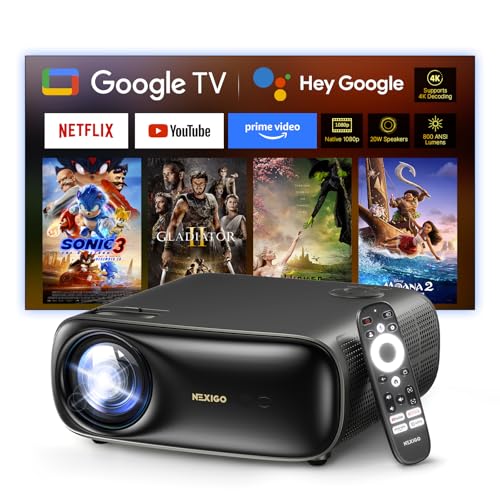
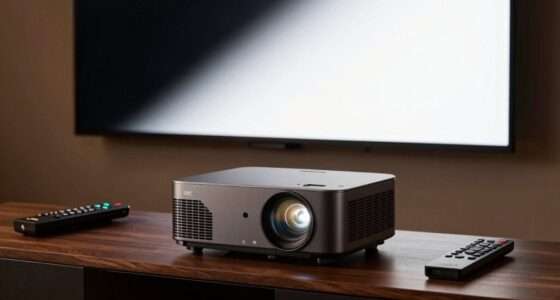
NexiGo PJ40 Pro Google TV Projector, Native 1080p, 4K Support, AI Image Enhancement, 800 ANSI Lumens, Smart Projector with Auto Keystone, 20 W Speakers, Backlit Remote, Wi-Fi & Bluetooth
- Google TV Integration: Access 10,000+ apps including Netflix and YouTube
- Wireless Streaming: Google Cast for easy wireless content sharing
- High-Resolution Display: Native 1080p with 4K support and AI enhancement
As an affiliate, we earn on qualifying purchases.
As an affiliate, we earn on qualifying purchases.
Frequently Asked Questions
How Do I Know Which Setting to Prioritize for My Specific Content?
You should prioritize settings based on your content’s needs. For movies with lots of fast motion, boost motion clarity by adjusting noise reduction, which smooths out graininess. If you’re watching content that demands accurate colors, focus on fine-tuning color accuracy. Balance both by testing different settings, so you get sharp images without sacrificing natural color and smooth motion, ensuring the best viewing experience tailored to what you’re watching.
Can Adjusting These Settings Improve Gaming Visuals on a Projector?
Adjusting these settings can definitely improve your gaming visuals on a projector. By fine-tuning motion clarity, you’ll experience smoother gameplay with less blur, making fast-paced scenes clearer. Enhancing color accuracy ensures vibrant, true-to-life visuals that elevate your immersion. However, avoid overdoing these adjustments, as too much edge enhancement may introduce artifacts, and excessive noise reduction can soften details. Find a balance to optimize your gaming experience.
Are There Any Long-Term Effects of Using Aggressive Edge Enhancement?
Sure, using aggressive edge enhancement might boost image quality temporarily, but it can actually harm your projector’s hardware longevity over time. Ironically, the very setting designed to improve visuals could cause long-term damage, making your display look sharper now but degrading image quality and hardware health later. So, while it seems like a quick fix, it risks diminishing your projector’s lifespan, ultimately undermining your viewing experience.
How Do Ambient Lighting Conditions Affect Setting Choices?
Ambient lighting conditions profoundly influence your setting choices. In a brightly lit room, increased room brightness can cause screen glare, making it harder to see details. You should lower contrast and brightness settings and consider adding a matte screen or blackout curtains. In darker environments, you can enhance contrast and sharpness without glare issues, ensuring the best picture quality. Adjusting based on room brightness helps prevent eye strain and improves viewing comfort.
Is There a Recommended Default Setting for Regular Movie Watching?
For regular movie watching, start with a neutral setting like turning off edge enhancement and noise reduction. For example, a home theater enthusiast used calibration tools to fine-tune their projector, emphasizing natural image quality. You should also consider your preferences—if you prefer sharper images, dial up edge enhancement slightly. Adjust settings gradually, using calibration tools as needed, to find a balance that delivers a comfortable, immersive viewing experience tailored to your environment.

Rossetta Dual Lens Galaxy Star Aurora Projector Night Light for Bedroom
- 5-in-1 Multi-Function Projector: Galaxy, aurora, nebula, Bluetooth, white noise
- Vibrant Light Effects: 58 mixed galaxy and northern lights effects
- White Noise & Night Light: 15 calming sounds for restful sleep
As an affiliate, we earn on qualifying purchases.
As an affiliate, we earn on qualifying purchases.
Conclusion
Balancing edge enhancement and noise reduction is like walking a tightrope—you want a picture that’s sharp without becoming noisy or artificial. Adjust these settings carefully to find your perfect harmony, much like tuning an instrument. When done right, your projector’s picture will shine brightly, drawing you into the scene like a magnet. Remember, small tweaks can make a big difference—so experiment and enjoy the masterpiece you create on your screen.
best projector calibration tools
As an affiliate, we earn on qualifying purchases.
As an affiliate, we earn on qualifying purchases.

Calibrite Photo Kit w/Display Pro HL Monitor Calibration Colorimeter w/ColorChecker Passport Photo 2, Capture to Edit Color Workflow for RAW, Custom Camera Profiles, White Balance, Accurate Displays
- High Luminance Monitor Calibration: Supports modern display technologies including mini LED and OLED
- Includes ColorChecker Passport Photo 2: For accurate color reference and profiling
- Supports Custom Camera Profiles: Optimized for RAW photo workflows
As an affiliate, we earn on qualifying purchases.
As an affiliate, we earn on qualifying purchases.