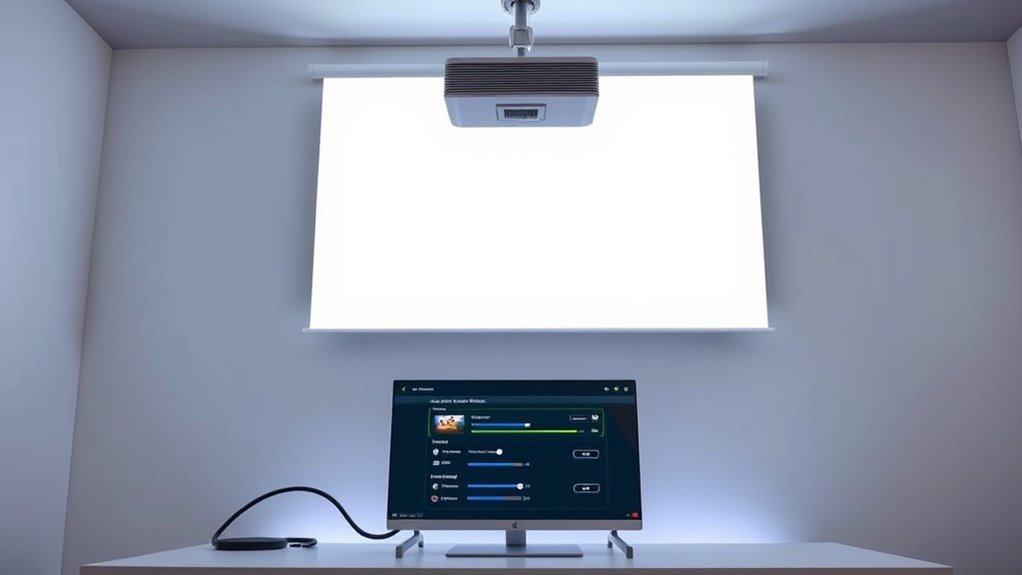
To connect your PC to a projector via HDMI, start by ensuring the cable is securely plugged into both devices. Then, check that your display settings are set to duplicate or extend your screen, and confirm that the audio output is set to HDMI in your sound settings. Adjust resolution for clear visuals and test sound. Keep your drivers updated for smooth performance. For more tips on optimizing your setup, continue exploring these options.

Get business pricing on your home office setup
- Business-only prices and quantity discounts
- Tax-exempt purchasing
- Multiple users, one account, clear invoices
Key Takeaways
- Ensure the HDMI cable is securely connected and select the correct HDMI input source on the projector.
- Adjust your PC’s display settings to match the projector’s resolution and set the display mode to duplicate or extend.
- Verify audio output is set to HDMI in your PC’s sound settings to transmit sound through the projector.
- Update graphics card drivers and display drivers for optimal video performance and compatibility.
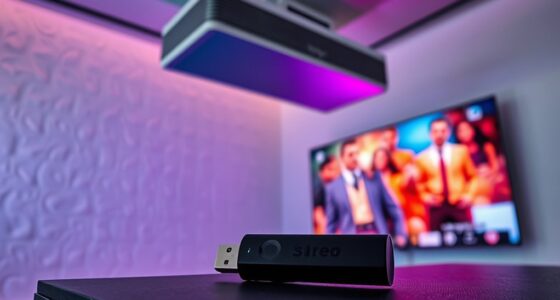
- Enable and configure wireless streaming protocols if using wireless projection, ensuring your PC and projector support the same standards.

Integrating projectors with PCs has become essential for seamless presentations and collaborations. When you connect your PC to a projector via HDMI, you activate high-quality video and audio transmission, making your visuals clear and professional. But to make the most of this setup, you should understand how to optimize settings for video and audio through HDMI, especially when considering wireless streaming options and power management. Wireless streaming allows you to project content without physical cables, reducing clutter and increasing flexibility. Many modern projectors support wireless streaming protocols like Miracast, Chromecast, or proprietary solutions, enabling you to mirror your PC screen effortlessly. This is especially useful in dynamic environments where mobility and quick setup matter. To guarantee smooth wireless streaming, verify your PC’s Wi-Fi capabilities and confirm your projector supports the same protocol. This way, you can avoid lag, buffering issues, or dropped connections, which can disrupt your presentation flow.
Power management is another vital aspect when integrating projectors with PCs. Proper power settings help conserve energy during extended use and prevent overheating or unnecessary power drain. You should adjust your PC’s power options to avoid sleep or hibernate modes during a presentation, which could interrupt the HDMI connection or wireless stream. Additionally, many projectors have eco modes or energy-saving features—activating these can reduce power consumption without sacrificing display quality. For instance, lowering the brightness or enabling standby modes when the projector isn’t in active use helps extend its lifespan and reduces operational costs. When using HDMI, keep in mind that some projectors have auto-shutdown features if no signal is detected, so confirm your PC remains active and transmitting during your presentation. Managing power effectively also means confirming your PC’s graphics card and display drivers are up to date, as outdated software can cause compatibility issues or display problems when streaming video and audio.
High-speed HDMI cable for PC to projector
As an affiliate, we earn on qualifying purchases.
As an affiliate, we earn on qualifying purchases.
Frequently Asked Questions
How Do I Troubleshoot HDMI Connection Issues Between My PC and Projector?
To troubleshoot HDMI connection issues, first check your cable quality—use a high-speed HDMI cable for ideal performance. Confirm the ports on both your PC and projector are compatible and free of debris. Restart both devices and select the correct input source on your projector. If problems persist, test the cable on another device to rule out damage, and update your graphics driver for better compatibility.
Can I Connect Multiple Devices to the Projector Using HDMI?
You can connect multiple devices to your projector like a busy airport runway, but you’ll need an HDMI switch to manage the traffic. An HDMI switch allows you to toggle between multiple sources without unplugging cables. Just connect your devices to the switch, then connect the switch to your projector. This setup makes switching seamless, so you can easily enjoy content from multiple devices without hassle.
What Are the Best Settings for Gaming via HDMI on a Projector?
For gaming via HDMI on your projector, set the resolution to match your game’s native resolution for sharp visuals. Enable low input lag mode if available, as it reduces delay between your controller and on-screen action. Adjust brightness and contrast for maximum clarity, and verify HDMI settings are fine-tuned for fast response times. This setup helps you enjoy smooth gameplay with minimal lag and vivid visuals.
How Do I Adjust Audio Delay or Lip-Sync Issues Through HDMI?
Think of audio lag as a dance partner out of step; you can fix it with a lip sync adjustment. Access your projector’s audio settings or the connected device’s menu, then locate the audio delay or lip sync option. Fine-tune it until sound and visuals move in harmony. Small tweaks can make a big difference, ensuring your audio perfectly syncs with the on-screen action, creating a seamless viewing experience.
Is It Possible to Connect a Projector Wirelessly Instead of HDMI?
Yes, you can connect a projector wirelessly instead of using HDMI. Wireless projection options like Miracast, Chromecast, or Apple AirPlay let you stream content from your device without cables. These HDMI alternatives are convenient, especially for quick setups or when cables are impractical. Just make certain your projector supports these features or has a compatible dongle, and follow the setup instructions to enjoy seamless wireless projection.
Wireless HDMI transmitter and receiver
As an affiliate, we earn on qualifying purchases.
As an affiliate, we earn on qualifying purchases.
Conclusion
By mastering these HDMI settings, you bridge the gap between your PC and projector, transforming a simple connection into a seamless experience. Yet, even as you gain control over video and audio, you realize that true integration isn’t just about settings—it’s about the harmony of technology and your intentions. In this dance of cables and signals, the complexity reminds you that simplicity often masks the richness of what’s possible when everything works together.
Projector with Miracast and Chromecast support
As an affiliate, we earn on qualifying purchases.
As an affiliate, we earn on qualifying purchases.
PC graphics card driver update kit
As an affiliate, we earn on qualifying purchases.
As an affiliate, we earn on qualifying purchases.
Fall Picks
fall essentials
As an affiliate, we earn on qualifying purchases.