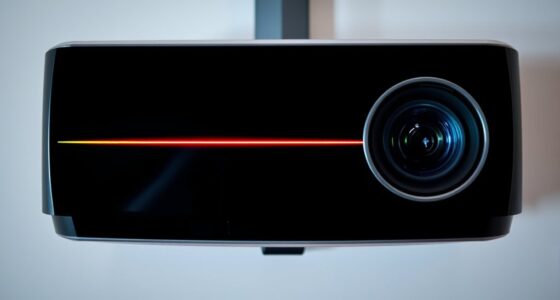
If your projector is stuck in standby mode, start by checking the lamp indicator light for any signs of a burned-out or blinking lamp, then turn off the device and let it cool. Inspect the vents and filters for dust or obstructions, and clean or replace them if needed. Confirm internal fans are working properly to prevent overheating. For more tips on troubleshooting and fixing common issues, keep exploring the solutions below.
Key Takeaways
- Check the lamp indicator light; replace the lamp if it’s blinking or lit to resolve standby issues.
- Ensure proper airflow by cleaning vents and filters to prevent overheating shutdowns.
- Turn off and unplug the projector, then wait for it to cool before inspecting internal components.
- Confirm the internal fan is functioning correctly and not obstructed to promote proper ventilation.
- Use manufacturer-approved replacement parts and perform regular maintenance to prevent recurring standby problems.
If your projector is stuck in standby mode and refuses to turn on, it can be frustrating and disrupt your plans. Before jumping to conclusions, check if the issue is related to the lamp or airflow blockage, as these are common causes of startup problems. A projector’s lamp plays a vital role in producing the image, and if it’s nearing the end of its lifespan or has burned out, the device may not exit standby. Inspect the lamp indicator light—if it’s blinking or illuminated, consider replacing the lamp. Replacing the lamp isn’t complicated; you’ll typically need to turn off the projector, wait for it to cool down, and carefully remove the old bulb before installing a new one. Always use the manufacturer-approved lamp to guarantee compatibility and safety. Remember, a worn-out lamp can cause the projector to stay in standby mode, as the device detects the need for a lamp replacement to operate properly. Regular maintenance, including projector bulb maintenance, can help prevent these issues from occurring unexpectedly.
Another common reason your projector might be stuck in standby is airflow blockage. Projectors generate a lot of heat, and if airflow isn’t adequate due to dust, debris, or obstructions, the device’s safety mechanisms will prevent it from turning on. Check the vents and filters for dust buildup—use a soft brush or compressed air to clear out any obstructions. Regularly cleaning or replacing filters can prevent airflow issues from recurring. Ensuring proper ventilation around your projector is key; avoid placing it in enclosed spaces or near heat sources. If the internal fan isn’t functioning properly, the projector will detect overheating risk and stay in standby mode to protect its components.
projector replacement lamp
As an affiliate, we earn on qualifying purchases.
As an affiliate, we earn on qualifying purchases.
Frequently Asked Questions
Can a Faulty HDMI Cable Cause Standby Issues?
Yes, a faulty HDMI cable can cause standby issues. Poor cable quality or incompatible HDMI standards might prevent proper communication between your device and projector, making it stay in standby mode. You should check your HDMI compatibility and try replacing the cable with a high-quality one. Confirm the cable is securely connected and supports the necessary HDMI version for your devices to avoid standby problems.
Is It Safe to Open the Projector Myself?
You can open the projector yourself, but it’s important to prioritize projector safety. If you have DIY repairs experience, you might handle minor issues carefully, but always unplug it first. Be mindful of sensitive components and static electricity. If you’re unsure, it’s safer to consult a professional. Incorrect DIY repairs can cause further damage or safety hazards, so weigh your skill level before attempting to open your projector.
How Long Should I Leave the Projector in Standby Before Troubleshooting?
You should leave the projector in standby for at least 10-15 minutes before troubleshooting. This standby duration allows the device to perform power cycling, which can reset internal components and resolve minor glitches. If it still doesn’t turn on after this period, try unplugging it for a few minutes before plugging it back in. Patience during the standby period can often fix the issue without further intervention.
Do All Projectors Have a Standby Mode Indicator Light?
Not all projectors have a standby mode indicator light, but many do. You’ll often see LED lights signaling the projector’s status, with standby indicators showing whether it’s ready to turn on or needs troubleshooting. Keep an eye on these LED lights, as they can help you quickly identify if your projector is in standby mode or if there’s an issue. Recognizing these signals makes troubleshooting smoother and turning your projector on easier.
Can a Software Update Fix Standby Problems?
A software glitch can cause standby problems, and a firmware update might fix it. You should check if your projector has a recent firmware update available, as this can resolve bugs related to standby mode. Updating the firmware often requires downloading the update from the manufacturer’s website and following their instructions. Keep in mind, if the hardware is faulty, a software update won’t fix the issue.
projector air filter
As an affiliate, we earn on qualifying purchases.
As an affiliate, we earn on qualifying purchases.
Conclusion
Imagine your projector awakening from its silent slumber, ready to cast vibrant images once more. By checking power sources, resetting, or gently cleaning, you breathe new life into its core. Soon, the dark room transforms into a lively theater, illuminated by crisp visuals. With patience and care, you turn frustration into triumph. Your projector, once stuck, now shines brightly again—bringing movies, presentations, and memories vividly back to life, all thanks to your simple, attentive touch.
compressed air for projector cleaning
As an affiliate, we earn on qualifying purchases.
As an affiliate, we earn on qualifying purchases.
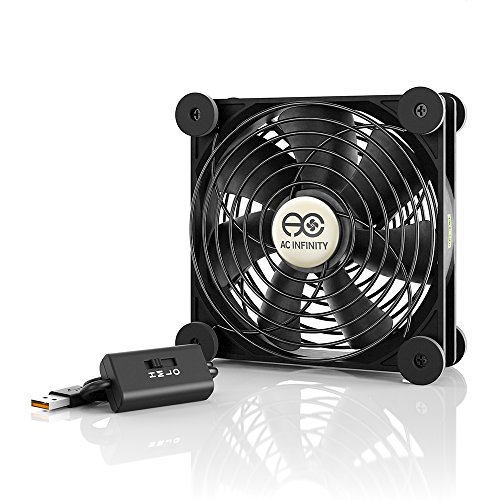
AC Infinity MULTIFAN S3, Quiet 120mm USB Fan, UL-Certified for Receiver DVR PlayStation Xbox Computer Cabinet Cooling
Ultra-quiet UL-certified USB fan designed to cool various electronics and components.
As an affiliate, we earn on qualifying purchases.
As an affiliate, we earn on qualifying purchases.