
If your projector develops dark spots or dead pixels due to a chip failure, start by turning it off and letting it sit to see if the pixels realign or refresh. Use built-in cleaning or refresh features if available, and display full white or color screens to help clear static issues. If the problem persists, professional repair or replacement may be necessary. Keep exploring for more tips to restore your projector’s display quality.
Key Takeaways
- Power off the projector and allow pixels to realign; use pixel refresh or cleaning features if available.
- Display full white or color-changing screens to help reduce image retention and improve pixel health.
- Check if the projector is under warranty for dead pixel coverage; seek professional repair if warranty expires.
- Consider replacing the projector if dead pixels or chip failure persist despite troubleshooting efforts.
- Prevent future issues by avoiding static images and regularly using built-in pixel cleaning functions.

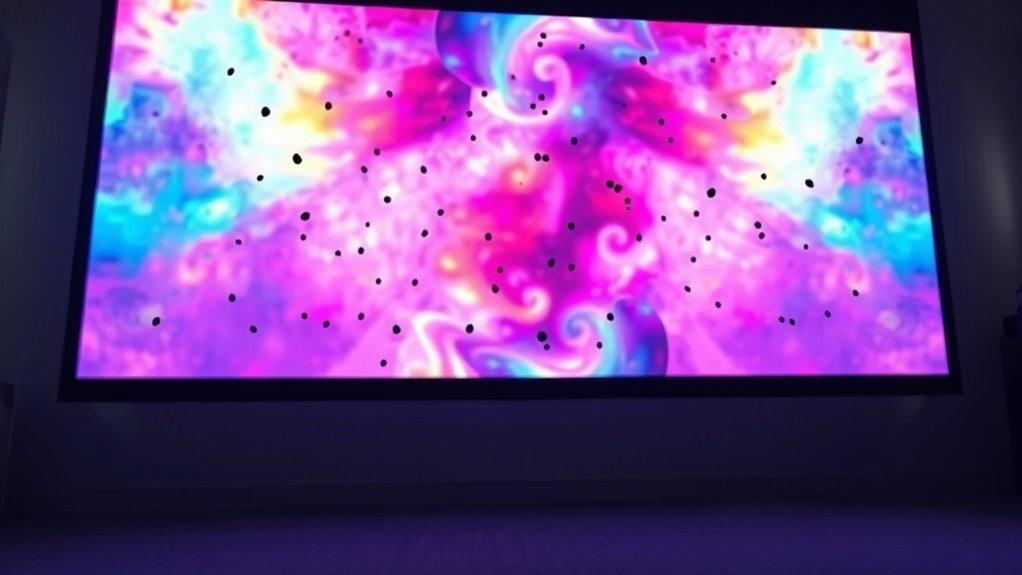
If you’ve noticed dark spots or dead pixels on your screen, it can be frustrating and confusing. These issues often stem from pixel migration or image retention, both of which can make your projector display look uneven or damaged. Pixel migration happens when a pixel or group of pixels shift from their original position, causing a persistent dark spot that refuses to go away, even after powering off or restarting the device. Image retention, on the other hand, involves a faint ghost image lingering on the screen due to prolonged static images, which can sometimes evolve into permanent spots if left untreated. Understanding these problems helps you decide how to address them. If the dark spot results from pixel migration, it’s usually because the liquid crystal or LED elements inside the pixel have become misaligned or damaged. This misalignment prevents the pixel from displaying the correct color or brightness, often leading to a dead or stuck pixel. Image retention, meanwhile, occurs when the screen’s phosphors or pixels hold onto an image longer than they should, especially after displaying static content for extended periods. While image retention can sometimes be temporary, prolonged exposure can cause the retention to become permanent, creating a dark spot or discoloration. To troubleshoot pixel migration or image retention, start with simple fixes. Power off your projector and let it sit for a while; sometimes, a gentle reset allows pixels to realign or for temporary image retention to fade. Running a pixel refresh or pixel cleaning tool—if your projector includes such features—can help realign misbehaving pixels or remove ghost images. You might also try displaying a full white or color-changing screen to help the pixels stabilize or clear the retention. Additionally, some projectors have built-in performance kits designed to help improve image quality and address pixel issues. However, if these steps don’t improve the situation, you may need to contemplate more advanced solutions. In cases where the dark spot persists and is clearly caused by pixel migration or dead pixels, professional repair or replacement might be necessary. Many projectors have a certain warranty period covering dead pixels, so check if your device qualifies for repairs or replacement. If it’s out of warranty, contacting a technician for a detailed diagnosis can help determine whether the pixel chip can be fixed or if replacing the entire projector is more cost-effective. Keep in mind that ongoing pixel migration or image retention issues may indicate deeper hardware problems, so addressing them promptly can help prevent further damage and ensure your projector continues to deliver quality images. Ultimately, understanding the root causes—pixel migration and image retention—and knowing the troubleshooting steps can help you manage dark spots or dead pixels more effectively. Whether through simple resets, software tools, or professional repairs, taking action early can extend the life of your projector and improve your viewing experience.
projector pixel refresh tool
As an affiliate, we earn on qualifying purchases.
As an affiliate, we earn on qualifying purchases.
Frequently Asked Questions
Can Dead Pixels Be Permanently Fixed Without Professional Help?
Dead pixels usually can’t be permanently fixed without professional help, but you can try some DIY fixes for minor issues. Pixel repair methods like gently massaging the area or using software tools might help refresh stuck pixels, but they often don’t work on permanently dead ones. For a lasting fix, consider professional repair or replacing the faulty chip, as DIY solutions are limited for fully dead pixels.
Do Dark Spots Indicate a Failing Projector Chip?
Yes, dark spots can indicate a failing projector chip, especially if you notice issues with color uniformity or image distortion. These spots often signal malfunctioning pixels or internal hardware problems. You should check for consistent image quality across different inputs and settings. If the spots persist or worsen, it’s a good idea to consult a professional or consider replacing the projector to prevent further damage and restore ideal image clarity.
How Long Does a Typical Projector Chip Last?
A typical projector chip lasts around 20,000 to 30,000 hours, depending on usage and quality. You can expect good chip durability if you follow proper maintenance and avoid overheating. Projection lifespan varies based on how often you use your projector and the environment. To maximize chip longevity, keep your projector clean, ensure proper ventilation, and use it within recommended operating conditions. This way, your projector performs reliably over time.
Are There Preventive Measures to Avoid Dead Pixels?
An ounce of prevention is worth a pound of cure, so yes, you can take steps to prevent dead pixels. Practice regular maintenance tips like gentle cleaning, avoiding overheating, and using the projector in suitable conditions. Pixel prevention also involves handling the device carefully and avoiding static buildup. By staying proactive, you extend your projector’s lifespan and keep the image clear, ensuring your viewing experience remains sharp and vibrant.
Is Replacing the Projector’s Chip Cost-Effective?
Replacing the projector’s chip can be cost-effective if your device is still under warranty or if the repair costs are lower than buying a new projector. Conduct a thorough cost analysis to compare the expenses of chip replacement versus replacement options. Keep in mind, if the damage is extensive or the repair costs are high, investing in a new projector might be a smarter, more economical decision in the long run.
projector dead pixel repair kit
As an affiliate, we earn on qualifying purchases.
As an affiliate, we earn on qualifying purchases.
Conclusion
When dark spots or dead pixels appear, they’re like storm clouds on your screen’s horizon—annoying but fixable. Don’t ignore the signs; try cleaning your projector’s lens or adjusting settings first. If the problem persists, consider professional repair or replacing the chip. Remember, a projector’s chip is its heartbeat—when it falters, your viewing experience suffers. Act quickly, and you’ll keep your entertainment shining brighter than ever, turning those dark spots into distant memories.
projector white screen calibration
As an affiliate, we earn on qualifying purchases.
As an affiliate, we earn on qualifying purchases.
projector pixel cleaning software
As an affiliate, we earn on qualifying purchases.
As an affiliate, we earn on qualifying purchases.