
If you’re experiencing sparkles, flickering, dropouts, or handshake failures with your HDMI cable, start by checking your cable’s quality and connections. Confirm the cable is high-quality, securely plugged in, and free from damage or kinks. Verify your devices support compatible HDMI versions and update firmware if needed. Good shielding and proper connectors help prevent interference. For ongoing issues, exploring these tips more closely can help you achieve a stable, clear signal every time.
Key Takeaways
- Ensure HDMI cables are high-quality, properly shielded, and compatible with your devices’ HDMI standards.
- Securely connect cables and ports, checking for loose, damaged, or bent connectors.
- Inspect cables for visible damage or wear, replacing them if necessary to prevent signal issues.
- Keep HDMI ports clean and free from debris to maintain solid connections.
- Update device firmware and use compatible hardware to resolve handshake failures and improve stability.

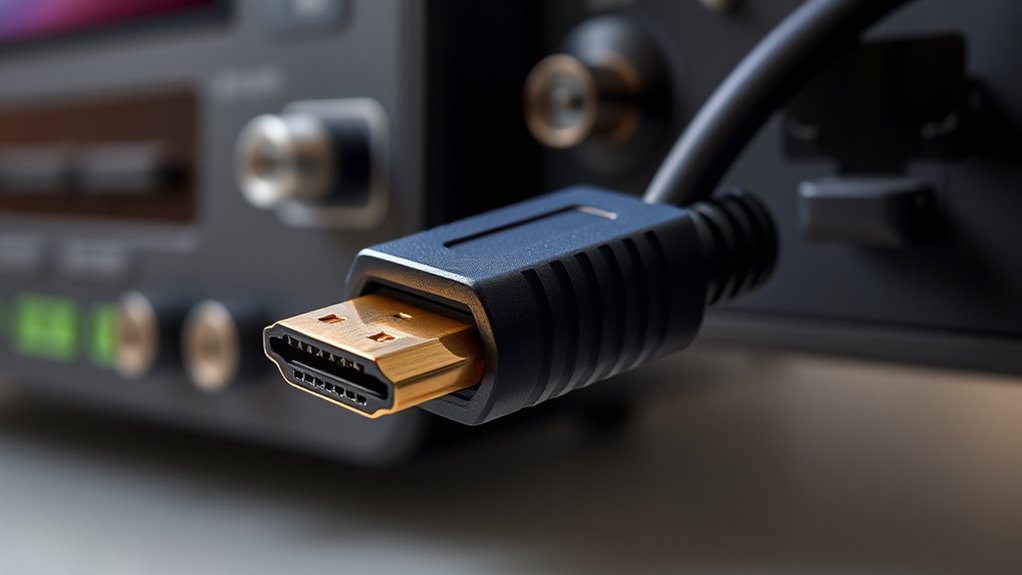
HDMI cables are vital for connecting your devices and transmitting high-quality audio and video signals, but they can sometimes cause frustrating issues. One common problem is encountering sparkles or flickering images on your screen. Often, this happens because of poor cable quality or incompatible connectors. A low-quality cable might not be shielded properly, making it vulnerable to electromagnetic interference, which results in visual artifacts like sparkles or lines. Making sure you buy a reputable cable with solid construction helps prevent these issues. Additionally, connector compatibility plays an essential role; if the HDMI connector isn’t fully compatible with your device, it can cause signal disruptions or intermittent flickering. Always check that your cable has the right HDMI version and that your devices support it. Mismatched versions can prevent the full bandwidth needed for high-resolution content, leading to visual glitches. Properly securing and inspecting your cable connections can also help maintain a stable signal. Dropouts or sudden loss of signal are another common headache. These often occur when the cable isn’t firmly connected or if there’s damage to the cable itself. Sometimes, even a slightly loose connector can cause the signal to cut in and out. To avoid this, you should make sure the HDMI connection is snug and secure. Inspect the cable for any bends, kinks, or visible damage that might impair signal transmission. Using a cable with good cable quality ensures better durability and consistent performance. Also, check if your devices’ HDMI ports are clean and free of debris, as dirt or dust can interfere with the connection. If you experience frequent dropouts, consider replacing the cable with one that has better shielding and higher-quality connectors, which can resist wear and environmental interference better. Handshake failures, where your devices refuse to recognize each other, are often related to connector compatibility or outdated firmware. HDMI handshake is a process where devices communicate to agree on the best possible connection. If the connectors aren’t compatible or if the cable isn’t up to date with the latest standards, the handshake may fail. Using high-quality cables that support the latest HDMI standards can help guarantee smooth communication. Sometimes, simply updating your device’s firmware resolves handshake issues, but a reliable HDMI cable with proper connector compatibility reduces the chances of these failures altogether. In essence, choosing a high-quality HDMI cable with compatible connectors and ensuring proper installation can greatly reduce many of these common signal issues, providing a stable and enjoyable viewing experience.
Frequently Asked Questions
Can HDMI Issues Be Caused by Software Updates?
Yes, HDMI issues can be caused by software updates. Firmware updates can sometimes introduce bugs or incompatibilities that disrupt signal transmission, while driver conflicts on your device may also cause handshake failures and sparkles. If you notice problems after an update, try rolling back to previous firmware or driver versions, or check for new updates that fix known issues. Maintaining your software current and compatible helps guarantee a stable HDMI connection.
Is There a Difference Between HDMI and Other Types of Cables?
Yes, HDMI differs from other cables like DisplayPort or VGA because of its specific connector types and cable compatibility. HDMI cables are designed to transmit high-definition video and audio signals, making them ideal for TVs and monitors. Unlike some cables, HDMI supports features like HDCP and handshakes, which guarantee secure content transfer. If you’re comparing cables, consider their connector types and compatibility with your devices to choose the right one.
How Can I Test if My HDMI Port Is Faulty?
They say, “Trust, but verify.” To test if your HDMI port is faulty, start with hardware testing by connecting a different HDMI cable and device to the port. Inspect the port closely for any physical damage or debris. If issues persist, try the same setup on another device. If problems remain, your port might be faulty, and you should consider professional repair or replacement.
Do HDMI Hubs or Splitters Affect Signal Quality?
Yes, HDMI hubs and splitters can affect signal quality due to bandwidth limitations and potential signal degradation. When you use these devices, the signal is divided or routed, which can weaken it or cause sparkles, dropouts, and handshake fails. To avoid issues, choose high-quality hubs with sufficient bandwidth, and keep your cable lengths short. Always test your setup if you notice any signal problems, as hubs might be the cause.
Are There Specific HDMI Versions Better for High-Resolution Gaming?
Yes, for high-resolution gaming, you should look for HDMI versions that support higher bandwidths, like HDMI 2.1. This version offers better HDMI compatibility with features such as 4K at 120Hz or 8K at 60Hz, ensuring smooth gameplay. Always choose cables that meet the latest cable standards to guarantee peak signal quality and compatibility with your gaming setup, reducing issues like sparkles or dropouts.
Conclusion
Don’t let HDMI cable issues ruin your viewing experience. While troubleshooting might seem frustrating, addressing sparkles, dropouts, or handshake failures is often straightforward. Many assume replacing the cable is the only fix, but simply checking connections or updating firmware can solve most problems quickly. So, before spending extra money, give these simple steps a try—you might be surprised how easily you can restore smooth, high-quality audio and video.