Keystone correction adjusts the shape of your projected image to fix distortion caused when the projector isn’t perfectly aligned with the screen. When the image appears skewed, stretched, or trapezoidal, you can use this feature to make it rectangular and clear without physically repositioning the projector. It’s especially helpful if space constraints limit your setup options. Keep in mind, overusing it can reduce image quality, so understanding how and when to apply it will help you get the best results.
Key Takeaways
- Keystone correction digitally adjusts skewed images caused by projector misalignment to make them rectangular and proportionate.
- It is used when the projector is tilted or placed at an angle, causing trapezoidal distortion.
- Proper physical setup is preferable, but keystone correction can fix images when physical repositioning isn’t possible.
- Overusing keystone correction can reduce image quality, leading to blurriness or pixelation.
- It’s a quick, convenient feature to improve image shape without moving the projector, especially in tight spaces.
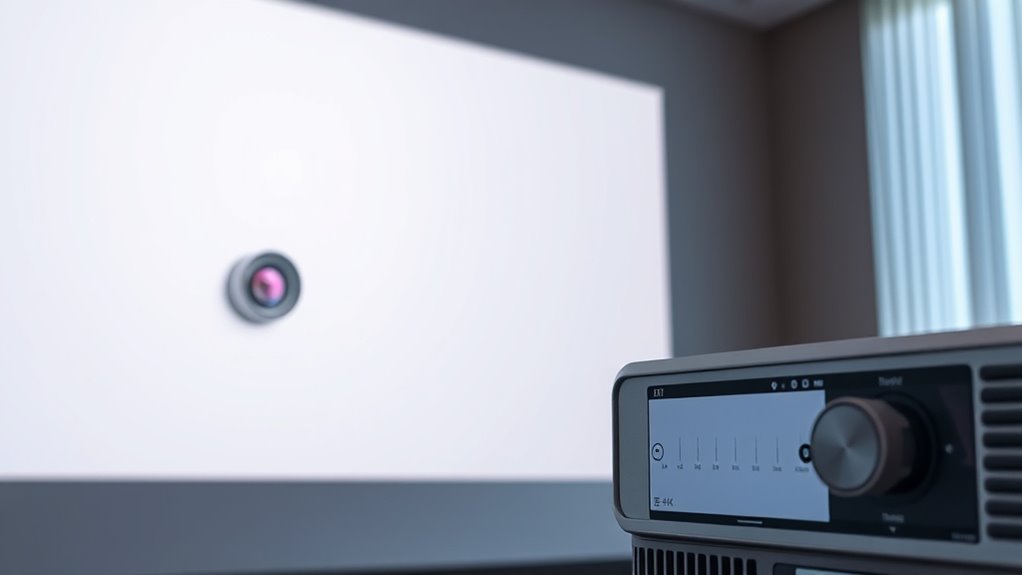
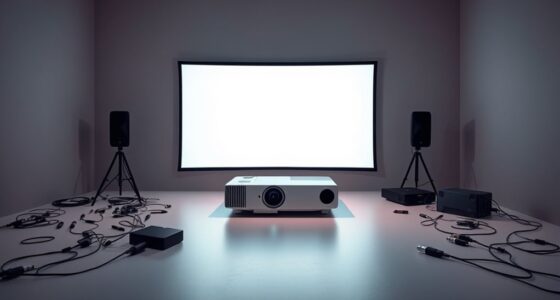
Have you ever noticed how a projected image appears distorted, with sides that seem uneven or skewed? This common issue often comes down to the way your projector is aligned relative to the screen. When the projector isn’t perfectly perpendicular, the image can look stretched or trapezoidal—what’s known as image distortion. This is where projection adjustment, specifically keystone correction, becomes your best friend. Keystone correction allows you to easily fix this skewed appearance without repositioning the entire setup. Instead of re-tilting the projector or rearranging your space, you can fine-tune the image digitally, making it rectangular and proportionate again. Proper projector setup is essential for optimal image quality and minimizing the need for correction. Using keystone correction is straightforward. Once you notice the distortion, you activate the adjustment feature on your projector. Most modern models have dedicated buttons or menu options labeled “keystone,” “projection adjustment,” or something similar. As soon as you engage this feature, you’ll see the image change—either vertically or horizontally—until it becomes a proper rectangle. This process is especially useful when you’re limited in space or can’t move the projector physically. It saves time and effort, ensuring your presentation or movie looks sharp and properly aligned without hassle. However, it’s good to remember that while keystone correction is handy, it isn’t always perfect. Overusing it can lead to a loss of image quality, making the picture appear slightly blurry or pixelated. This happens because the correction process essentially stretches or compresses parts of the image to fit a rectangular shape, which can degrade clarity. Therefore, it’s best to use keystone correction as a quick fix rather than a primary method of alignment. Whenever possible, try to position your projector so that it projects directly onto the center of the screen at a right angle. Doing so reduces the need for correction and preserves the image’s original sharpness. In situations where you’re setting up in a space with limited options, keystone correction is invaluable. It allows you to work around imperfect setups—like mounting the projector on a tilted surface or placing it at an angle—without sacrificing image quality. Just keep in mind that ideal projection results are achieved through proper physical alignment first, with keystone correction serving as a secondary tool. When you understand how to use this feature correctly, you ensure your images are clear, proportionate, and visually appealing, whether you’re giving a presentation or enjoying a movie night.

Original Replacement Remote Control for HY320/300Pro Projector & Gimbal 3/5 – Universal Compatible with Magcubic/Xgody/Aubor/Maypug/HIPPUS/Mentech/LYNCAST Projectors, Infrared IR Remote with Buttons
✪【Precise Compatibility】 "Designed EXCLUSIVELY for HY300Pro Projector & Gimbal 3/5 models, 100% signal sync with Magcubic/Xgody/Aubor/Maypug/HIPPUS/Mentech/LYNCAST systems. ★Avoid…
As an affiliate, we earn on qualifying purchases.
As an affiliate, we earn on qualifying purchases.
Frequently Asked Questions
Can Keystone Correction Improve Image Quality?
Yes, keystone correction can improve image quality by enhancing image clarity and color accuracy. When you adjust the keystone, it straightens distorted images caused by projector angles, making visuals sharper and more true to life. While it doesn’t replace proper setup, using keystone correction helps you achieve a clearer, more accurate picture, especially when projector placement options are limited. Just avoid overusing it, as excessive correction can reduce overall image sharpness.
Is Keystone Correction Necessary for All Projectors?
Keystone correction isn’t necessary for all projectors, but it can be helpful if your installation isn’t perfectly aligned. You might find it useful to fix image distortion without repositioning the projector, saving time and effort. However, keep in mind that using keystone correction could impact image quality slightly and may add to installation considerations or cost implications if you need advanced adjustments or professional setup.
How Does Keystone Correction Affect Resolution?
Sure, keystone correction doesn’t turn your resolution into a masterpiece, but it can subtly impact it. When you adjust for image distortion and aspect ratio issues, you might notice a slight decrease in sharpness or clarity. Think of it as trading a perfect pixel for a perfectly rectangular image. So, while it helps straighten out your picture, it can slightly compromise resolution, making everything look a bit softer.
Can Keystone Correction Fix Distorted Images From Angled Setups?
Yes, keystone correction can fix distorted images caused by angled setups. When you project at an angle, you often see angle distortion, making the image look trapezoidal. By applying keystone correction, you can adjust the image to appear rectangular again without needing to redo setup adjustments. This feature helps you quickly correct distortions, saving time and ensuring your display looks professional, even if your initial setup isn’t perfectly aligned.
Does Using Keystone Correction Impact Projector Brightness?
Using keystone correction can slightly reduce your projector’s brightness, but it’s a small trade-off for fixing projection distortion caused by angled setups. This feature boosts setup flexibility, allowing you to project images correctly even from off-center positions. While it may dim the image a bit, the convenience of maintaining a clear, properly aligned picture outweighs this minor brightness loss, making it a valuable tool for adaptable projections.
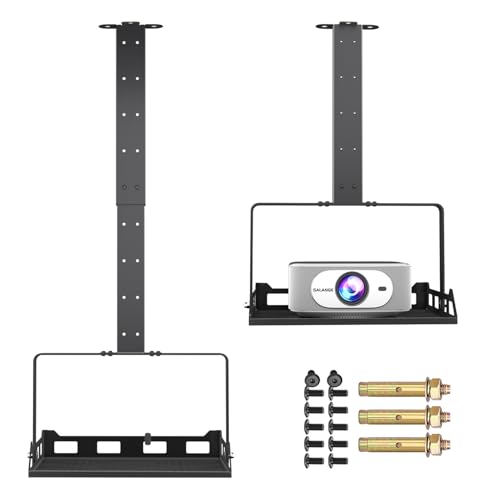
Salange 3-in-1 Projector Mount, Adjustable Height Ceiling/Wall Mount with Tray, Heavy-Duty Stand w Cable Management, Holds Up to 22 lbs, Ideal for Home Theater and Office (Black)
360° Rotatable Tray & 0-90° Tilt for Perfect Projection – This universal projector mount features a 360° rotatable…
As an affiliate, we earn on qualifying purchases.
As an affiliate, we earn on qualifying purchases.
Conclusion
In summary, understanding when to use keystone correction, recognizing its benefits, and applying it effectively can greatly enhance your viewing experience. It corrects distortion, improves clarity, and creates a more immersive picture. Whether for presentations, movies, or gaming, using keystone correction ensures your image stays true to its intended perspective. By mastering its application, you take control of your display, optimize your setup, and enjoy visuals that are sharp, aligned, and enthralling.
![[Built-in Apps] Mini Projector with WiFi and Bluetooth, Native 1080P Portable Movie Projector for Bedroom, Android 12, Auto Vertical Keystone, 180° Rotation, Compatible with HDMI/USB/TV Stick/Laptop](https://m.media-amazon.com/images/I/5187e8CuxbL._SL500_.jpg)
[Built-in Apps] Mini Projector with WiFi and Bluetooth, Native 1080P Portable Movie Projector for Bedroom, Android 12, Auto Vertical Keystone, 180° Rotation, Compatible with HDMI/USB/TV Stick/Laptop
【Experience True Smart Cinema】This mini projector features a built-in Android TV OS, eliminating the need for extra TV…
As an affiliate, we earn on qualifying purchases.
As an affiliate, we earn on qualifying purchases.

Official Licensed Google TV Smart Projector, HAPPRUN 4K UHD Home Theater with Dolby Sound, Wi-Fi & Bluetooth, Built-in Streaming Apps, Compatible with Games Consoles & Smartphone, Indoor & Outdoor Use
[ Built-in Official Licensed Google TV ] – Without additional equipment, the smart projector can directly access Netflix,…
As an affiliate, we earn on qualifying purchases.
As an affiliate, we earn on qualifying purchases.