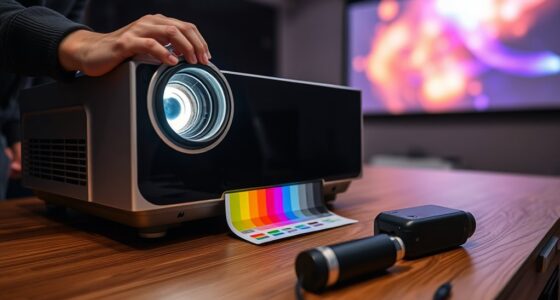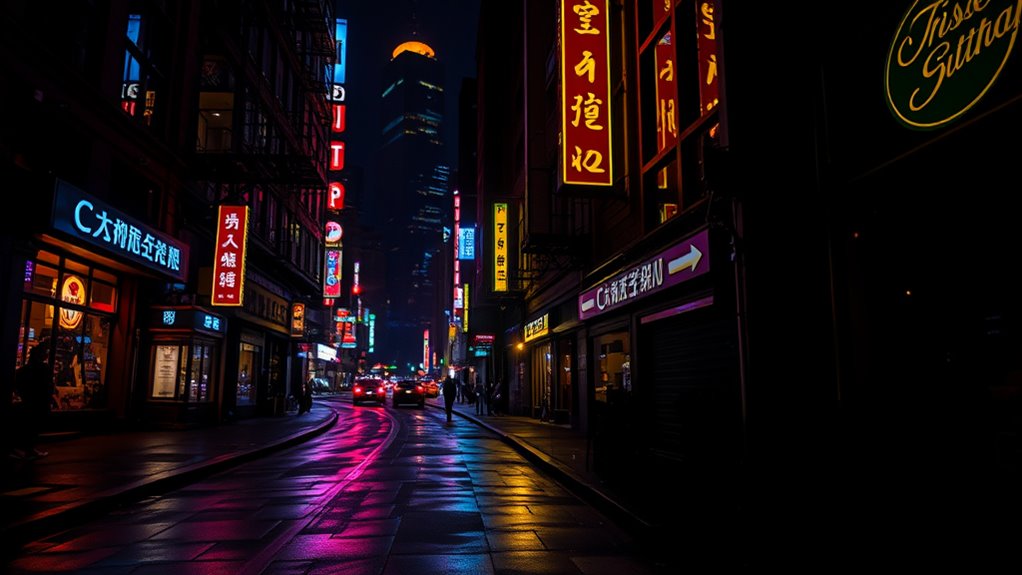
To improve black levels and contrast in dark scenes, start by calibrating your display’s settings, adjusting black levels, gamma, and contrast for ideal detail. Make certain your HDR is properly configured to enhance shadows and highlights without washing out dark areas. Using calibration tools or software can help fine-tune these adjustments precisely. Regular maintenance and updates also ensure your display maintains peak performance. Keep going to discover more tips that can transform your viewing experience.
Key Takeaways
- Calibrate your display regularly to set optimal black levels and contrast for dark scenes.
- Use calibration tools or software to fine-tune luminance and prevent black crushing or gray blacks.
- Adjust gamma settings to enhance shadow detail without losing overall brightness.
- Enable and properly configure HDR settings to improve contrast and depth in dark scenes.
- Keep firmware and software updated to benefit from improvements in contrast and black level handling.
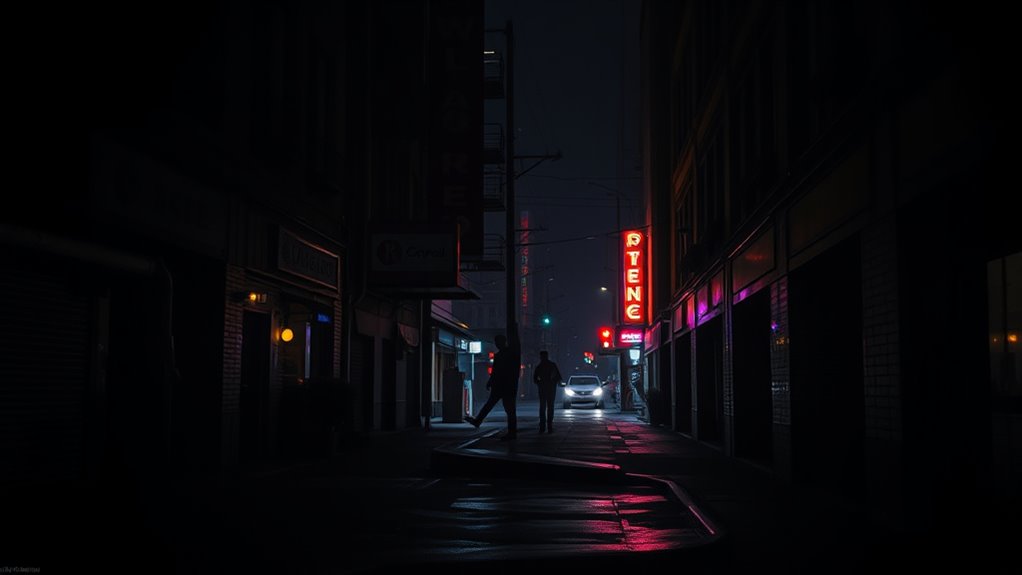
Dark scenes can often appear washed out or lack depth, making it difficult to see details and immerse yourself in the content. To enhance black levels and contrast, you need to focus on how your display handles these scenes. One of the most effective ways is through proper display calibration. When you calibrate your display, you adjust settings like brightness, contrast, gamma, and black levels to match industry standards or your personal preferences. This process ensures that dark areas are truly dark, with deep blacks that enhance the overall contrast and visual richness. Without calibration, your display might be set too bright or too dim, causing dark scenes to appear flat or muddy, which diminishes the cinematic experience. Regularly reviewing and updating your calibration settings can help maintain optimal picture quality over time.
Proper calibration ensures deep blacks and rich contrast, transforming dark scenes into immersive cinematic experiences.
Implementing HDR (High Dynamic Range) is another critical step in elevating dark scene quality. HDR enhances contrast and color accuracy, allowing bright objects to shine without washing out the darker background. When you enable or properly configure HDR on your device, it expands the range of luminance levels, making shadows deeper and highlights more vibrant. This implementation makes dark scenes more detailed and visually striking, with better differentiation between various shades of black and gray. Keep in mind that not all HDR settings are created equal, so you might need to tweak your display’s HDR settings or use HDR calibration tools to optimize the output for your specific environment and content.
To truly improve black levels and contrast, you should consider using specialized calibration tools or software. These tools help you measure the luminance and color accuracy of your display, guiding you through precise adjustments. Many modern TVs and monitors also come with built-in calibration options, but external hardware can provide more granular control. When you calibrate your display, focus specifically on lowering the black level without sacrificing overall brightness. This balance is key; too low, and you risk crushing shadow details, too high, and blacks will look gray. Calibration helps you find that sweet spot, ensuring that dark scenes reveal subtle textures and details that would otherwise be lost. Additionally, understanding the importance of personalized calibration can further enhance your viewing experience.
Finally, keep your display’s firmware and software up to date. Manufacturers often release updates that improve HDR implementation and calibration features, which can profoundly enhance performance in dark scenes. By regularly fine-tuning your settings and ensuring your display is correctly calibrated, you’ll notice a marked improvement in the depth, contrast, and overall realism of dark scenes. This effort transforms your viewing experience from flat and washed out into a rich, immersive journey through every shadow and highlight.
Frequently Asked Questions
How Does Ambient Lighting Affect Black Levels on My Display?
Ambient lighting can substantially impact your display’s black levels by causing screen glare, which makes dark scenes appear washed out. When ambient light is bright, your eyes struggle to perceive deep blacks, reducing contrast. To improve black levels, reduce ambient lighting around your display, use curtains or dim lights, and avoid reflections. These steps help maintain ideal contrast and keep dark scenes looking rich and immersive.
Can Adjusting Picture Settings Cause Loss of Detail in Dark Scenes?
In the age of dial-up internet, adjusting your picture settings can definitely cause a loss of detail in dark scenes. When you boost brightness or tweak contrast, you might inadvertently wash out shadows or obscure subtle textures. To avoid this, make small adjustments gradually and consider using dedicated picture modes for dark scenes. This way, you enhance black levels and contrast without sacrificing vital details in those shadowy areas.
What Is the Best Way to Calibrate Contrast for Dark Scenes?
To calibrate contrast for dark scenes, start by adjusting your black level to guarantee deep, detailed blacks without crushing shadow detail. Then, perform contrast calibration using test patterns or reference content, gradually increasing contrast until bright areas are vivid but not washed out. This balance enhances dark scene depth, making sure black level adjustments complement contrast settings, resulting in richer, more immersive visuals without losing shadow detail.
Do Different Display Technologies Handle Black Levels Differently?
Imagine looking into a window where the darkness outside varies—your display technology shapes this view. OLEDs offer uniform black levels, making dark scenes deep and immersive without blooming. In contrast, LCDs rely on backlights, which can cause uneven black levels and blooming artifacts. You’ll notice OLEDs handle black levels better, delivering richer contrast, while LCDs may struggle with dark scene clarity, especially in areas with complex lighting.
How Can I Tell if My Tv’s Black Levels Are Properly Optimized?
You can tell if your TV’s black levels are properly optimized by using black level indicators and calibration tools. Turn off any ambient lights, then watch a dark scene or test pattern. If the blacks appear deep and details aren’t lost in shadows, your settings are good. Use calibration tools or a test disc to adjust contrast and black levels precisely, ensuring ideal dark scene performance and avoiding overly crushed blacks.
Conclusion
Remember, a picture is worth a thousand words, so don’t settle for dull, washed-out dark scenes. By adjusting your black levels and contrast, you can bring depth and richness back to your viewing experience. It’s all about fine-tuning your settings to suit your environment. When you invest a little effort, you’ll be rewarded with visuals that truly pop. After all, the devil is in the details—so make those scenes come alive!