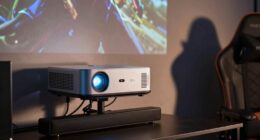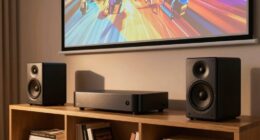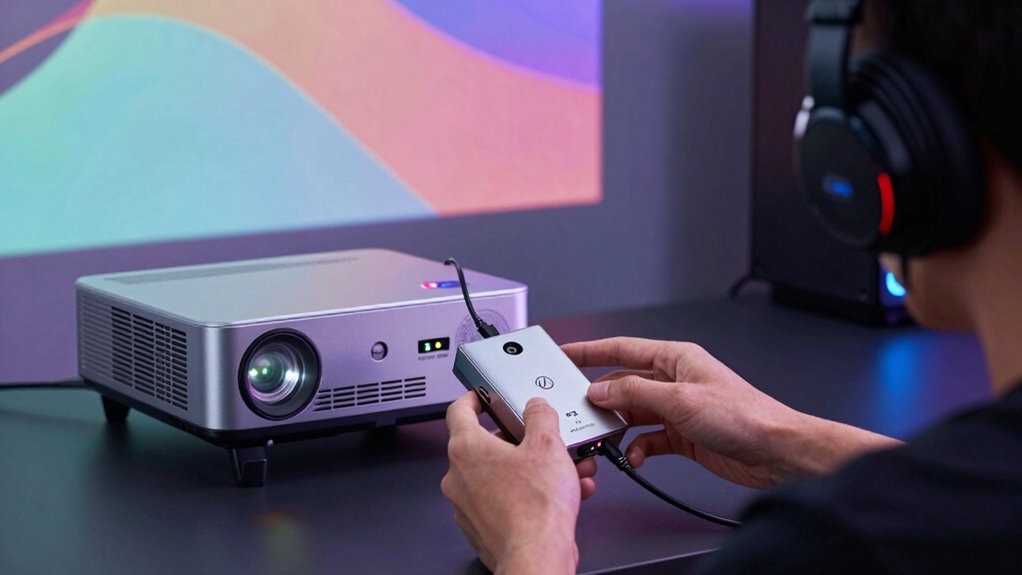
To reduce audio delay while gaming on a projector, first check your device’s audio settings for options like “lip-sync” or “audio delay” and fine-tune the sliders for better sync. Make sure your external sound devices are properly connected and adjust delay features on soundbars or speakers if available. Keep your firmware and drivers updated, and consider using low-latency hardware or calibration tools for precise timing. For more tips to get your setup perfectly synchronized, keep exploring these solutions.
Key Takeaways
- Adjust the device’s audio delay or lip-sync settings to align sound with the visuals accurately.
- Use external sound devices with built-in delay controls or calibration tools for precise timing.
- Update your projector firmware and sound device drivers to fix known audio sync issues.
- Switch to lower-latency connection types like optical audio instead of HDMI if supported.
- Calibrate audio delay settings on your console, PC, or soundbar for optimal synchronization.
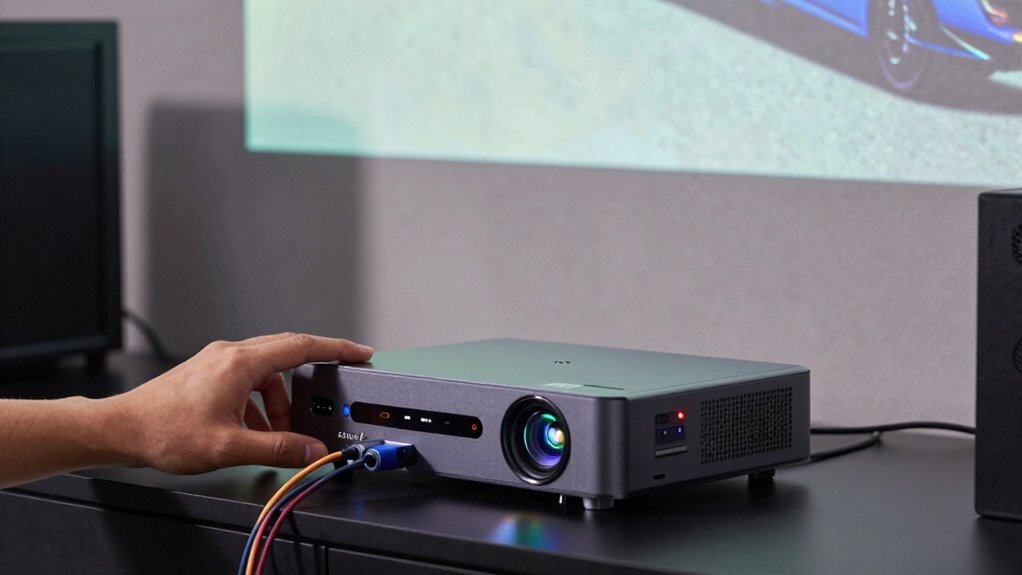
Playing games on a projector can create an immersive experience, but audio delay often disrupts the fun. When your sound doesn’t match your on-screen actions, it can throw off your gameplay and diminish the overall experience. To fix this, you need to focus on proper audio synchronization, guaranteeing that your audio and video play in harmony. The first step is to check your sound calibration. Many projectors and connected audio devices have settings designed to fine-tune audio delays. Explore your device’s audio settings or menu, and look for options like “lip-sync,” “audio delay,” or “sound sync.” Adjust these sliders or values until the audio lines up perfectly with the visuals. Even a small tweak can greatly improve synchronization, so experiment until you find the sweet spot.
Adjust sound calibration settings like lip-sync or audio delay to perfectly align audio with visuals for seamless gaming.
Next, consider the source of your audio signal. If you’re using external speakers or a soundbar, guarantee they are correctly connected and configured. Some devices have their own delay settings, which you’ll want to calibrate separately. For example, if your soundbar has an adjustable audio delay feature, set it to match the latency introduced by your projector or HDMI connection. Sometimes, using an optical cable instead of HDMI can reduce delay, but it depends on your specific setup. Also, check if your gaming console or PC has built-in audio delay settings. Many gaming systems allow you to manually adjust audio sync, which can help eliminate lag.
Another essential step is to keep your firmware and drivers up to date. Outdated software can cause incompatibilities that lead to audio lag. Update your projector firmware, sound device drivers, and gaming console or PC drivers regularly. Manufacturers often release updates that improve performance and fix bugs related to audio sync issues. When everything is up to date, your system is more likely to deliver a seamless gaming experience. Additionally, proper sound calibration can significantly reduce latency and improve overall audio quality. Ensuring that your setup matches industry standards for audio and video synchronization can further help minimize delays and enhance the gaming experience. Incorporating audio calibration tools can also assist in achieving precise synchronization, especially in complex setups. Moreover, using dedicated low-latency hardware can further optimize your audio timing for gaming. Regularly testing your setup with audio latency measurements can help you identify any persistent issues and refine your calibration process.
Lastly, if you’re still experiencing considerable delays, consider using dedicated audio processing hardware designed for low latency. External audio processors or sound mixers with adjustable delay features can give you precise control over sound calibration. These devices help you achieve near-perfect synchronization, especially in complex setups. By paying attention to audio synchronization and sound calibration, you can enjoy your gaming sessions without the distraction of lag. Properly adjusting these settings ensures that your audio complements your visuals perfectly, making your gaming on a projector as immersive and responsive as it should be.

ANSTEN Wireless Headphones for TV Watching, Over-Ear Headset for Television Listening with 2.4 GHz 3.5 mm RCA Digital Transmitter, No Audio Delay, 100 Work Rang, 20 Hrs Playtime, Plug n Play
No STATIC WIRELESS TECHNOLOGY: 2.4 GHz RF band transmission driving fast without interference, enables interference-free reception for audio…
As an affiliate, we earn on qualifying purchases.
As an affiliate, we earn on qualifying purchases.
Frequently Asked Questions
Can Using Bluetooth Speakers Increase Audio Delay?
Yes, using Bluetooth speakers can increase audio delay because Bluetooth interference and signal processing can cause lag. The farther your speaker is from your device, the more delay you might experience. Proper speaker placement helps reduce interference, but Bluetooth’s inherent latency remains. To minimize delay, consider wired options or low-latency Bluetooth devices designed for gaming or audio synchronization.
Does Upgrading My Projector’s Firmware Reduce Audio Lag?
Jumping the gun, upgrading your projector’s firmware can often improve audio synchronization by fixing bugs and optimizing performance. Firmware updates are like a tune-up for your device, helping reduce audio lag during gaming. While they might not eliminate all delay, they can make a noticeable difference. Always guarantee your projector’s firmware is current, as manufacturers regularly release updates to enhance audio and visual performance, keeping your gaming experience smooth as silk.
Are There Specific Gaming Consoles Better for Low-Latency Audio?
Some gaming consoles are better for low-latency audio because they handle wireless interference and audio compression more efficiently. Consoles like the Xbox Series X and PlayStation 5 generally offer faster response times, reducing audio lag. To further improve audio sync, minimize wireless interference by keeping your console away from other devices, and opt for uncompressed audio when possible. These steps help guarantee your gaming experience stays smooth and responsive.
How Does Ambient Lighting Affect Audio and Video Synchronization?
Ambient lighting generally doesn’t directly affect audio and video synchronization, but ambient noise and lighting interference can cause distractions. When bright lights or noisy surroundings occur, you might notice delays or mismatches between sound and picture. To minimize this, keep your gaming environment well-lit but controlled, and reduce ambient noise. This helps you stay focused, ensuring your audio and video stay synchronized, providing a seamless gaming experience.
Can External Sound Processors Improve Audio Delay Issues?
Yes, external sound processors can improve audio delay issues by enhancing audio processing and sound synchronization. They often feature advanced algorithms that minimize latency, ensuring your audio aligns perfectly with the on-screen action. By connecting these processors between your gaming device and projector, you can achieve more precise audio timing, reducing lag and providing a more immersive gaming experience. This makes external sound processors a valuable tool for addressing audio delay problems.

Assistrust Sound Bar with Subwoofer, 110W Sound Bar with Adjustable Deep Bass & 3 EQ Modes, Bluetooth/ARC/Opt/AUX Connect, Sound Bar for Smart TV
【𝐒𝐨𝐮𝐧𝐝 𝐅𝐞𝐚𝐬𝐭】4 placements, 4 sound vibes. Standing Tabletop: Stereo sound + Clear voices for all daily streaming &…
As an affiliate, we earn on qualifying purchases.
As an affiliate, we earn on qualifying purchases.
Conclusion
By tweaking your settings and choosing the right equipment, you can minimize audio delay and enjoy your gaming sessions without missing a beat. Remember, patience is a virtue—getting everything perfectly synced might take some trial and error. Once you find that sweet spot, you’ll be able to focus on the game rather than the technical hiccups. Keep tinkering, stay persistent, and soon you’ll be sailing smoothly on the same wavelength as your projector.

KabelDirekt TOSLINK – Optical Audio Cable – 6ft – Fiber Optic Cord, S/PDIF Digital Audio Optical Cable for Soundbar, Stereo Systems, Home Cinema, Xbox One/PS4 – Designed in Germany
Optical digital audio cable: Perfect for equipment with a TOSLINK interface (OPT In / OPT Out or S/PDIF…
As an affiliate, we earn on qualifying purchases.
As an affiliate, we earn on qualifying purchases.

Turntable Phono Cartridge Stylus Alignment Protractor Tool Precisions Vinyls Record Player Cartridge Alignment Protractors Tool for Vinyl Record Precision Calibration
Precision Calibration for Turntables: The Turntable Phono Cartridge Stylus Alignment Protractor Tool ensures impeccable sound experiences by offering…
As an affiliate, we earn on qualifying purchases.
As an affiliate, we earn on qualifying purchases.