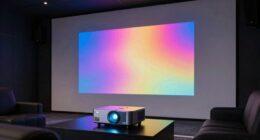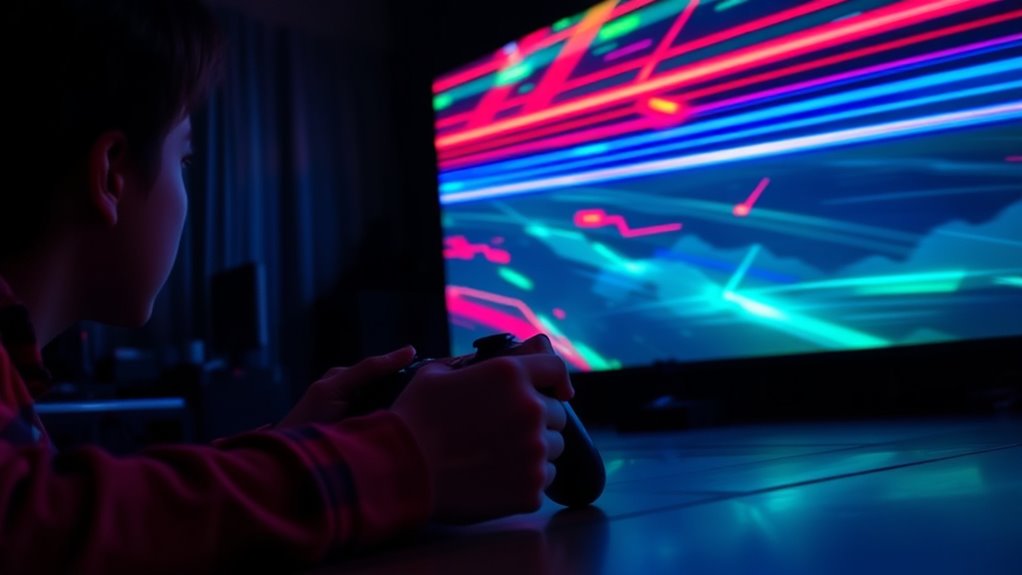
To keep action sharp during projector gaming, you should optimize your settings to reduce motion blur. Increase your projector’s refresh rate to 120Hz or higher, and enable frame interpolation if available to smooth out fast movements. Make sure your input source and cables support the highest possible refresh rate. Experiment with these options to find the best balance between clarity and natural motion, and you’ll discover more ways to improve your gameplay visuals.
Key Takeaways
- Enable and adjust frame interpolation settings to smooth motion and reduce blur during gameplay.
- Increase the projector’s refresh rate to the highest supported for clearer, sharper action.
- Ensure input cables and sources support the desired refresh rate for optimal performance.
- Use adaptive sync technologies like FreeSync or G-Sync if available to minimize motion artifacts.
- Experiment with settings to find a balance between motion clarity and natural movement, avoiding overuse of effects.
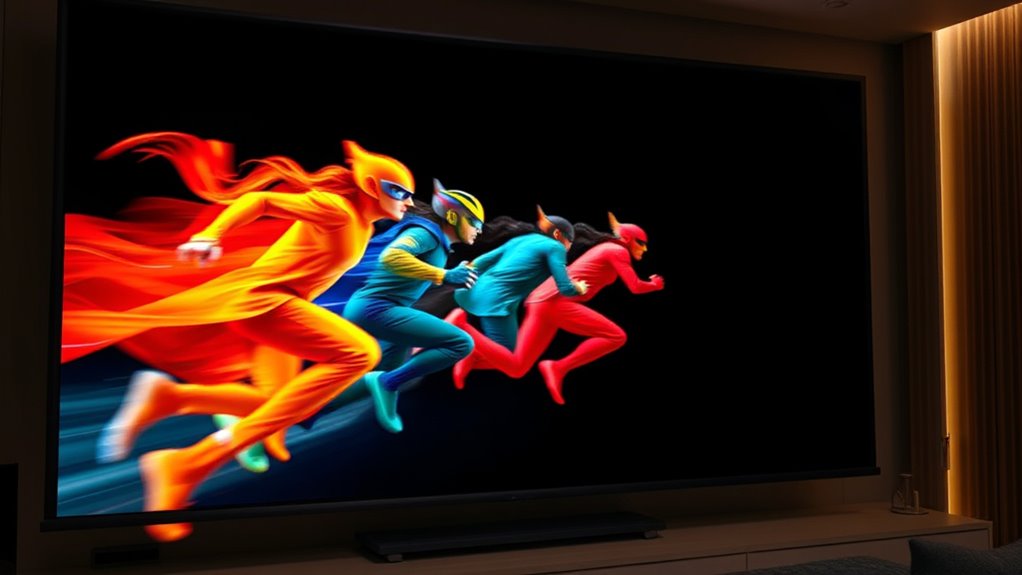
Have you ever noticed a streaking effect when fast-moving objects appear blurry on your projector during gaming sessions? That’s often due to motion blur, which can make quick gameplay feel less sharp and more confusing. To combat this, understanding how your projector handles motion is essential. Two key factors influence motion clarity: frame interpolation and refresh rate. Frame interpolation works by creating additional frames between the original ones, smoothing out fast movements. When enabled, it can reduce motion blur by making fast action appear more fluid and less streaked. However, not all gamers prefer this because it can sometimes introduce a soap-opera effect or artifacts, so it’s worth experimenting with your settings to see what feels best for you. Additionally, motion processing settings can further influence how motion appears on your projector, so exploring these options may help refine your experience. Refresh rate, on the other hand, determines how many times your projector updates the image each second. A higher refresh rate means more frequent updates, which can considerably improve motion clarity. If your projector supports a high refresh rate—say 120Hz or higher—you’ll notice less blur during rapid movements. When gaming, a low refresh rate, like 60Hz, can make fast actions seem choppier and more prone to streaking, especially during quick camera pans or fast-paced sequences. To optimize this, check your projector’s specifications and guarantee it’s set to the highest supported refresh rate. Additionally, many modern projectors and gaming consoles support adaptive sync technologies such as FreeSync or G-Sync, which synchronize the refresh rate with your graphic card’s output, greatly reducing motion blur and screen tearing. Adjusting both frame interpolation and refresh rate can work together to produce sharper images. For example, enabling frame interpolation while setting your projector to its highest refresh rate can dramatically improve motion smoothness. Keep in mind, though, that some gamers find too much interpolation creates unnatural motion, so it’s a balance. Also, verify your input source and cables support the desired refresh rate to avoid bottlenecks. Be aware that some projectors may have limitations or settings that need manual adjustment to release their full potential. Ultimately, reducing motion blur in projector gaming relies on fine-tuning these settings—maximizing refresh rate and leveraging frame interpolation where appropriate. Doing so helps maintain clarity during intense action scenes, making your gaming experience sharper, more immersive, and more enjoyable. Remember, every projector is different, so take your time testing various configurations until you find the perfect balance for smooth, blur-free gameplay.

Official Licensed Google TV Smart Projector, HAPPRUN 4K UHD Home Theater with Dolby Sound, Wi-Fi & Bluetooth, Built-in Streaming Apps, Compatible with Games Consoles & Smartphone, Indoor & Outdoor Use
[ Built-in Official Licensed Google TV ] - Without additional equipment, the smart projector can directly access Netflix,...
As an affiliate, we earn on qualifying purchases.
Frequently Asked Questions
How Does Ambient Lighting Affect Motion Blur Visibility?
Ambient lighting can markedly affect how visible motion blur is during gaming. Bright ambient light reduces glare and reflections, making motion blur less noticeable and maintaining sharper action. Conversely, low ambient light can enhance glare, increasing motion blur visibility and causing images to appear streaky or blurry. To keep action sharp, use appropriate ambient light levels and employ glare mitigation techniques, such as matte screens or indirect lighting, ensuring a clearer gaming experience.
Can Specific Game Genres Benefit More From Reduced Motion Blur?
Action-packed shooters and fast-paced racing games benefit most from reduced motion blur, enhancing visual clarity and your ability to track fast movements. Imagine a blur-free race car zooming past; sharp visuals make gameplay smoother and more precise. Genre preferences play a key role, as genres demanding quick reactions rely heavily on clear, crisp visuals. So, if you want sharper action, adjusting motion blur settings aligns perfectly with intense, fast-moving game genres.
What Are the Best Settings for Different Projector Models?
You should calibrate your projector for ideal settings, adjusting brightness, contrast, and color to match your gaming environment. Set the screen refresh rate to match your game’s native rate, typically 60Hz or higher, for smoother action. Experiment with projector calibration tools and guarantee your input device supports high refresh rates. These adjustments help reduce motion blur and keep fast-paced gameplay sharp, giving you a competitive edge and immersive experience.
Does High Frame Rate Always Reduce Motion Blur Effectively?
High frame rates don’t always reduce motion blur effectively because motion smoothing and frame interpolation can cause artifacts or ghosting, which may distract you. While increasing the frame rate can help, enabling features like motion smoothing can sometimes worsen the effect. To keep action sharp, experiment with your projector’s settings, balancing high frame rates with minimal motion smoothing, and consider turning off unnecessary enhancements that may introduce unwanted visual artifacts.
Are There Any Health Concerns Associated With Altering Motion Blur Settings?
Adjusting your motion blur settings generally doesn’t pose serious health risks, but it can cause visual discomfort and eye strain for some players. When motion blur is too high, your eyes work harder to process fast-moving images, leading to fatigue. If you notice headaches or blurred vision, it’s best to lower the effect. Always listen to your body, take breaks, and maintain proper lighting to reduce potential eye strain.
![Projector-4K with WiFi and Bluetooth:[3000 ANSI/40W Dolby Audio/Official Licensed Apps], Outdoor-Projector with Smart OS 2.0 & AI Auto Focus,ONOAYO ONO5Pro 2.0 Smart Movie Projector for Indoor/Outdoor](https://m.media-amazon.com/images/I/411TCiwZ0EL._SL500_.jpg)
Projector-4K with WiFi and Bluetooth:[3000 ANSI/40W Dolby Audio/Official Licensed Apps], Outdoor-Projector with Smart OS 2.0 & AI Auto Focus,ONOAYO ONO5Pro 2.0 Smart Movie Projector for Indoor/Outdoor
[Hear the Difference–Hollywood-Grade Dual 40W Dolby Audio] Why spend $500 on a TV + soundbar or settle for...
As an affiliate, we earn on qualifying purchases.
Conclusion
To keep your gaming sharp and avoid missing out on the action, remember these tips and stay proactive. Adjust your settings, upgrade your equipment if needed, and don’t be afraid to experiment until everything feels just right. With a little effort, you’ll be able to turn the tide and enjoy smooth, clear gameplay. After all, it’s better to nip problems in the bud than let them grow — stay vigilant and keep your gaming experience first-rate.
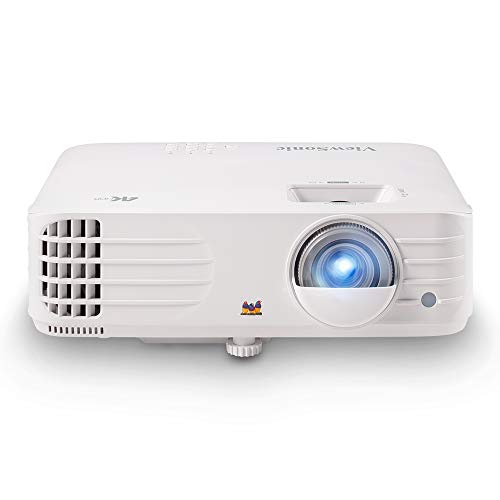
ViewSonic PX701-4K UHD 4K Projector with 3200 Lumens, 240Hz, 4.2ms, HDR, Auto Keystone, Dual HDMI for Home Theater
4K Home Theater Projector: UHD (3840x2160p) 4K resolution with a 1.5-1.6 throw ratio and 3,200 ANSI lumens perfect...
As an affiliate, we earn on qualifying purchases.

WALI Projector Mount Ceiling/Wall - Universal 3-in-1 Bracket with Extension Pole, Height Adjustable Holder for LCD/DLP Projectors, Supports up to 44lbs (PM-003-W), White
Compatibility: Universal Projector Mount Bracket for Both Ceiling and Wall Installation. Applicable to mounting holes distance between 8.9’’to...
As an affiliate, we earn on qualifying purchases.