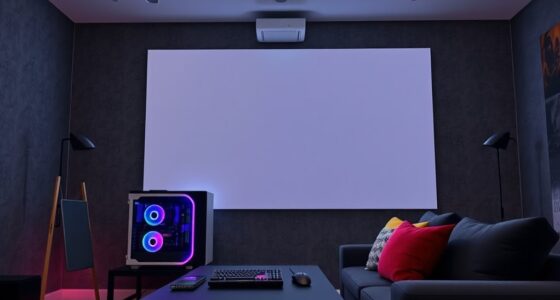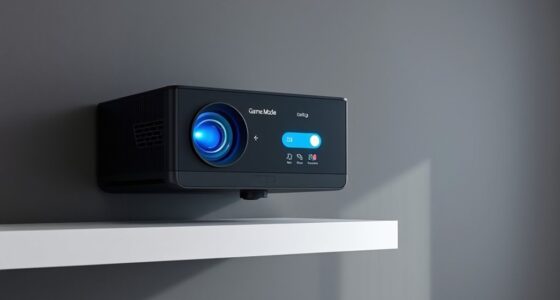

To fix your projector not showing 4K HDR at 120Hz from your console, first check that your HDMI cable supports HDMI 2.0 or higher rated for 4K HDR and high refresh rates. Make certain your console and projector are set to output these settings and that firmware is up to date. Verify your projector’s HDMI port is compatible, and enable any necessary display options like “Deep Color.” For more detailed steps, continue exploring the solutions tailored to your setup.
Key Takeaways
- Ensure your HDMI cable is high-speed, rated for 4K HDR and 120Hz, and supports HDMI 2.0 or higher.
- Update your console and projector firmware to the latest versions for improved compatibility.
- Verify console settings are configured for 4K HDR and 120Hz output; enable necessary display options.
- Confirm your projector’s HDMI port supports 4K HDR and 120Hz; upgrade hardware if limited to HDMI 1.4.
- Check that the projector’s input settings and features like “HDMI Ultra HD Deep Color” are enabled for high-bandwidth signals.

If your projector isn’t displaying 120Hz or 4K HDR from your gaming console, it can be frustrating, but many issues are fixable with some troubleshooting. The first thing to check is HDMI compatibility. Not all HDMI inputs are created equal, and some projectors may only support certain HDMI standards or bandwidths needed for 4K HDR and high refresh rates. Verify that your projector’s HDMI ports are rated for HDMI 2.0 or higher, as older versions might not handle the necessary data transfer for smooth 120Hz or 4K HDR signals. If your projector only has HDMI 1.4 ports, it’ll struggle to deliver the full capabilities you expect from your console. Additionally, make sure you’re using a high-speed HDMI cable rated for 4K HDR and 120Hz. Standard or lower-spec cables can bottleneck your signal, preventing the features from functioning properly. Switching to a certified high-speed HDMI 2.0 or newer cable can often resolve display issues.
Beyond hardware, firmware updates play an essential role in resolving compatibility problems. Manufacturers regularly release firmware updates that improve HDMI compatibility, fix bugs, and enhance performance. Check your projector’s support website or menu settings for available updates. Updating firmware ensures your projector can properly handle the latest HDMI standards and features your gaming console offers. Sometimes, a firmware update can also improve the handling of 4K HDR signals or higher refresh rates, making your gaming experience smoother and more vibrant. Follow the manufacturer’s instructions carefully when updating firmware—using the correct file and process minimizes risks of bricking your device. Additionally, understanding the Kia Tuning concepts of compatibility and upgrades can help ensure your hardware is optimized for the latest features.
Another aspect to contemplate is the output settings on your gaming console. Make sure your console is configured to output at 4K HDR and 120Hz. Sometimes, consoles default to lower resolutions or refresh rates, especially if they detect compatibility issues. Adjust the video output settings in your console’s menu to match the capabilities of your projector. If you’ve confirmed the console is set to the correct output, but the projector still doesn’t display the high-quality signal, double-check your display settings and ensure any “HDMI Ultra HD Deep Color” or similar options are enabled on your projector. These settings allow the projector to accept and process higher bandwidth signals required for 4K HDR at 120Hz.
Frequently Asked Questions
Can Using a Longer HDMI Cable Affect Signal Quality?
Yes, using a longer HDMI cable can affect signal quality. The cable quality plays a vital role in preventing signal degradation over longer distances. Cheaper or poorly shielded cables may cause weaker signals, resulting in reduced image clarity or lag. To avoid this, choose high-quality, certified HDMI cables, especially if you’re running a longer length. This helps guarantee your 120Hz or 4K HDR signals stay strong and clear.
Does the Projector’s Firmware Need Updating for 4K HDR Support?
Yes, your projector’s firmware needs updating for 4K HDR support and feature compatibility. Firmware updates improve performance, fix bugs, and enable new features, ensuring you get the best from your device. Regularly check for updates, install them promptly, and stay current with the latest enhancements. Keeping your firmware up-to-date guarantees your projector can handle modern content, delivering crisp visuals, vibrant colors, and seamless performance every time you power it on.
Are Specific HDMI Ports Better for 120HZ or 4K HDR?
You should use HDMI ports labeled for HDMI 2.0 or higher, as these support 120Hz and 4K HDR. Check your projector’s port labeling and HDMI version; ports with labels like “HDMI 2.0” or “HDMI 2.1” are better suited. Avoid older ports, which may only support lower resolutions and refresh rates. Using the correct port guarantees maximum performance for high refresh rates and HDR content.
How Do I Check if My Console’s Settings Support 4K HDR?
Imagine your console as a spaceship dashboard, glowing with potential. To check if your console’s settings support 4K HDR, go to the display or video output settings menu. Look for options labeled “HDR” or “4K support.” Make certain HDR is enabled and your display is set to the highest resolution. If HDR support isn’t active, your console might need a software update or specific settings adjustment to access full 4K HDR capabilities.
Will Connecting via Adapters or Converters Impact Display Quality?
Connecting via adapters or converters can impact your display quality, so you should be cautious. Adapter impact depends on the quality; cheap ones might cause signal degradation, resulting in lower resolution or lag. Converter effects can also vary; some may introduce latency or reduce image sharpness. Always choose high-quality adapters and converters designed for 4K HDR and 120Hz to ensure minimal impact on your viewing experience.
Conclusion
As you finally get your projector to display that smooth 120Hz or stunning 4K HDR from your console, it’s almost like the stars aligning just for you. The right settings, cables, and updates come together seamlessly, turning your setup into a perfect visual experience. When everything clicks into place, it’s as if the high-quality picture and silky-smooth gameplay were waiting patiently, ready to shine as brightly as your newfound clarity.