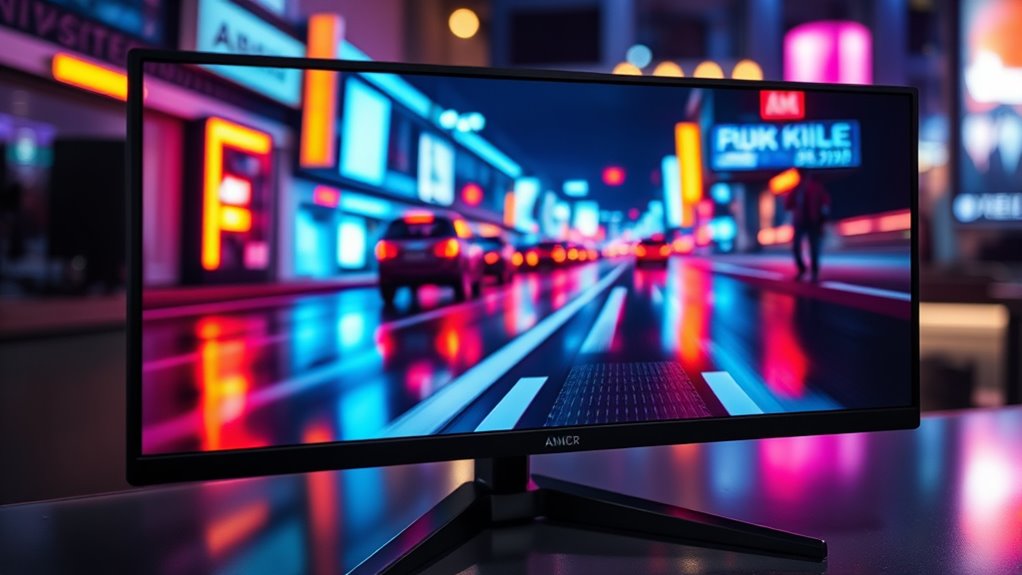

To get the best picture for low latency, activate Game or Low Latency Mode on your TV or monitor, and disable any unnecessary processing like motion smoothing, noise reduction, and image sharpening. Use a high refresh rate (120Hz or higher) and keep response times under 5ms. Fine-tune brightness and contrast for clarity, and connect devices with high-quality HDMI cables. If you keep adjusting these settings, you’ll find the perfect balance for responsive gameplay and great visuals.
Key Takeaways
- Enable “Game Mode” or “Low Latency Mode” to minimize input lag and reduce processing delays.
- Disable image processing features like motion smoothing, noise reduction, and dynamic contrast for faster response times.
- Use higher refresh rates (120Hz/144Hz) and keep response times under 5 ms for smoother, more responsive visuals.
- Connect devices with high-quality HDMI cables and select input settings optimized for low latency.
- Fine-tune picture, HDR, and local dimming settings to balance visual quality with minimal latency.

LG 24G411A-B 24-inch Ultragear Full HD (1920 x 1080) IPS Gaming Monitor, 144Hz (O/C), 1ms MBR, NVIDIA G-Sync Compatible, AMD FreeSync, HDR10, HDMI, DisplayPort, Slim Stand, Black
Vivid Color, Fast Response, Total Control – The 24" UltraGear FHD gaming monitor delivers vivid HDR10 color, ultra-smooth…
As an affiliate, we earn on qualifying purchases.
As an affiliate, we earn on qualifying purchases.
Adjusting Game or Movie Mode Settings
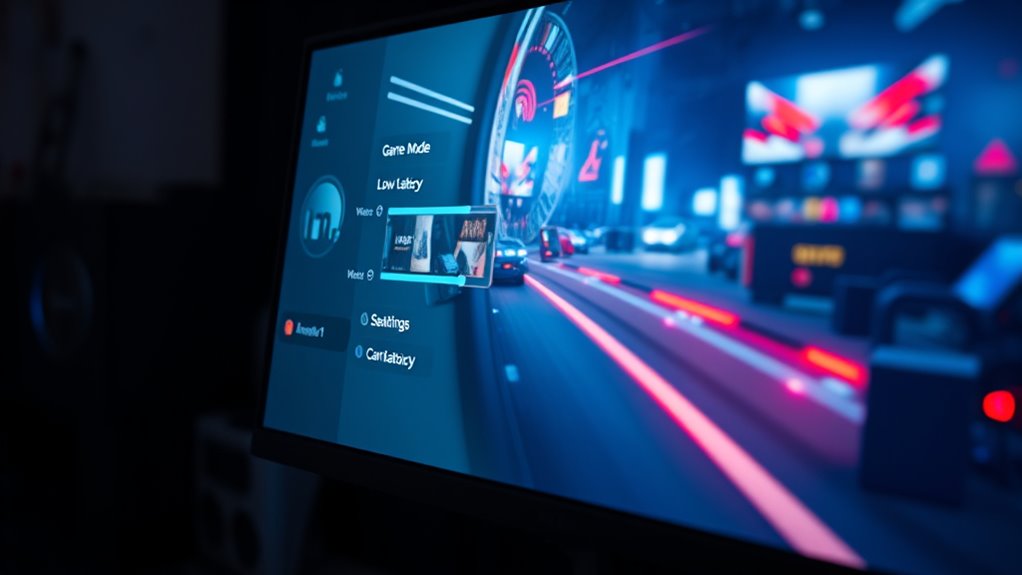
When aiming for low latency, adjusting your TV’s game or movie mode settings is vital. These modes optimize your display by reducing processing that can cause delays, guaranteeing quicker response times. Start by selecting the game mode for fast-paced gameplay or movie mode for cinematic viewing. Proper audio calibration is also essential; adjust your sound settings to avoid unnecessary processing delays that can impact latency. Additionally, consider ambient lighting in your environment, as it affects how you perceive motion and contrast, influencing your overall experience. Dimming lights or controlling glare can improve image clarity without compromising low latency benefits. Being aware of the contrast ratio of your projector helps in setting appropriate brightness levels for different environments. By fine-tuning these settings, you create an ideal setup that minimizes lag, enhances immersion, and ensures you stay responsive in every game or movie.

UGREEN 8K HDMI 2.1 Cable 48Gbps 6.6FT, Certified Ultra High Speed HDMI Cord Aluminum, 4K@240Hz 120Hz 10K 8K@60Hz, HDCP 2.2&2.3, eARC HDR 10 Dolby Compatible with PS5/Blu-ray/Roku TV/Switch 2/Mac mini
Real 8K HDMI certified cable: The HDMI cables pass HDMI 2.1 Certified. The HDMI Cable delivers 10K 8K@60Hz…
As an affiliate, we earn on qualifying purchases.
As an affiliate, we earn on qualifying purchases.
Disabling or Reducing Motion Interpolation
Have you noticed that motion looks unnatural or blurry during fast scenes? That’s often caused by motion smoothing or frame interpolation, which creates extra frames to make motion appear smoother. While this might seem beneficial for watching movies, it can introduce a lag in your input and reduce low latency performance. Disabling or reducing motion interpolation guarantees your TV displays images as they are, without adding artificial frames. To do this, access your TV’s picture settings and turn off features like motion smoothing, TruMotion, or interpolation options. This adjustment minimizes latency and provides a more accurate, natural picture, especially important for gaming or fast-paced content. By reducing or disabling motion smoothing, you get cleaner, more responsive visuals that improve your overall experience. Additionally, understanding sound healing science can help you create a more calming environment that enhances your viewing experience.

2 Pack Wireless Controller for Windows PC/Raspberry Pi/Stick/TV/Game Box Gamepad Rechargeable Remote Joystick Joypad with Turbo for Desktop Laptop Emulator,Roblox,Steam, RetroPie,RecalBox,RetroArch
[2 Pack Wireless Controller with Powerful Compatibility] – Support not only for Laptop/Desktop PC(Windows 11/10/8/7/XP), Raspberry Pi(4/3/2/1/Zero), Emulator,…
As an affiliate, we earn on qualifying purchases.
As an affiliate, we earn on qualifying purchases.
Turning Off Image Processing Features
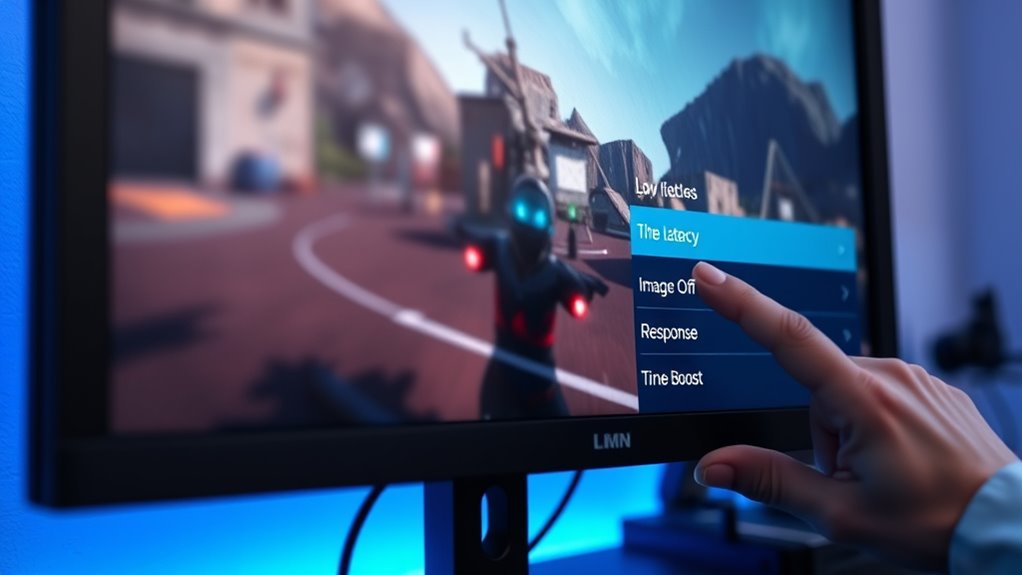
Turning off image processing features is essential for achieving low latency, as these settings can introduce delays that hinder responsiveness. Features like image sharpening and noise reduction often add processing time, causing input lag. Disabling these features guarantees minimal delay between your actions and the displayed image. Implementing security measures can further safeguard your system against vulnerabilities caused by enabled processing features. Consider these steps: 1. Turn off image sharpening to prevent extra processing that delays response. 2. Disable noise reduction to eliminate added processing time without sacrificing image clarity. 3. Switch off any dynamic contrast or local dimming features, which can cause brief delays. 4. Avoid motion smoothing or interpolation settings that may introduce latency, even if they improve visual quality.

SANSUI Gaming Monitor, 24 Inch 180Hz, FHD 1080P 1ms 110% sRGB Computer Monitor, HDMI DP Ports VESA Support for Game Office (HDMI Cable Included)
SANSUI 24 Inch 180Hz Refresh Rate FHD 1080P Gaming Monitor
As an affiliate, we earn on qualifying purchases.
As an affiliate, we earn on qualifying purchases.
Setting the Appropriate Refresh Rate and Response Time

To achieve low latency, setting the right refresh rate and response time is crucial. A higher refresh rate, such as 120Hz or 144Hz, helps reduce motion blur and provides smoother gameplay, which minimizes input lag. Lower response times, ideally under 5 milliseconds, guarantee your monitor quickly processes and displays changes, making your actions more responsive. Adjust your display settings to match your gaming needs, aiming for a high refresh rate with a low response time. Keep in mind that some monitors may have a trade-off between refresh rate and response time, so select a balance that prioritizes low latency without sacrificing image quality. Properly configuring these settings ensures you experience faster, more accurate responses during gameplay. Incorporating a variety of display settings can further optimize your gaming performance.
Fine-Tuning Brightness and Contrast for Clarity

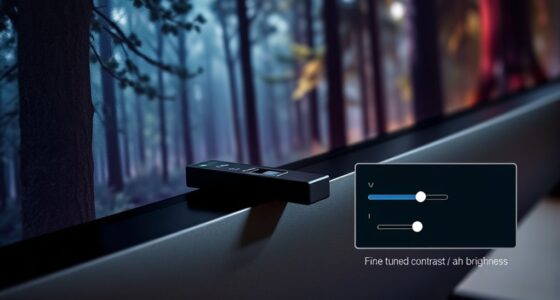
Adjusting brightness and contrast can make a big difference in image clarity during gaming. You should focus on finding a balance that enhances details without washing out colors or losing dark areas. Let’s explore some simple tips for optimizing these settings for the best low-latency experience. For those tuning their display, understanding visual performance can help you achieve a clearer and more responsive picture.
Subheading 1: Brightness Balance Tips
Achieving the perfect picture quality requires balancing brightness and contrast to guarantee clarity without causing eye strain. To do this effectively, consider the following tips:
- Use ambient light adjustment to match your environment, reducing glare and eye fatigue.
- Perform audio calibration alongside visual tweaks to ensure overall viewing comfort.
- Avoid overly bright settings that wash out details; aim for a balance that preserves dark and bright areas.
- Regularly reevaluate your monitor or TV’s brightness, especially when lighting conditions change, to maintain ideal clarity.
- Utilize picture calibration tools or settings provided by your device to fine-tune display parameters for optimal performance.
Fine-tuning these elements enhances picture clarity while minimizing eye strain. Remember, proper ambient light adjustment and audio calibration support a more immersive, comfortable viewing experience, especially during low latency gaming or streaming.
Subheading 2: Contrast Optimization Tricks
Balancing brightness is just the first step toward ideal picture quality; fine-tuning contrast is equally important for clarity. Adjust your contrast settings based on ambient lighting to ensure dark scenes aren’t too crushed or washed out. In a dim room, increase contrast slightly to add depth, but avoid overdoing it, which can hide details. Consider how your audio calibration impacts visual perception—clear sound helps you focus on subtle contrasts. Use test patterns or real content to assess adjustments, ensuring blacks are deep without losing shadow detail. Proper contrast enhances overall clarity and reduces eye strain during long viewing sessions. Additionally, understanding how visual perception works can help you calibrate your display settings more effectively. By carefully calibrating contrast with your environment and audio setup in mind, you create a more immersive, low-latency viewing experience.
Optimizing Color Settings for Reduced Processing Delay
To minimize processing delay, optimizing your color settings is essential because overly complex color profiles can slow down image rendering. Start with proper color calibration to ensure accurate colors without unnecessary processing. Next, perform gamma adjustment to balance brightness and contrast efficiently, reducing the workload on your display. Simplify your color profile by selecting a standard mode, which minimizes the processing needed for complex color rendering. Finally, avoid overly saturated or enhanced color settings, as they require extra processing power. Implementing efficient security practices can also help maintain system performance and stability, indirectly supporting smoother visual outputs.
Enabling Game or Low Latency Mode
You can activate Game or Low Latency Mode in your display settings to reduce input lag. This feature primarily affects how the display processes images, often prioritizing speed over some visual enhancements. While it improves responsiveness, keep in mind that it may slightly impact picture quality. Additionally, enabling essential oils for respiratory health can promote better breathing during extended gaming sessions.
Activating in Settings
Enabling game or low latency mode in your settings is a straightforward way to reduce input lag and improve your gaming experience. To activate it effectively, follow these steps:
- Access your TV or monitor’s main menu and locate the picture or display settings.
- Find the “Game Mode” or “Low Latency Mode” toggle and turn it on.
- Ensure color calibration is adjusted for accurate visuals without sacrificing speed.
- Check that audio synchronization settings are fine-tuned so sound matches the action on screen, avoiding delays that can hinder gameplay.
- Be aware that input lag reduction can sometimes slightly alter color calibration, so fine-tune it for your preferred visual quality while maintaining low latency.
Activating these features helps minimize input lag, ensuring quicker responses. Remember, enabling game mode can sometimes slightly alter color calibration, so fine-tune it for your preferred visual quality while maintaining low latency.
Impact on Visuals
Have you noticed that activating game or low latency mode can sometimes affect your picture quality? While these modes reduce input lag, they can also impact visuals by slightly altering color accuracy or contrast. You might experience increased audio delay, which can throw off your overall gaming experience, especially if speaker calibration isn’t adjusted properly. To minimize this, verify your audio settings are optimized alongside visual adjustments. Some TVs may automatically disable certain image enhancements to prioritize low latency, leading to a less vibrant picture. However, this trade-off is often worth it for smoother gameplay. Keep in mind that fine-tuning speaker calibration and adjusting picture settings can help balance low latency benefits while preserving visual quality.
Managing HDR and Local Dimming Options
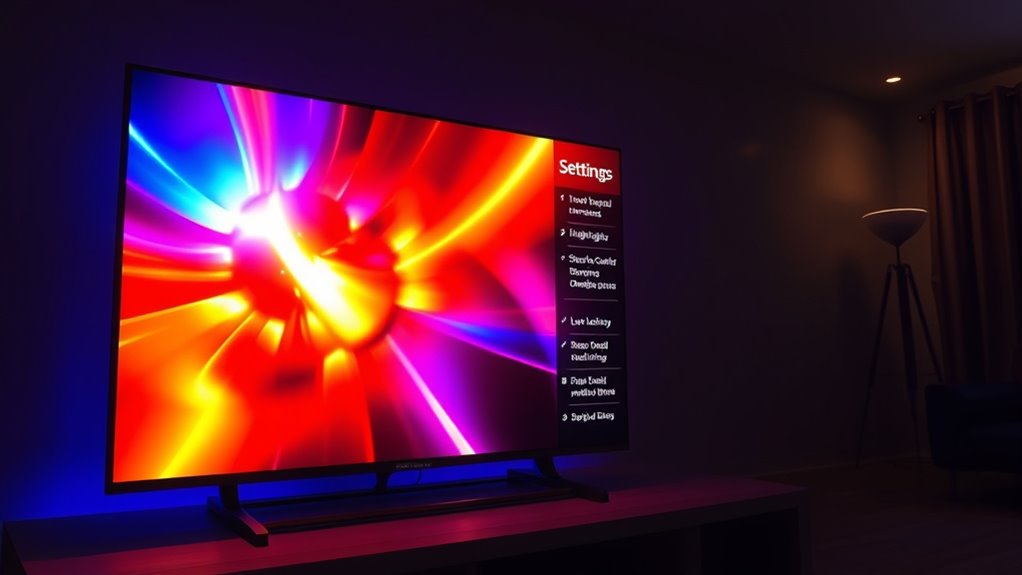
Managing HDR and local dimming settings is essential for achieving low latency while maintaining picture quality. Proper HDR management guarantees you get vibrant visuals without delays, while effective local dimming controls enhance contrast and black levels. To optimize these features, consider:
Optimizing HDR and local dimming ensures low latency and vibrant visuals without delays.
- Adjust HDR mode to “Standard” or “Game” for minimal processing delays.
- Disable automatic HDR tone mapping if it causes lag.
- Use local dimming controls to set to “Low” or “Medium” for quicker response times.
- Turn off advanced local dimming features that introduce processing latency.
Fine-tuning these options helps reduce input lag without sacrificing picture clarity, ensuring smooth gameplay and high-quality visuals. Remember, balancing HDR and local dimming is key to low-latency performance.
Connecting via High-Quality Cables and Using Proper Input Settings
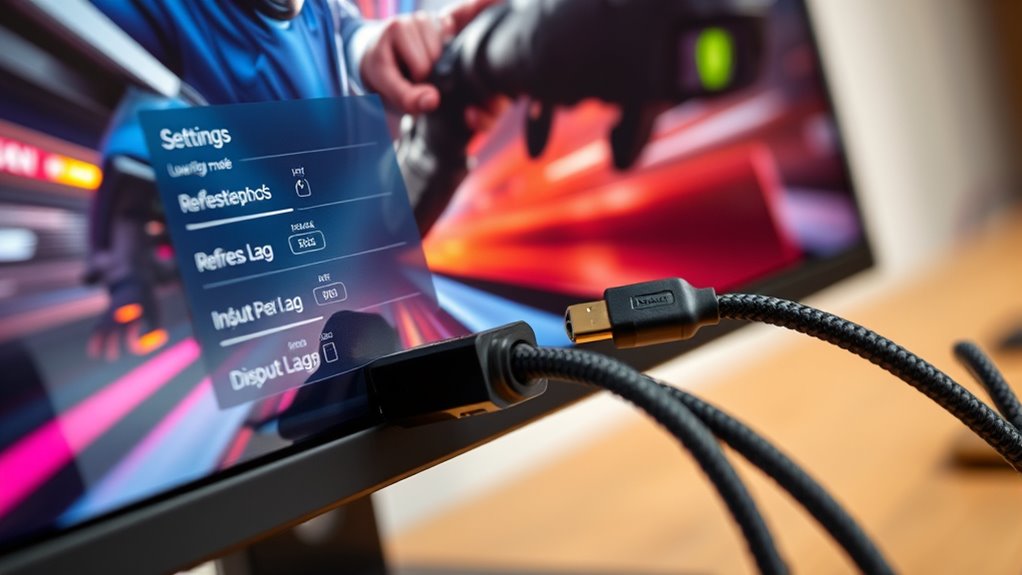
To guarantee minimal latency and ideal image quality, it’s crucial to connect your devices using high-quality cables and select the correct input settings. Using cables with good cable quality ensures a stable connection and reduces signal degradation that can cause latency or image issues. Opt for HDMI cables rated for high-speed data transfer, especially for gaming or low-latency applications. When configuring your input, make sure to select the appropriate input configuration on your TV or monitor, such as enabling game mode or low-latency settings. Proper input setup minimizes processing delays, ensuring your display responds quickly to commands. Double-check that your device recognizes the connection as a high-bandwidth input, and avoid using damaged or subpar cables that could introduce lag or reduce image clarity.
Frequently Asked Questions
How Do I Identify if My Display Supports a True Low Latency Mode?
You can identify if your display supports true low latency mode by checking its specifications or doing input lag testing. Start with display calibration by reviewing the user manual or manufacturer’s website for low latency features. Then, perform input lag testing using specialized tools or online tests to measure response time. If your display offers a dedicated low latency mode, it should markedly reduce input lag during these tests, confirming support.
What Impact Does Screen Size Have on Perceived Latency?
Think of your display size as the stage size for a performance; larger screens often amplify perceived delay because your eyes need to process more information. Smaller screens tend to seem more responsive, reducing perceived delay. When choosing a display, consider that bigger screens can make latency feel more noticeable, so if low latency is your goal, a smaller or well-calibrated display might give you a more immediate, responsive experience.
Can Updating Firmware Improve Low Latency Performance?
Yes, updating firmware can improve low latency performance. Firmware updates often include performance improvements, bug fixes, and optimizations that help reduce input lag and enhance responsiveness. By regularly checking for and installing the latest firmware, you guarantee your device runs smoothly and takes advantage of the newest enhancements, ultimately providing you with a better gaming or viewing experience with minimal delay.
How Does Ambient Lighting Affect Low Latency Gaming Visuals?
Ambient lighting can markedly impact your low latency gaming visuals by affecting visual clarity. Bright ambient light can cause glare and reduce contrast, making it harder to see fine details during gameplay. On the other hand, dim or controlled lighting enhances contrast and sharpness, helping you spot enemies and objects more easily. To optimize your gaming experience, adjust ambient light levels to minimize glare and improve overall visual clarity.
Are There Specific Settings for VR Headsets to Minimize Latency?
Think of your VR headset as a finely tuned orchestra; to minimize latency, focus on controller calibration and refresh rate optimization. You should guarantee controllers are precisely calibrated for accurate tracking, reducing input lag. Additionally, set your headset’s refresh rate to the highest supported for smoother visuals. These adjustments work together like musicians in harmony, delivering a seamless experience that immerses you fully in virtual worlds with minimal delay.
Conclusion
Remember, patience is a virtue, especially when dialing in your settings. By tweaking your TV’s picture modes, turning off unnecessary features, and selecting the right input options, you can achieve low latency for smoother gameplay or movie viewing. Don’t settle for less—small adjustments make a big difference. Keep experimenting until you find what works best for you. After all, the proof of the pudding is in the eating, so enjoy your optimized viewing experience!