To fix color tints like pros, start with understanding white balance and use your camera’s presets or custom settings to match your lighting. Quickly correct common casts with auto-adjust features, then fine-tune manually using temperature and tint sliders. Don’t forget to use curves and levels for detailed control, and apply selective adjustments for natural results. Keep consistent with presets and batch processing—these tips will help you achieve professional looks, and more secrets await if you continue exploring.
Key Takeaways
- Proper white balance setting is essential to prevent unwanted color casts from the start.
- Recognize and diagnose color tints by comparing areas of similar hues in your image.
- Use manual adjustments with temperature and tint sliders for precise, natural color corrections.
- Auto white balance and preset modes offer quick fixes but may require fine-tuning for perfect results.
- Consistent workflow with presets and batch processing ensures uniform color correction across multiple images.
As an affiliate, we earn on qualifying purchases.
Understanding the Basics of Color Balance and Tints
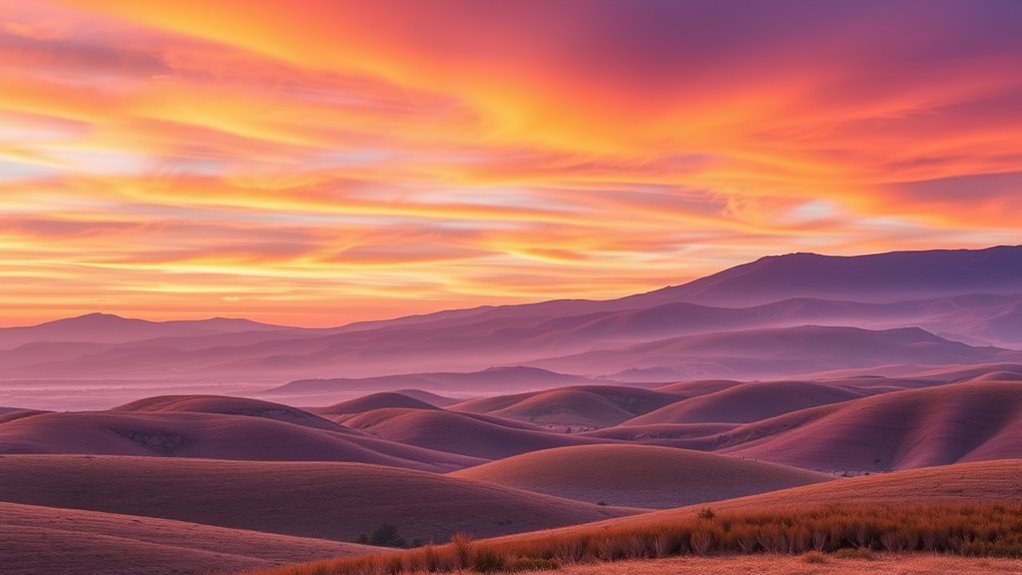
Understanding the basics of color balance and tints is vital for correcting unwanted color casts in your photos. Color theory helps you grasp how colors interact and influence each other, guiding you in making accurate adjustments. Proper camera calibration is essential because it sets a solid foundation for true-to-life colors, reducing the chances of tint issues from the start. When you understand how different light sources affect color temperature, you can better anticipate and correct tints. Adjusting the white balance on your camera or in post-processing aligns the image’s colors with real-world tones. Mastering these fundamentals ensures your photos are balanced, vibrant, and true to life, making it easier to fix any tint problems later on. Additionally, understanding contrast ratio can help you achieve more dynamic and visually appealing images by controlling how blacks and whites are represented in your photos.
As an affiliate, we earn on qualifying purchases.
Recognizing Common Color Casts in Photos

You can often spot color casts by noting warm tones that give photos a yellow or orange tint. Greenish hues might make images look unnatural, while subtle shifts can change the overall mood. Recognizing these common signs helps you correct colors more effectively.
Identifying Warm Tones
Warm tones often create a cozy, inviting feel in photos, but they can also introduce unwanted color casts that distort the original scene. Recognizing these casts starts with understanding color temperature—warm tones typically have a yellow, orange, or reddish hue. If your photo appears overly golden or amber, it likely has a warm color cast. Look for skin tones that seem unnatural or objects that have an orange tint. These signs indicate a dominance of warm tones, which can be caused by lighting conditions or camera settings. To identify these accurately, compare the photo to a neutral reference or check for overly saturated warm hues. Understanding color temperature helps you quickly diagnose and correct color issues. By mastering this recognition, you’ll be better equipped to correct color temperature issues and restore the scene’s true appearance.
Spotting Greenish Hues
Greenish hues are a common color cast that can subtly or noticeably alter the appearance of your photos. Recognizing these hues involves examining the overall color temperature; a cool, green tint often signals a shift. You might notice a duller or unnatural look, especially in skin tones and foliage. To spot these hues quickly, compare areas of similar color—if greens seem off or overly muted, it’s likely a cast. Adjustments in saturation can help reveal the cast: reducing saturation may make the green tint more apparent. Being familiar with color theory and how different color casts influence your images can also improve your correction skills.
Recognizing Color Shifts
Have you ever looked at a photo and wondered why certain colors seem off? Recognizing color shifts starts with understanding color temperature. A warm tint might make your image look overly yellow or orange, while a cool tint adds a bluish hue. These shifts often affect color saturation too, making some colors appear dull or overly vibrant. When colors seem inconsistent or unnatural, it’s usually due to an unwanted color cast. By analyzing the overall tone of your photo, you can identify whether a color temperature imbalance or saturation issue is present. Spotting these common color casts helps you decide whether to correct them, restoring natural skin tones, vibrant landscapes, or true-to-life colors. Recognizing these shifts is the first step toward achieving a professional, balanced look. Additionally, understanding how color therapy influences perception can help you subtly adjust hues for more harmonious images.
As an affiliate, we earn on qualifying purchases.
Using White Balance Settings to Correct Tints
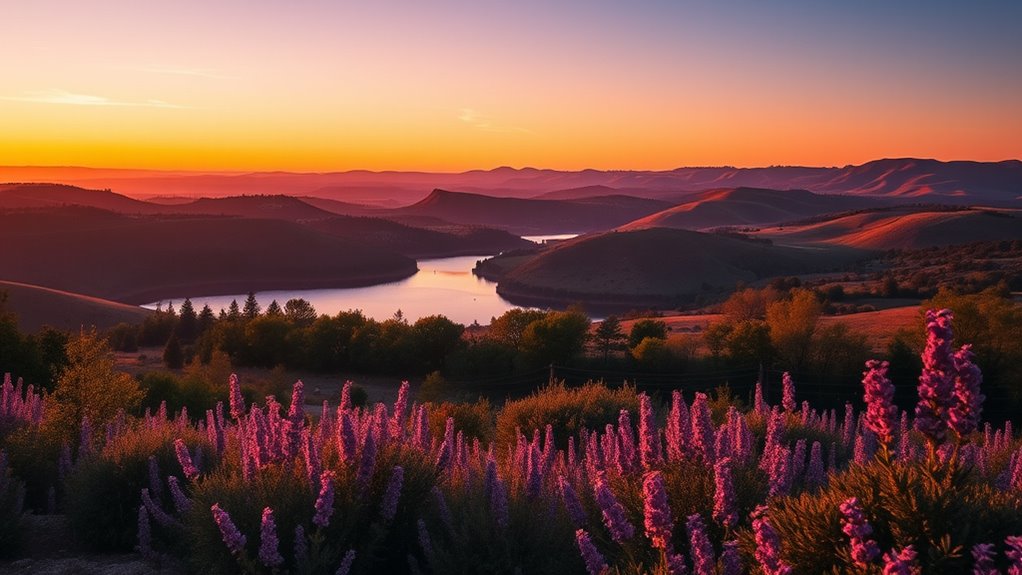
Adjusting your camera’s white balance settings is one of the most effective ways to correct unwanted tints in your photos. Proper white balance calibration guarantees that colors appear natural under different lighting conditions. Start by selecting a preset that matches your environment, such as daylight, cloudy, or tungsten. If your camera allows, use custom white balance to fine-tune the calibration, ensuring accurate color reproduction. This approach is a fundamental tint correction technique, helping to eliminate color casts that may distort your images. By adjusting white balance, you prevent color shifts caused by ambient light, making your photos look more true to life. Remember, small tweaks can substantially improve color accuracy and reduce the need for extensive post-processing corrections. Additionally, understanding how color temperature influences tint can help you make more precise adjustments.
batch photo color correction software
As an affiliate, we earn on qualifying purchases.
As an affiliate, we earn on qualifying purchases.
Leveraging Auto-Adjust Features for Quick Fixes

Auto-adjust features on your camera or editing software offer a fast and convenient way to correct color tints without manual intervention. They analyze your image and automatically optimize color balance, saving you time in the editing process. To make the most of these tools, try this approach:
Auto-adjust tools quickly correct color tints, streamlining your editing process and enhancing image quality effortlessly.
- Use auto white balance to quickly neutralize unwanted tints, setting a solid foundation for color grading.
- Apply auto-enhance or auto tone adjustments to improve overall color harmony and brightness.
- Experiment with creative filters that incorporate auto-adjust features, giving your images a stylized look with minimal effort.
While these auto features provide quick fixes, they also serve as a starting point for more refined color grading, helping you achieve professional-quality results effortlessly.
Fine-Tuning With Manual Color Correction Tools
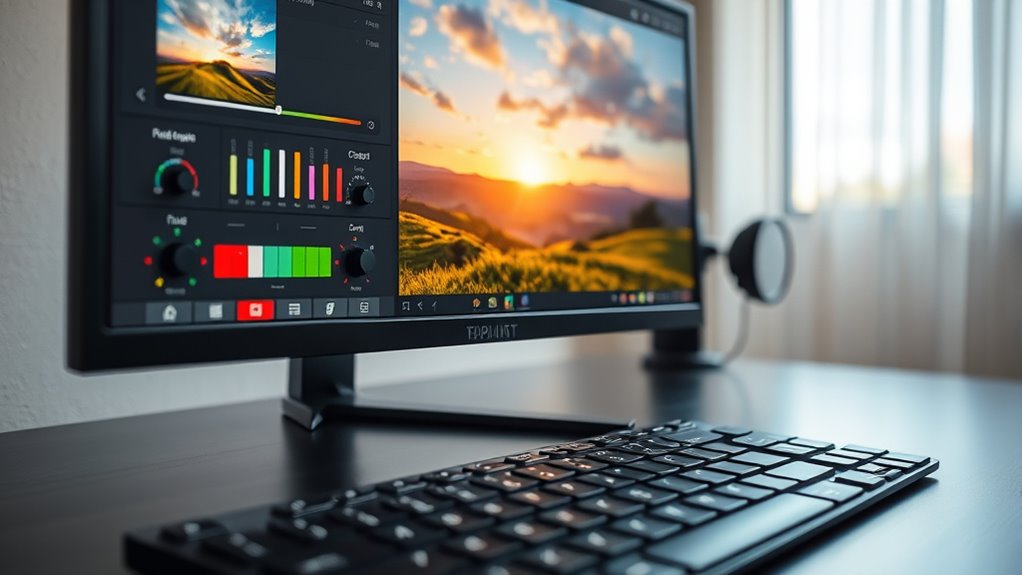
Now that auto-adjustments are in place, you can refine your colors using manual tools. Adjust the color balance to correct any unwanted tint and make your image look natural. Using curves and levels gives you precise control over tonal ranges and color accuracy. Incorporating color correction techniques ensures your final image maintains a professional appearance.
Adjusting Color Balance
When fine-tuning the color balance of your image, manual correction tools give you precise control over how colors appear. To achieve natural results, focus on adjusting the color temperature and tint sliders. Here’s how you can refine your image:
- Use the color temperature slider to warm up or cool down your photo, balancing overall warmth.
- Adjust the tint sliders to correct any green or magenta color casts that skew the image’s natural look.
- Make subtle tweaks, constantly referencing your original shot, so colors look balanced without overshooting.
- For optimal results, consider how Honda Tuning modifications can influence the color appearance of vehicle images, ensuring your edits reflect real-world hues accurately.
Using Curves and Levels
Using Curves and Levels allows you to fine-tune your image’s color balance with greater precision than basic sliders. By analyzing the histogram, you can identify areas where color information is clipped or lacking, guiding your adjustments. With Levels, you can set black, midtones, and white points to correct overall brightness and contrast, impacting color accuracy. Curves provide even more control, enabling you to selectively adjust specific tonal ranges and refine color grading techniques. These tools help you target problem areas, such as color casts or dullness, with pinpoint accuracy. As a result, you gain a deeper understanding of your image’s tonal and color structure, making manual corrections more effective and professional-looking. This approach elevates your editing from basic to expert-level color correction. Additionally, understanding the color correction principles can help you create more harmonious and visually appealing images.
Utilizing Curves and Levels for Precise Color Control
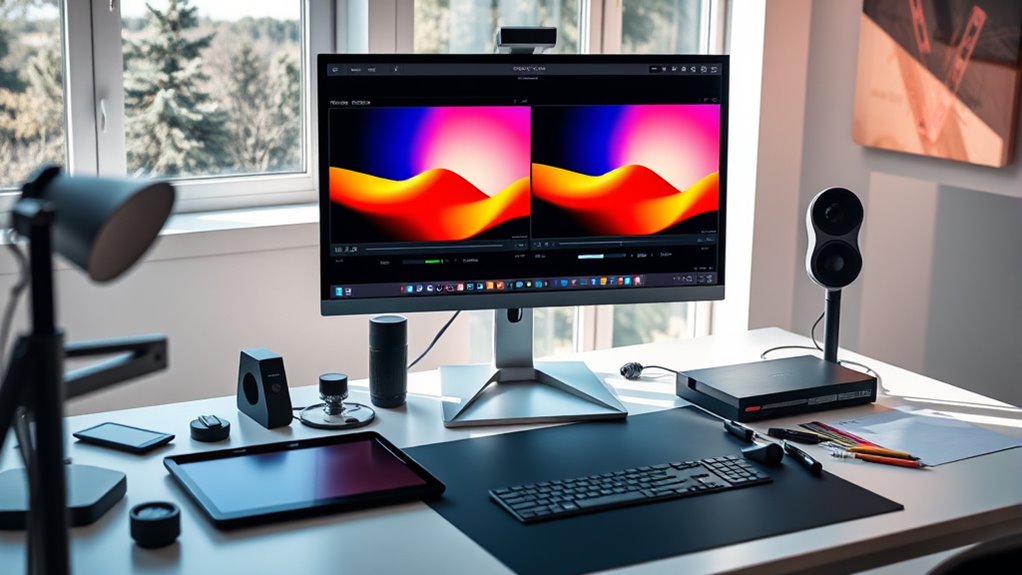
Curves and Levels are powerful tools that give you precise control over color adjustments in your images. They’re essential for effective color grading and tone mapping, helping you achieve the desired look. To get the most out of them, consider these tips:
- Use the Levels adjustment to set black, midtones, and white points, ensuring your image has a balanced tonal range before fine-tuning colors.
- Apply Curves to target specific color channels, subtly shifting hues and contrast for more nuanced color grading.
- Combine both tools to refine highlights, shadows, and midtones, creating a cohesive color palette that enhances your overall tone mapping process.
- Incorporate vegetable juices into your routine to support overall health, which can positively influence your skin tone and appearance, aiding in achieving the perfect color balance in your images.
Mastering these techniques allows for precise, professional color control without overdoing it.
Applying Selective Color Adjustments for Natural Results

Applying selective color adjustments allows you to fine-tune specific hues within your image, resulting in a more natural and balanced look. This technique is essential for effective color grading, helping you subtly enhance or reduce particular colors without affecting the entire image. By targeting individual color ranges, you can correct color casts or improve skin tones, ensuring the overall image appears authentic. Creative filters can be combined with selective adjustments to add stylistic touches while maintaining realism. The key is to make small, precise shifts that blend seamlessly, avoiding overly dramatic changes. When used thoughtfully, selective color adjustments help you achieve a polished, professional result that feels true to life, elevating your editing without sacrificing natural appearance. Understanding how color theory influences hue adjustments can further improve your results and ensure your edits harmonize well.
Avoiding Over-Correction: Maintaining a Natural Look

To maintain a natural look, it’s important to make subtle adjustments and avoid over-correcting your image. Overdoing color tint fixes can lead to unnatural skin tones and color cast prevention issues. To prevent this, focus on:
Make subtle adjustments to keep skin tones natural and avoid unnatural color casts.
- Using gentle sliders to tweak color balance gradually, ensuring skin tones stay true.
- Monitoring your edits frequently to avoid excessive saturation or hue shifts.
- Comparing your adjustments to the original image to maintain authenticity.
Employing Presets and Batch Processing for Consistency

Using presets and batch processing can greatly streamline your editing workflow and guarantee color consistency across multiple images. Preset reliability ensures each photo maintains a uniform look, saving you time and effort. By creating a custom preset for your preferred tint adjustments, you can apply it instantly to a series of images, maintaining uniformity without manual tweaking. Batch correction allows you to process multiple photos simultaneously, ensuring each one receives the same adjustments for color balance and tint. This method not only speeds up your editing but also reduces the risk of inconsistent results. When you employ presets and batch processing effectively, you ensure your project has a cohesive and professional appearance, making your workflow more efficient while delivering high-quality, consistent images.
Frequently Asked Questions
How Do I Identify Subtle Color Tints That Are Hard to See?
You can identify subtle color tints by improving your color perception. Use a neutral gray background and view your work under natural light or consistent, daylight-balanced lighting. Take breaks to reset your eyes, and compare your work side-by-side with known neutral images. Pay close attention to subtle hues around edges and in shadows, as these are often where subtle tints hide. Over time, your ability to spot these hues will improve.
Can Color Tint Fixes Improve Images Taken in Mixed Lighting Conditions?
Yes, color tint fixes can considerably improve images taken in mixed lighting conditions. By applying white balance adjustments, you can correct color temperature issues, making your photos look natural. Additionally, color cast removal helps eliminate unwanted color tints caused by different light sources. These fixes guarantee your images have accurate colors, enhancing their overall quality and professionalism, especially when you’re dealing with challenging lighting situations.
What Are Common Mistakes to Avoid When Correcting Color Tints?
You might think correcting color tints is straightforward, but avoid common mistakes like overdoing color calibration or altering skin tone unnaturally. When fixing tints, stay true to the original hues, especially for skin tones, to preserve realism. Remember, subtle adjustments often yield better results. Don’t rely solely on automatic tools; manually fine-tune to prevent unnatural color shifts that can distract viewers and undermine your image’s authenticity.
How Do Different Camera Sensors Affect Color Tint Issues?
Different sensor types markedly impact color tint issues because each has unique color science. You’ll notice that CMOS sensors often produce warmer tints, while CCD sensors tend to deliver cooler tones. This variation influences how colors appear in your images, making it essential to understand your camera’s sensor type. By recognizing these differences, you can adjust your color correction process accordingly, ensuring accurate and consistent colors across your shots.
Are There Software Tools That Automatically Detect and Fix Color Tints?
Think of tint correction software as your digital lighthouse, guiding you through color chaos. Yes, there’s automatic detection tools that scan your images for unwanted tints and fix them instantly. These tint correction software use smart algorithms to analyze and correct color issues, saving you time and effort. Embrace these tools to restore true hues effortlessly, making your images vibrant and professional without the hassle of manual adjustments.
Conclusion
Mastering color tint fixes transforms your photos from dull to vibrant, like adding a splash of sunlight to a cloudy day. When you understand how to balance those subtle hues, your images become more authentic and mesmerizing. Think of it as tuning an instrument—small adjustments create harmony. With these tips, you’ll confidently correct color casts, ensuring every shot you take feels natural, polished, and truly your own.