
When fixing color tints, overcorrection can lead to unnatural hues, loss of detail, and increased noise, which may reduce your image quality. It can also cause color bleeding and distort your original mood, while mismatched calibrations across devices result in inconsistent results. Plus, longer editing sessions disrupt your workflow, adding hidden costs like software expenses and extra revisions. Staying precise, subtle, and calibrated helps avoid these pitfalls—continue exploring to learn effective strategies for smoother fixes.
Key Takeaways
- Overcorrecting tint adjustments can cause unnatural colors, loss of detail, and reduced image authenticity.
- Excessive editing may amplify noise and grain, especially in low-light photos, degrading overall quality.
- Inconsistent calibration across devices and formats leads to color inaccuracies and workflow disruptions.
- Prolonged editing sessions due to multiple revisions increase time, costs, and risk of fatigue.
- Subtle, incremental corrections and proper calibration help maintain image integrity and avoid hidden costs.
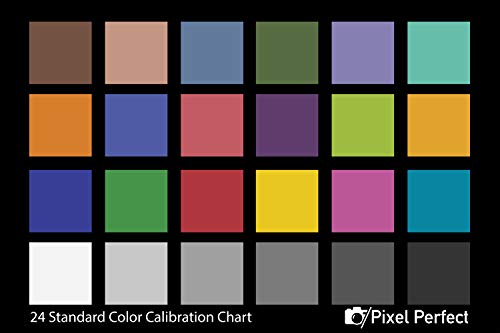
Pixel Perfect Camera Colour Correction Card – 4×6 for Photo and Video – Reference Tool Grey Card Target White Balance Exposure Temperature Colour Calibration Chart, Set of 2
- Quantity: Set of 2 cards
- Material: SmartFlex synthetic paper
- Finish: Matte coating to prevent glare
As an affiliate, we earn on qualifying purchases.
As an affiliate, we earn on qualifying purchases.
Overcorrecting and Color Inaccuracy

When fixing color tints, it’s easy to go too far and end up with overcorrection, which can distort the original hues and make images look unnatural. A common mistake is overusing tint adjustment tools, causing a shift in color cast that doesn’t reflect the scene’s true colors. This overcorrection can lead to unnatural skin tones or skewed backgrounds, diminishing the image’s authenticity. To avoid this, make small, incremental adjustments, checking how each change affects the overall look. Remember, subtlety is key—aim for a natural balance rather than perfect correction. Overcorrecting not only risks losing the image’s original mood but also introduces a color cast that distracts viewers. Precision in tint adjustment helps maintain color accuracy and ensures your images stay true to life. Additionally, understanding the contrast ratio of your projector can help you better gauge how color adjustments will appear on different scenes, especially in dark or high-contrast environments.

Calibrite Display 123 Monitor Calibration Colorimeter for Photo Editing and Color Accurate Viewing, Easy 1 2 3 Software Workflow, USB C Connection, and Before and After Check, Supports 2 Displays
- Compact Design: Approximately 34mm tall and 37mm diameter
- USB C Connectivity: Supports modern USB C ports for easy connection
- Supports Two Displays: Calibrates up to 2 monitors simultaneously
As an affiliate, we earn on qualifying purchases.
As an affiliate, we earn on qualifying purchases.
Loss of Detail and Image Quality
When fixing color tints, you might notice a loss of fine details and sharpness in your images. The adjustments can cause color bleeding and reduce overall clarity, making your photos look less crisp. These quality drops can undermine the very improvements you’re aiming to achieve. To maintain image integrity, it’s important to understand how tuning modifications can impact visual quality.
Reduced Fine Details
Color tint fixes can often lead to a noticeable loss of fine details in your images. When you perform a tint adjustment to correct a color cast, subtle textures and sharp edges may become blurred or softened. This happens because adjusting the overall hue can wash out intricate details, reducing the perceived image quality. To minimize this issue, be cautious with the amount of tint adjustment you apply. Consider these tips:
- Use targeted adjustments instead of global tint changes
- Avoid excessive saturation during correction
- Zoom in to assess detail preservation
- Apply subtle shifts rather than drastic changes
- Utilize layer masks for precise color correction
- Be aware of content quality issues that can arise from editing techniques.
Color Bleeding Risks
Have you noticed how aggressive tint adjustments can cause color to bleed beyond its intended areas? This phenomenon, known as color bleeding, risks creating an unwanted color cast, which distorts the original image. When you push tint settings too far, it can cause a hue shift, blending colors where they shouldn’t. This reduces the overall image quality and leads to a loss of detail, especially in areas with subtle color variations. The result is a flat, less natural look, making your images appear overprocessed or washed out. To avoid this, apply tint corrections gradually and check for color spillover. Maintaining control over tint adjustments helps preserve the original detail and ensures your images stay true to their natural hues. Additionally, understanding how paint consistency impacts color application can help prevent unintended bleeding and preserve image clarity.
Sharpness Degradation
Overly aggressive sharpness adjustments can substantially degrade image quality by causing a loss of fine detail. This often results in a harsh, unnatural look and can accentuate noise. When you push sharpness too far, you risk introducing a color shift that alters the original tones. Additionally, detail loss becomes evident as textures become overly crisp or smeared, reducing overall clarity. To avoid these issues, consider these tips:
- Use subtle sharpening filters rather than heavy adjustments
- Regularly compare before and after images to spot unintended changes
- Limit sharpening to specific areas needing enhancement
- Be cautious of over-sharpening when fixing color tints
- Maintain a balanced workflow to prevent cumulative detail loss
- Incorporate community support features to get feedback on image adjustments and ensure quality preservation
Keeping these in mind helps preserve image integrity and avoids the hidden costs of sharpness overcorrection.
noise reduction plugins for Photoshop
As an affiliate, we earn on qualifying purchases.
As an affiliate, we earn on qualifying purchases.
Inconsistent Results Across Devices
Even when you apply the same tint correction across different devices, the results can vary markedly. This happens because each device has its own display calibration, affecting how colors appear. Without proper device calibration, what looks correct on one screen may look off on another, compromising color consistency. You might notice that a tint fix makes your images look perfect on your monitor but appears inaccurate elsewhere. To minimize this, ensure all your devices are calibrated regularly using reliable tools. Consistent calibration helps maintain uniform color rendering, reducing discrepancies. Keep in mind that even minor calibration differences can lead to significant variations in how tints are displayed across screens. Achieving true color consistency requires attention to these calibration details across all your devices, especially considering the display calibration process.

The Ultimate ON1 Photo RAW 2026 User Guide: Master AI Photo Editing, RAW Development, Layers, Masking, Batch Processing, Presets, and Professional Workflows with Easy Step-by-Step Lessons
As an affiliate, we earn on qualifying purchases.
As an affiliate, we earn on qualifying purchases.
Increased Editing Time and Workflow Disruptions
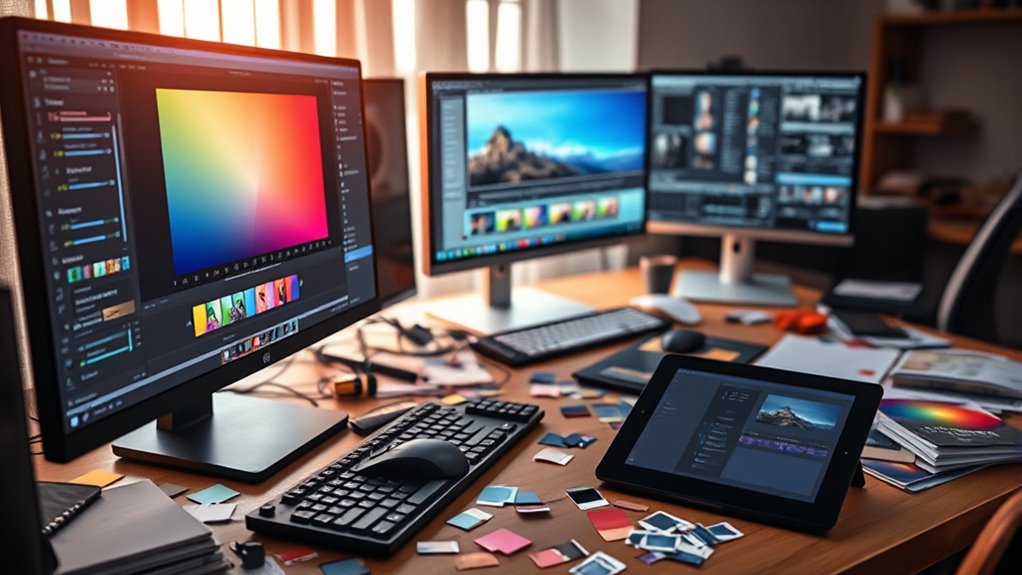
Color tint fixes often extend your editing sessions, taking more time than expected. This can cause workflow interruptions and force you to revisit your work multiple times. As a result, you spend extra effort on revisions that could have been avoided. Additionally, over-editing can lead to unintended color shifts, which may compromise the final image quality.
Longer Editing Sessions
Implementing color tint fixes often extends your editing sessions, disrupting your workflow and increasing the time needed to finalize projects. You spend extra time fine-tuning color calibration and making precise tint adjustments, which can slow down your overall process. This extra effort can lead to fatigue and frustration, especially when trying to meet deadlines. Additionally, improper color calibration can cause inconsistencies in your final output, making it essential to maintain accurate monitor calibration for reliable color adjustments. To manage longer editing sessions, consider: – Planning your workflow to include buffer time for tint adjustments – Using preset color calibration profiles for consistency – Avoiding unnecessary tint fixes unless critical for color accuracy – Streamlining your editing process with keyboard shortcuts – Regularly reviewing your monitor’s calibration for reliable color adjustments
Workflow Interruptions Increase
When you focus on fixing color tints, workflow interruptions become a significant hurdle, leading to increased editing times. Constantly switching tools or adjusting settings disrupts your flow, making each task take longer. Poor color calibration can cause you to recheck edits repeatedly, wasting valuable time. Selecting the wrong tool or ignoring calibration can result in repeated corrections. To minimize disruptions, establish a clear workflow and stick to trusted tools. Proper tool selection and calibration streamline your process, reducing the need for constant adjustments. Here’s a quick overview:
| Step | Action | Benefit |
|---|---|---|
| 1 | Use calibrated monitors | Accurate color perception |
| 2 | Select consistent editing tools | Fewer adjustments |
| 3 | Develop a fixed workflow | Faster, smoother edits |
| 4 | Regularly verify color calibration | Maintains color accuracy |
| 5 | Limit tool switching | Keeps workflow steady |
Additionally, understanding workflow disruptions can help you identify points where efficiency drops and address them proactively.
Additional Revision Cycles
Additional revision cycles often lead to increased editing time and disrupt your workflow. When trying to fix color tint issues, you may find yourself repeatedly adjusting settings due to hardware limitations or inconsistent color calibration. Each revision consumes time and shifts your focus away from other tasks, delaying project completion. Frequent edits can also introduce new color inconsistencies, compounding the problem. To avoid this, consider thoroughly calibrating your monitor beforehand, ensuring your hardware is capable of accurate color display. Recognize hardware limitations that might cause color discrepancies, leading to more revisions. Being aware of these factors helps you plan your workflow better and reduces the need for multiple revisions. Additionally, understanding your device’s capabilities can help set realistic expectations for color accuracy, further minimizing unnecessary edits. This way, you save time and maintain a smoother editing process from start to finish.
Hidden Costs of Software and Plugins
While software and plugins can streamline your editing process, they often come with hidden costs that aren’t immediately obvious. You might face ongoing expenses from software licensing fees or discover compatibility issues that delay your workflow. These hidden costs can pile up, especially if updates or additional plugins are needed. To illustrate, consider this:
| Cost Type | Impact |
|---|---|
| Software licensing | Recurring fees; limited access without renewal |
| Plugin compatibility | Additional troubleshooting and adjustments |
| Update requirements | Constant need to stay current |
| Hidden bugs or crashes | Lost time and potential data loss |
Being aware of these costs helps you plan smarter and avoid surprises that can derail your editing projects.
Risks of Introducing Unintended Color Casts

Introducing color tint fixes can inadvertently cause unintended color casts that distort your image’s natural appearance. These subtle shifts can compromise color accuracy, making images look unnatural or off-balance. Such casts often require additional adjustments, reducing your editing efficiency and increasing workflow time. To prevent this, be cautious when applying tint corrections and always check for color consistency across different areas.
Applying tint fixes can unintentionally introduce color casts, affecting image accuracy and requiring extra adjustments.
Consider these risks:
- Altered skin tones that look unnatural
- Loss of original color fidelity
- Difficulty in matching colors across multiple images
- Increased need for further corrections
- Reduced overall editing efficiency due to repeated adjustments
Being aware of these potential pitfalls helps you maintain authentic color representation and streamline your editing process. Always preview changes carefully to avoid unintended color casts that can undermine your image’s integrity.
Compatibility Issues With Different File Formats

Different file formats can pose significant challenges when applying color tint fixes, as not all formats store or display color data equally. Some formats, like JPEG, compress color information, which can lead to inaccuracies after adjustments. Others, such as PNG or TIFF, preserve color more accurately, but may still encounter compatibility challenges across different editing software. When you apply a tint fix, the way the file format handles color profiles and metadata can cause unexpected shifts or loss of color fidelity. Additionally, converting between formats can distort your edits or introduce artifacts. To avoid these issues, always work with the highest quality format compatible with your workflow, and verify color consistency across formats before finalizing your edits. This ensures your color adjustments remain consistent and true to the original intent.
Potential for Amplifying Image Noise
Applying color tint fixes can unintentionally amplify existing image noise, especially in photos with low light or high ISO settings. When you adjust colors, you often increase the visibility of sensor noise and grain amplification, making your images look rougher. This happens because tint adjustments can exaggerate subtle variations in pixel data, highlighting noise patterns. To avoid this, be mindful of noise levels before applying fixes.
- Increase in sensor noise becomes more apparent after tint adjustments
- Grain amplification can make images look gritty or speckled
- Noise reduction techniques may be less effective post-tinting
- Bright or shadow areas tend to show more amplified noise
- Proper exposure settings can minimize noise issues upfront
Strategies for Cost-Effective and Accurate Tint Fixes

To achieve accurate tint fixes without overspending, focus on using in-built editing tools and affordable software that offer precise color controls. Proper color calibration ensures your monitor displays true colors, reducing guesswork. Hardware calibration tools, though an investment, improve accuracy and prevent costly mistakes. Use software with adjustable hue, saturation, and tint settings to fine-tune your images efficiently. Regularly calibrate your display to maintain color consistency throughout your editing process. Here’s a quick guide:
| Strategy | Benefit |
|---|---|
| Use in-built editing tools | Cost-effective, accessible |
| Software with color controls | Precise adjustments |
| Hardware calibration devices | Long-term accuracy |
| Regular calibration sessions | Maintains consistent results |
| Monitor calibration | Prevents tint discrepancies |
Frequently Asked Questions
How Do Color Tint Fixes Impact Long-Term Color Consistency?
Color tint fixes can impact your long-term color consistency by causing color drift over time. If not applied properly, they may lead to hue instability, making your display or print look uneven or mismatched later. To avoid this, guarantee precise calibration and use quality materials. Regularly monitor your color settings, so you maintain consistent hues and prevent unintended color shifts that compromise your visual accuracy.
Are There Affordable Tools for Precise Tint Adjustments?
Did you know that over 60% of DIY enthusiasts find affordable tools for precision adjustments? You can get budget-friendly options like digital color meters and software that help you tweak tints accurately without breaking the bank. These tools are user-friendly, making it easy to achieve professional-looking results. With affordable tools, you get precise adjustments, saving you time and money while ensuring consistent color quality every time you work on tint fixes.
Can Improper Tint Fixes Damage Professional Print Quality?
Improper tint fixes can indeed damage your professional print quality. When you don’t prioritize color accuracy, it leads to inconsistent colors and compromises the print’s overall look. Additionally, incorrect adjustments can weaken print durability, causing colors to fade or peel over time. To avoid this, always calibrate your equipment properly and test your tints on sample prints, ensuring your final output maintains high quality and longevity.
What Training Is Necessary to Avoid Common Tint Fixing Mistakes?
To avoid common tint fixing mistakes, you need proper training in color calibration and software. You should learn how to calibrate your monitor accurately, ensuring colors display correctly. Additionally, investing in software training helps you understand tools and techniques for precise tint adjustments. Practice regularly, stay updated on industry standards, and consider workshops or online courses to sharpen your skills. This approach minimizes errors and maintains high print quality.
How Do Tint Fixes Influence the File Size and Storage?
Did you know tint fixes can increase your file size by up to 20%? When you adjust the color tint, it often adds extra data, impacting storage. Larger files take more space and slow down processing. To minimize this, optimize your images after tint fixes and use compressed formats. This way, you keep your storage needs manageable without sacrificing image quality or performance.
Conclusion
Just be aware that over 60% of photographers report spending more time fixing color issues than capturing the shot. Hidden costs like lost detail, inconsistent results, and increased editing can quickly drain your resources. By understanding these pitfalls and choosing your tools wisely, you can save time and maintain image quality. Don’t let hidden expenses undermine your work—stay informed and make smarter, cost-effective tint fixes to keep your images stunning.