
To quickly reduce controller-to-screen latency, start by connecting your gaming device directly to your router with an Ethernet cable, avoiding Wi-Fi interference. Prioritize gaming traffic in your router’s QoS settings and close background apps or downloads that consume bandwidth. If possible, switch to a 5GHz Wi-Fi network and use a wired controller for minimal input lag. Upgrading your monitor’s refresh rate and keeping your device firmware updated can also make a difference. Keep going to uncover even more simple, effective tips.
Key Takeaways
- Connect your gaming device directly to the router via Ethernet for instant, stable data transfer.
- Switch to a 5GHz Wi-Fi network if available, reducing interference and improving signal speed.
- Close background apps and pause downloads to free up bandwidth, minimizing latency spikes.
- Use a wired controller instead of wireless to eliminate input lag caused by wireless transmission.
- Restart your device and clear cache to refresh system processes, ensuring quicker response times.
Reducing controller-to-screen latency can substantially improve your gaming experience, and the good news is you can achieve noticeable results in just 15 minutes. The key lies in quick, targeted adjustments, especially around network optimization and hardware upgrades. These simple steps can make your gameplay much more responsive, giving you that edge you’re after without requiring a complete overhaul of your setup.
First, focus on your network. Latency often stems from sluggish or unstable internet connections. To optimize, start by connecting your gaming device directly to your router with an Ethernet cable instead of relying on Wi-Fi. Wired connections reduce interference and provide a more consistent signal, which directly cuts down lag. If Ethernet isn’t an option, ensure your Wi-Fi is optimized—place your router closer to your gaming station, away from interference from other electronics, and consider switching to a 5GHz network if your router supports it. Additionally, close any background applications or devices that consume bandwidth, such as streaming services or downloads, because they can cause spikes in latency. Prioritizing your gaming device on your network using Quality of Service (QoS) settings can further guarantee it gets the bandwidth it needs, minimizing delay from other network traffic.
Beyond network tweaks, hardware upgrades can also make a swift and significant difference. Upgrading your controller, for example, to a higher-quality or wired version, reduces input lag. Wired controllers tend to be faster because they eliminate the delay caused by wireless transmission. Similarly, upgrading your display to a monitor or TV with a lower response time and higher refresh rate can drastically reduce the time between controller input and on-screen action. If your current setup involves an older console or PC, updating to a newer model with faster processing power can improve overall responsiveness, reducing the latency that’s caused by slower hardware components.
In addition, ensure your gaming console or PC’s firmware and drivers are up to date. Manufacturers often release updates that optimize performance and fix bugs contributing to lag. Clearing your cache and restarting your device can also help eliminate temporary glitches causing delays. Keep in mind that these quick fixes won’t eliminate all latency issues but will make a noticeable difference within minutes. Combining network optimization with hardware upgrades creates a more responsive system, making your game feel more immediate and precise. With just a few simple adjustments, you’ll find yourself reacting faster and enjoying a smoother, more immersive gaming session—all in just 15 minutes.

PowerA Wired Controller for Xbox Series X|S – Black, gamepad, wired video game controller, gaming controller, works with Xbox One and Windows 10/11
- Dual Rumble Motors: Enhanced tactile feedback for immersive gaming
- Immersive Impulse Triggers: Feel game actions with built-in motors
- Extra Long USB-C Cable: 10-foot cable for greater comfort and flexibility
As an affiliate, we earn on qualifying purchases.
As an affiliate, we earn on qualifying purchases.
Frequently Asked Questions
How Does Latency Affect User Experience in Controller-To-Screen Setups?
Latency directly impacts your user experience by causing delays between your controller inputs and the on-screen response. Network congestion slows down data transfer, making interactions feel sluggish. Software optimization helps reduce these delays, ensuring smoother gameplay. When latency is high, you may experience lag, frustration, and decreased satisfaction. To improve your experience, focus on minimizing network congestion and optimizing software to deliver quick, responsive controller-to-screen interactions.
What Are the Common Causes of Increased Controller-To-Screen Latency?
You’ll find that increased controller-to-screen latency often results from network congestion, which delays data transmission, or firmware inefficiencies that slow processing. When network traffic is high, signals take longer to reach the screen, while outdated firmware can cause delays in command execution. To improve performance, you should optimize your network and update firmware regularly, ensuring smooth, responsive interactions between your controller and display.
Can Reducing Latency Improve Overall System Performance?
Reducing latency can skyrocket your system’s performance, making it feel lightning-fast. You’ll witness network optimization and software tuning working together like a well-oiled machine, slashing delays and boosting responsiveness. Imagine commands executing instantly, screens updating in the blink of an eye, and overall efficiency soaring. By cutting latency, you unlock peak system potential, transforming user experience from sluggish to spectacular in record time.
Are There Hardware Upgrades That Can Minimize Latency?
Yes, hardware upgrades can minimize latency. You should focus on hardware enhancement by upgrading your controllers, cables, and screens with faster components. Additionally, applying firmware updates regularly helps improve performance, fix bugs, and reduce delays. This combination guarantees smoother data transmission and quicker response times, considerably lowering controller-to-screen latency. Keep your hardware and firmware current to maintain ideal system performance and achieve minimal latency levels.
What Long-Term Strategies Ensure Sustained Latency Reduction?
While it’s tempting to focus on quick fixes, you should embrace long-term strategies like continuous network optimization and diligent software tuning. These efforts help you maintain low latency by proactively identifying bottlenecks and refining system performance. Regular updates, monitoring, and fine-tuning create a resilient setup that adapts to evolving demands, ensuring your controller-to-screen communication stays swift and reliable over time.

SANSUI 32 Inch Curved 240Hz Gaming Monitor High Refresh Rate, FHD 1080P
- Screen Size and Curvature: 32 Inch 1500R curved display
- Refresh Rate: 240Hz high refresh rate
- Resolution: Full HD 1080P resolution
As an affiliate, we earn on qualifying purchases.
As an affiliate, we earn on qualifying purchases.
Conclusion
Now you’re armed with quick tricks to slash controller-to-screen latency in just 15 minutes. Think of your system as a race car — a few tweaks can turn it into a lightning bolt on the track. With these simple steps, you’ll transform sluggish responses into seamless, lightning-fast interactions. So, buckle up and hit the accelerator—your users will feel the difference, and your system will shine brighter than ever before.
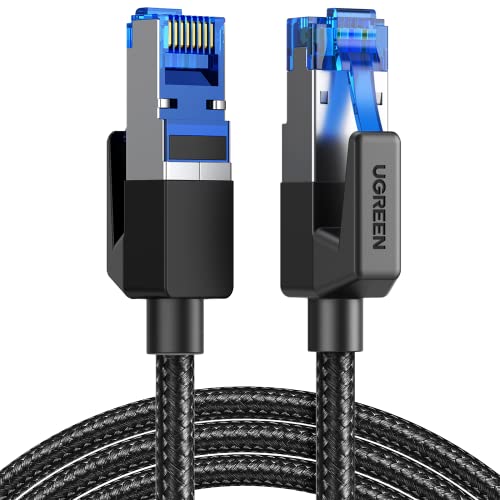
UGREEN Cat 8 Ethernet Cable 6FT, High Speed Braided 40Gbps 2000Mhz Network Cord Cat8 RJ45 Shielded Indoor Heavy Duty LAN Cables Compatible with Gaming PC PS5 PS4 PS3 Xbox Modem Router 6FT
- High-Speed Data Transfer: Supports 40 Gbps and 2000 MHz bandwidth
- Anti-Interference Design: Shielded with F/FTP, gold-plated connectors
- Durable and Flexible: Cotton braided exterior, withstands 10,000 bends
As an affiliate, we earn on qualifying purchases.
As an affiliate, we earn on qualifying purchases.
As an affiliate, we earn on qualifying purchases.