If you’re facing HDCP errors preventing your projector from displaying protected content, start by checking your HDMI cables for damage or low quality, and replace them with certified, high-speed options supporting HDCP 2.2 or higher. Guarantee all devices, including your projector and source, are HDCP-compliant and update their firmware. Power cycling the devices can often resolve handshake issues. For more tips on troubleshooting and preventing these errors, keep exploring further solutions.

Get business pricing on your home office setup
- Business-only prices and quantity discounts
- Tax-exempt purchasing
- Multiple users, one account, clear invoices
Key Takeaways
- Check and replace damaged or low-quality HDMI cables with certified HDCP-compliant ones.
- Ensure all connected devices and the projector support the latest HDCP standards.
- Power cycle all devices by turning them off, then on sequentially to reset the handshake.
- Avoid using splitters or adapters that may not be HDCP-compatible or support required HDCP versions.
- Update device firmware to enhance HDCP handshake reliability and compatibility.
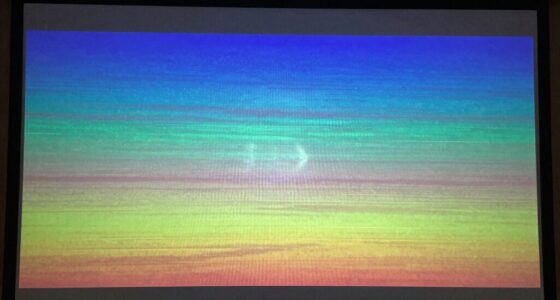
HDCP errors can disrupt your viewing experience by preventing protected content from displaying correctly on your device. When you encounter these errors, it’s often due to HDCP handshake issues, which happen when your devices fail to establish a secure connection needed to transmit protected digital content. These handshake problems can be frustrating because they prevent movies, streaming services, or any other HDCP-encrypted content from playing as intended. One common cause of handshake issues is the HDMI cable quality. Low-quality or damaged HDMI cables may not support the necessary handshake protocols, leading to errors. Making certain you’re using a high-quality, certified HDMI cable can considerably reduce the chances of HDCP handshake problems. Cheap or old cables might not handle the data transfer properly, causing intermittent signal drops or handshake failures.
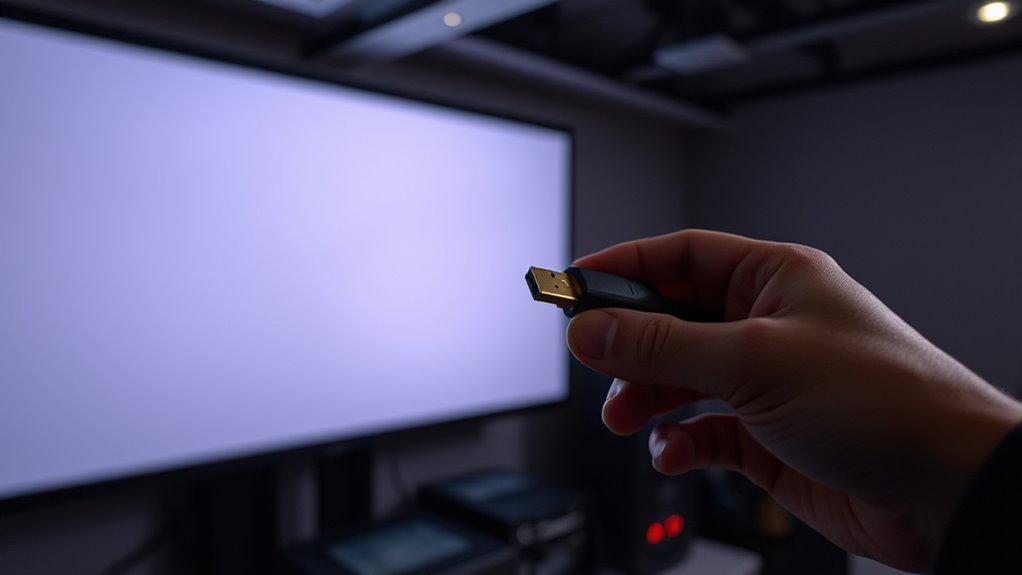
When troubleshooting, start by inspecting your HDMI cable. If it’s frayed, bent, or shows signs of damage, replace it with a certified HDMI cable that supports HDCP 2.2 or higher. Cheap cables often don’t meet the specifications required for HDCP encryption, which can trigger handshake errors. It’s also worth checking that your HDMI cable is long enough but not excessively extended—longer cables can sometimes degrade signal quality, especially if they aren’t high quality. If you’re using a cable that’s several meters long, switch to a high-speed HDMI cable with built-in amplifiers or signal boosters to maintain a strong, stable connection.
Another step is to verify your device compatibility. HDCP errors can occur if your projector, source device, or receiver aren’t HDCP-compliant or if they’re mismatched. Make sure all your components support the latest HDCP standards. Updating your firmware can also help, as manufacturers often release updates that improve HDCP handshake reliability. When connecting your devices, try to connect directly to the source without additional adapters or splitters, which can sometimes interfere with the handshake process. If you’re using an HDMI splitter or switch, ensure it’s HDCP-compatible and supports the necessary version.
In many cases, simply restarting your devices can reset the handshake and restore the protected content. Power off your source device, projector, and any intermediary devices, then power them back on sequentially. This can clear temporary glitches and establish a fresh handshake. If problems persist, testing with different HDMI cables or different ports can help identify whether the issue is cable-related or port-specific. Ultimately, focusing on high-quality HDMI cables and ensuring your devices are compatible and updated will give you the best chance of resolving HDCP handshake issues and enjoying your protected content without interruption.
Frequently Asked Questions
How Do I Identify if My Projector Supports HDCP?
You can identify if your projector supports HDCP by checking its specifications for HDCP certification or projector compatibility. Look for labels on the projector or consult the user manual, as most modern projectors include HDCP support. Additionally, visit the manufacturer’s website or contact customer support to confirm whether your model is HDCP compliant. Ensuring HDCP support is essential for playing protected content smoothly without errors.
Can HDCP Errors Affect Audio Output?
Yes, HDCP errors can affect your audio output. When these errors occur, your projector might struggle with audio synchronization, causing delays or dropouts. Additionally, the sound quality could degrade, making the audio seem muffled or distorted. To prevent this, verify all your connected devices support HDCP and use certified cables. Fixing HDCP issues helps maintain seamless audio and video, providing a better overall viewing experience.
Are There Any Hardware Upgrades to Fix HDCP Issues?
Think of fixing HDCP issues like upgrading your toolkit. You can often resolve problems through hardware compatibility upgrades, such as replacing older cables or devices with newer, HDCP-compliant ones. Additionally, firmware updates for your projector and connected equipment can act like software medicines, fixing bugs and improving compatibility. These steps can help make sure your protected content plays smoothly, preventing those pesky HDCP errors from blocking your viewing experience.
How Do I Verify if My Source Device Is HDCP Compliant?
You can verify if your source device is HDCP compliant by checking its specifications or user manual for content encryption support related to digital rights management. Manufacturers often label devices as HDCP compliant, or you can visit their website for details. Additionally, if your device displays a message about HDCP or protected content, it indicates compliance. Confirming this guarantees your device supports the necessary encryption to play protected content smoothly.
What Is the Warranty Coverage for Hdcp-Related Hardware Problems?
Your warranty coverage for HDCP-related hardware problems might seem like a fortress, but it usually covers repairs or replacements if your device fails due to manufacturing defects within the warranty period. Check your warranty details to see if hardware repair costs are included, and keep proof of purchase handy. Remember, accidental damage or misuse typically aren’t covered, so treat your equipment with care to avoid voiding your warranty.
Conclusion
Just like the myth of Icarus soaring too close to the sun, pushing your projector too hard with HDCP errors can cause a crash. But with patience and the right troubleshooting steps, you’ll avoid those digital flames and keep your protected content shining brightly. Remember, even Daedalus needed a steady hand and clear wings—so approach your setup with care, and enjoy seamless viewing without risking a fall from digital grace.
Fall Picks
fall essentials
As an affiliate, we earn on qualifying purchases.

![Bukit Bintang Hicks Flat: DBKL Orders Cleanup After Viral Video Exposes Dirty Conditions [WATCH] - NST Online](https://4kprojectorguide.com/wp-content/uploads/2026/09/bukit-bintang-hicks-flat-dbkl-orders-cleanup-after-viral-video-exposes-dirty-con-featured-260x140.jpg)